
How to Bulk Update Shopify Prices From a Supplier Price List (Without Breaking Your Catalogue) (2026)
 Jignesh Vagadiya
22/10/2026
8 min read
Jignesh Vagadiya
22/10/2026
8 min read
A supplier emails a new price list. It’s a spreadsheet with a few hundred rows, their product codes, new costs and maybe a recommended retail price. Somewhere in your Shopify store there are the same products, with your prices, and the job is to make the two agree. Done by hand, that’s an afternoon of copying, and an afternoon of copying is an afternoon in which a decimal point can slip.
Bulk price updates are one of the most useful things you can do in a Shopify store and one of the easier ways to cause damage. A single wrong column can set a few hundred products to the wrong price and publish them to your site, your Google Shopping feed and your customers’ carts in one go. This guide covers how to do it properly: the decisions to make before you open the spreadsheet, how to match rows reliably, how GST affects the maths, and the preview-first process that keeps mistakes off your live store. We built an app for this, GD: Price Updater Pro, and we describe where it fits at the end.
Decide What the Supplier’s Number Actually Is
The most common mistake isn’t technical. It’s assuming the number in the supplier’s price column is the number you should put in the store. Check what it is:
- A cost price. What you pay. You need to apply your own markup to get a sell price.
- A recommended retail price (RRP). What they suggest you sell for. You may follow it, undercut it, or in some product categories be restricted in how you advertise it.
- A wholesale price list for a specific tier. Check it’s the tier you’re on.
Then check whether it includes GST. Australian supplier lists are often ex-GST, while Shopify stores here commonly show GST-inclusive prices to customers. Your tax settings determine how Shopify treats the price you enter, so confirm the setting before you load a single number. If a cost of $36.00 ex-GST goes in as a selling price including GST, you’ve just sold at a loss. Our Xero integration guide explains more about how GST treatment flows through an integrated setup.
Work Out Your Pricing Rule in the Spreadsheet
If you’re applying a markup, do the maths in the sheet, in a visible column, so you can check it. A simple structure:
- Column A: SKU
- Column B: supplier cost
- Column C: your markup rule or multiplier
- Column D: calculated sell price, including GST if your store displays it that way
- Column E: rounded price (many stores round to .95 or .99, or to the nearest dollar)
Then sanity-check the extremes. Sort by percentage change and look at the biggest increases and decreases first. A 300% rise on one product is nearly always a data error, not a pricing decision. Check that no product has dropped below its cost, and confirm any minimum advertised price or contractual restrictions with the supplier.
Match Rows by SKU, Not by Name
Product names are for people. SKUs are for matching. Before you start, check that:
- Your SKUs in Shopify match the supplier’s codes, or you have a mapping sheet linking them.
- No SKU is duplicated within your store or the supplier file.
- Leading zeros have survived the trip through the spreadsheet. Format the SKU column as text.
- Variants (sizes, colours) each have their own SKU, because prices are updated per variant, not per product.
Every row that won’t match is worth investigating rather than ignoring. It might be a discontinued product, a renamed SKU, or a typo, and each of those is a decision for you rather than the software.
Handle Compare-At Prices Deliberately
Shopify’s compare-at price is what shows as the struck-through “was” price. Bulk updates are where it most often goes wrong. If you raise a price but leave the old compare-at price in place, the compare-at may end up lower than the price, and the discount display looks broken or misleading. If you’re running a sale, you’ll want to set the compare-at to the normal price and the price to the sale price, and then reverse it afterwards.
In Australia, advertising a “was” price carries legal obligations under consumer law: the previous price needs to be genuine. Rather than guess, take care that any compare-at price you set reflects real, recent prices, and check the ACCC’s guidance on pricing claims if you run regular sales.
The Safe Process: Preview Before You Update
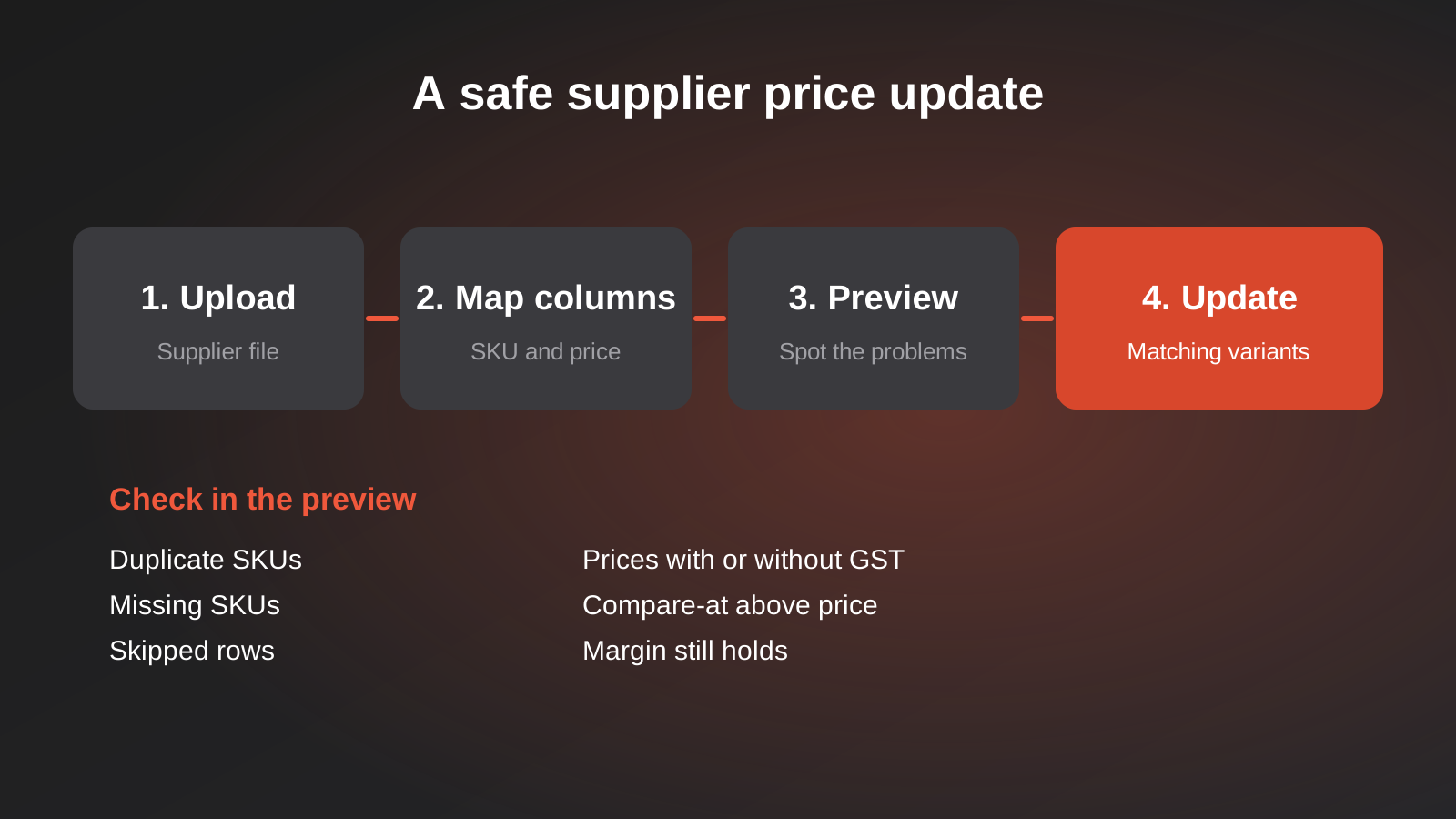
- Back up. Export your current prices and compare-at prices to a spreadsheet and save it somewhere safe. If something goes wrong, this is how you put it back.
- Prepare the file. Do the pricing maths, round, and clean the SKUs.
- Map the columns. Tell the tool which column is the SKU, which is the price and which (if any) is the compare-at.
- Preview. Look at what will match, what will be skipped, which SKUs are duplicated, which are missing, and what the changes are. This is where you catch the mistakes.
- Test on a small batch. If the catalogue is large, update ten products first and check them on the live store.
- Update. Run the full file.
- Verify. Check a sample of products, a few collection pages and the cart. If you run product feeds for Google Shopping or marketplaces, confirm they have refreshed to the new prices.
Mistakes We See Often
- Loading cost as price. The GST and markup step is skipped, and products sell at or below cost.
- Not looking at the preview. The tool says 480 matched and 12 skipped, and nobody checks what the 12 were.
- Ignoring variants. A size run with different supplier prices for each size gets a single price per product.
- Forgetting compare-at. The struck-through price now says $39 was $35.
- Updating without a backup. There’s no easy way back.
- Updating at peak time. If you get it wrong during a sale, you find out from customers.
- Leaving wholesale prices behind. If you sell trade, your wholesale rates may also need updating. See our guide to setting up wholesale pricing on Shopify.
Where GD: Price Updater Pro Fits
GD: Price Updater Pro is our Shopify app for this workflow. You upload a supplier’s Excel price list (or a price workbook exported from Shopify), map the SKU, price and optional compare-at columns, and the app matches each row to a variant by SKU. Before anything changes, it previews matched, skipped, failed, duplicate and missing-SKU rows. It can then update price and compare-at price across large catalogues, and export your current prices to Excel for a backup.
It does one job: getting a spreadsheet of prices into Shopify safely. It doesn’t calculate your markup, and it doesn’t pull prices automatically from a supplier’s system. If you’d like prices to flow from an accounting system, ERP or supplier feed, that’s a custom integration, and our Xero and Shopify integration and Shopify development pages explain what that involves. For the app itself, see the Shopify App Store listing for current pricing and compatibility.
Frequently Asked Questions
How do I bulk update prices in Shopify from a spreadsheet?
Prepare your sheet with SKU and the final price, back up your current prices, then use Shopify’s bulk tools or an app to match rows to variants by SKU. Preview the matches and problems before you apply changes, test on a few products, then run the full update and verify a sample on the live store.
Should supplier prices include GST when I upload them?
Check whether the supplier’s figures include GST and how your store’s tax settings treat the prices you enter. Supplier lists are often ex-GST while Australian stores commonly display GST-inclusive prices, so you usually need to apply markup and GST before uploading. Confirm the treatment with your accountant if you’re unsure.
How do I update compare-at prices in bulk?
Include a compare-at column in your file and map it when importing. Make sure the compare-at price is higher than the price and genuinely reflects a recent normal price. Remember to reverse sale pricing after the sale, and take care with how you advertise “was” prices under Australian consumer law.
What should I check before updating prices?
Check for duplicate and missing SKUs, rows that will be skipped, the biggest percentage changes, GST treatment, compare-at values, and that no product falls below cost. Look at the preview carefully rather than relying on the matched count, and keep a backup export so you can restore the old prices.
Can prices update automatically from my supplier?
Not with a spreadsheet tool. Automatic supplier pricing requires an integration with the supplier’s feed or your ERP, with rules for markup and rounding, which is custom work. For many stores, a regular spreadsheet update with a preview step is a sensible and much cheaper middle ground.
Where to Start
Before your next supplier update, export your current prices as a backup, work out your markup and GST in a visible column, and sort by percentage change to catch outliers. Then run the update in preview first. If you’d like a tool built for that process, see GD: Price Updater Pro, and for a wider look at running a Shopify store well, our Shopify guide for Australian ecommerce brands is a good next read.
Keep reading
Related posts
Best Ecommerce Platforms for Australian Retailers in 2026: Six Options Compared
Six ecommerce platforms for Australian retailers compared honestly: real fees, GST and payments, drawbacks and who each one actually suits.
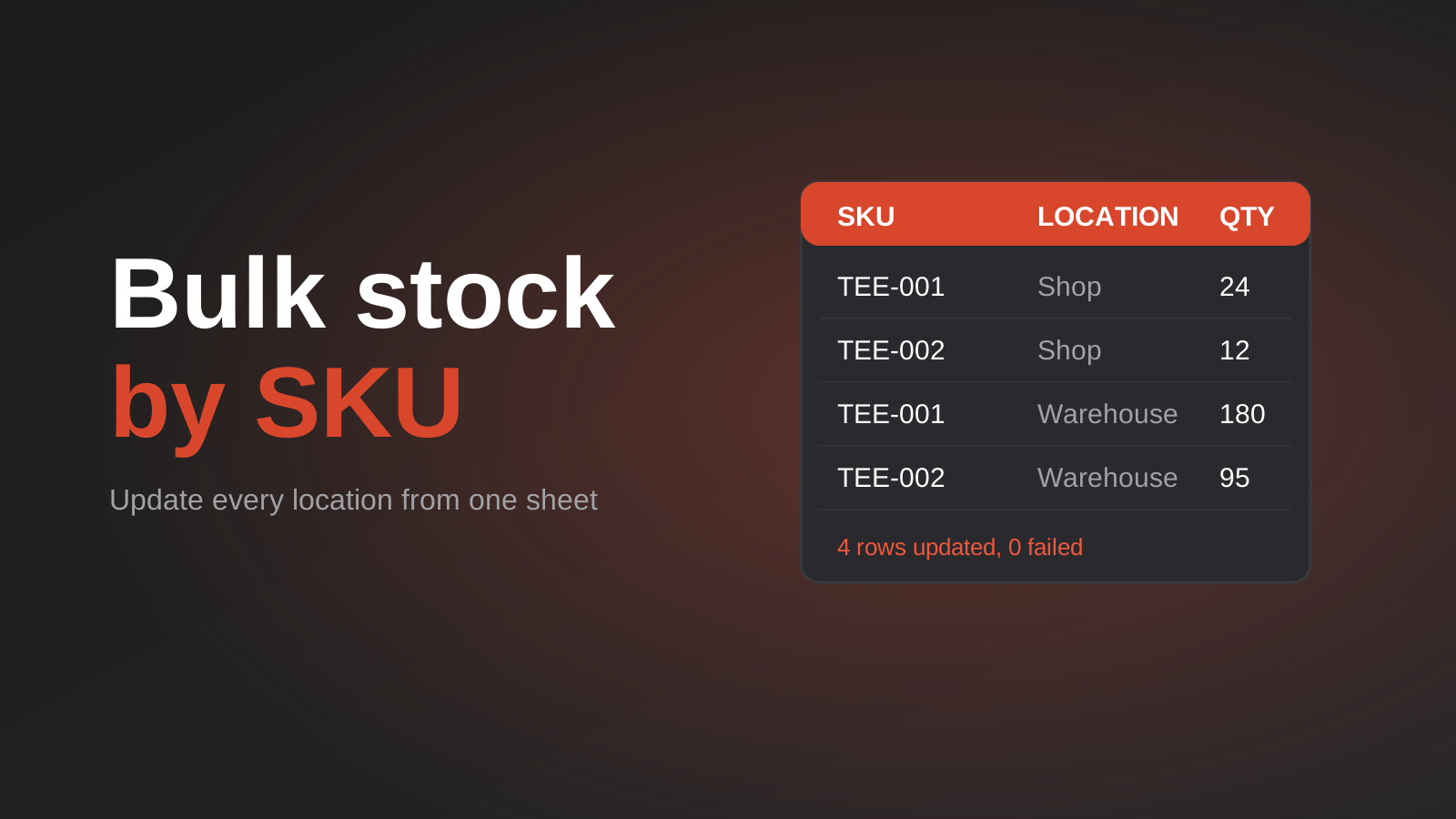
How to Update Shopify Inventory in Bulk by SKU: A Spreadsheet Workflow for Multiple Locations (2026)
A practical spreadsheet workflow for updating Shopify stock in bulk by SKU across multiple locations, with the traps that corrupt inventory and…
How to Set Up Wholesale Pricing on Shopify: Sign-Up, Approval and Price Lists (2026)
How to add wholesale pricing to a Shopify store: the options, how to decide who qualifies, structure price lists and tiers, handle…
Got a project you'd like to talk through?
Tell us what you're working on — we'll come back with a plan.
