
Google Merchant Center Feed Optimisation: Why Australian Shopping Ads Get Disapproved (2026 Guide)
 Jignesh Vagadiya
05/10/2026
21 min read
Jignesh Vagadiya
05/10/2026
21 min read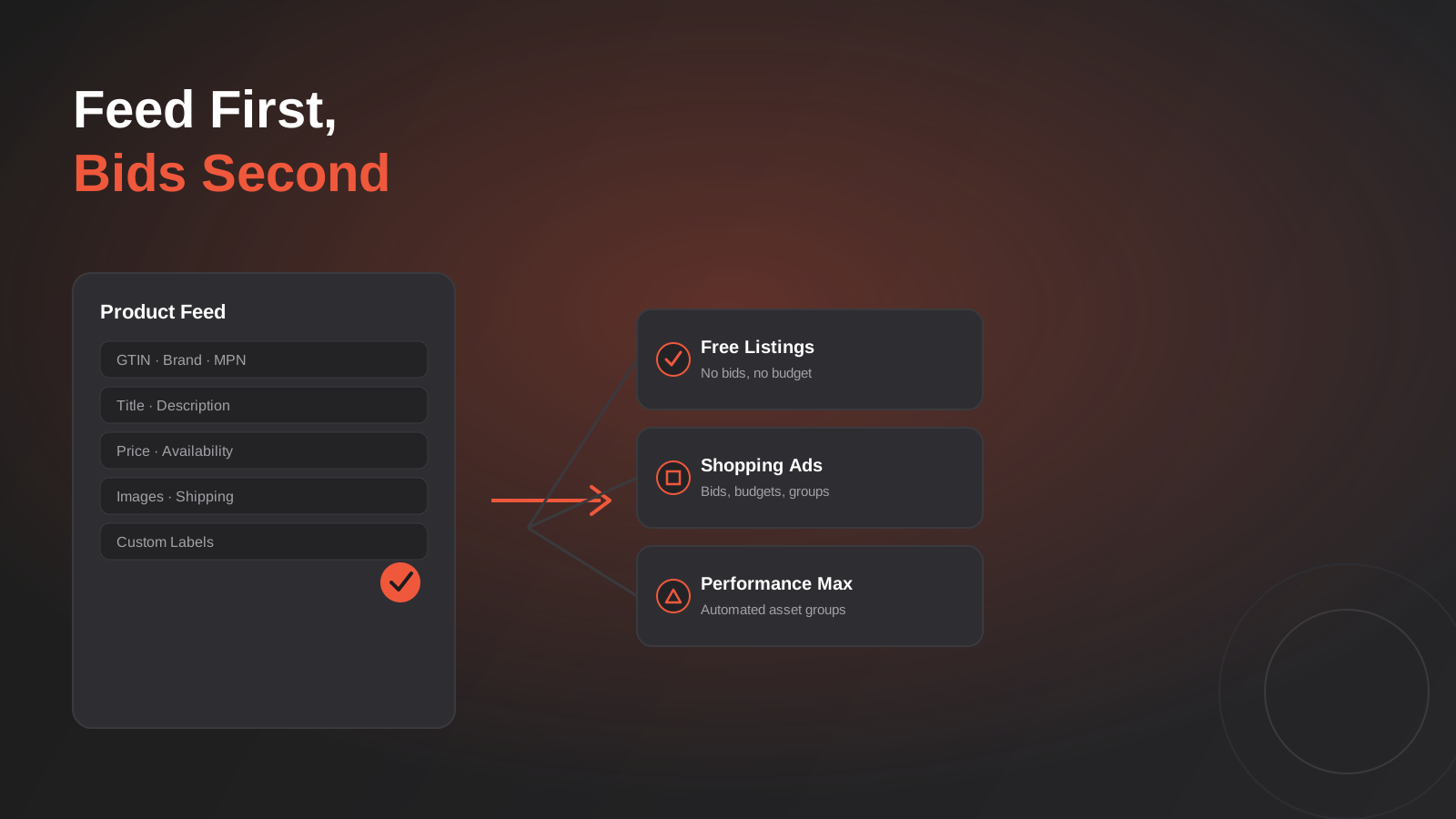
Somewhere between forty and sixty percent of the products in a mid-sized Australian store’s Google Merchant Center account are quietly underperforming, and most of the people running the Shopping campaigns on top of them have no idea. Not disapproved, exactly — just invisible. Buried behind a competitor with a cleaner GTIN, a sharper title, or shipping settings that actually match what the checkout charges. Nobody gets an alert for that. The campaign just spends less efficiently than it should, month after month, and everyone assumes it’s a bidding problem.
We’ve pulled apart enough Merchant Center accounts to know it’s almost never the bidding. It’s the feed. Shopping ads, free listings and Performance Max all draw from the same product data source, and if that data is thin, stale or structured around what was easy to export rather than what Google actually needs, no amount of campaign-level optimisation will fix it. You can rebuild the bidding strategy every week and the ceiling stays exactly where it was.
This isn’t a guide to choosing between Standard Shopping and Performance Max — we’ve covered that trade-off in detail in our Google Shopping Ads vs Performance Max guide. This is about Google Merchant Center feed optimisation — the layer underneath both of those decisions. What Google actually reads from it, why products get disapproved or suppressed, how free listings and paid Shopping ads really relate to each other, and the specific settings that trip up Australian merchants because almost every piece of documentation Google publishes is written with the US market in mind.
What Google Merchant Center feed optimisation actually means (it’s not just a CSV)
A lot of store owners think of the feed as a technical formality — something the developer or the Shopify app sets up once and forgets about. In reality, the feed is the only thing Google Shopping, free listings and Performance Max’s Shopping assets ever see. Google doesn’t crawl your product pages to understand what you sell (beyond some light automatic-improvement matching we’ll get to later). It reads the attributes you submit, and it ranks, filters and matches queries against those attributes almost entirely in isolation from how good your actual website is.
That matters because it flips the normal SEO mental model. On your website, strong content and good UX eventually get rewarded. In Merchant Center, a beautifully designed product page with a thin, inconsistent feed entry will lose to an ugly competitor site with perfect attribute data every time. The feed is the product, as far as Google Shopping is concerned.
Primary feed, supplemental feeds and attribute rules
Most Australian stores run one of two setups: a direct feed generated by their platform (Shopify’s native Google channel, a WooCommerce plugin, or a custom export from a headless build) or a feed managed through a feed management tool like DataFeedWatch, Feedonomics or Channable that pulls from the platform and reshapes the data before it reaches Merchant Center. Both are valid, but they solve different problems.
A primary feed is the base data source — every product, every required attribute, submitted as a complete file (or API push) on a schedule. A supplemental feed sits on top of it and patches specific fields without touching the rest: a seasonal sale price, a corrected GTIN on a batch of SKUs, a custom label for a promotion. The rule that catches people out is that supplemental feeds can only ever enrich an existing primary feed — they can’t exist on their own, and every product ID referenced in the supplemental feed has to exactly match the ID in the primary feed or the patch silently fails to apply.
What used to be called “feed rules” inside Merchant Center have been renamed attribute rules and moved under Settings → Data sources → Advanced. They let you transform data inside Merchant Center itself — stripping a prefix from a title, deriving a product_type from a category field, setting availability based on a stock number threshold — without touching the underlying platform export. For a store with a few hundred SKUs, editing the source export is usually simpler. Past a few thousand SKUs, attribute rules (or a dedicated feed tool) stop being optional, because nobody is hand-editing a spreadsheet with 8,000 rows every time a title convention needs to change.
The attributes that actually decide whether you get found
Google’s product data specification lists dozens of attributes, but in practice a small handful decide whether a product shows up for the right query, at the right price, without getting suppressed. Get these wrong and nothing else in the account matters.
GTIN, MPN and brand — the identifier triangle
If your product has a genuine GTIN (the barcode number — UPC, EAN or ISBN) assigned by the manufacturer, Google expects you to submit it, and submitting it correctly is one of the single highest-leverage things you can do to a feed. Google’s own data shows products with a correct GTIN get meaningfully more impressions than otherwise-identical listings without one, because the GTIN is what lets Google match your listing against its product catalogue, pull in additional trust signals, and qualify the item for richer placements.
The mistake we see constantly is merchants inventing a GTIN when one doesn’t exist, usually because a feed export tool or a well-meaning VA assumed every field had to be filled in. A fabricated GTIN is worse than no GTIN — it’s a policy violation that can trigger account-level enforcement, not just a single disapproval. If a product genuinely has no manufacturer barcode (a private-label item, a made-to-order product, a bundle you’ve created), the correct move is to set identifier_exists to false and submit brand plus MPN instead. Don’t guess, and don’t leave the field blank while also leaving identifier_exists at its default — Google will assume you’re withholding a valid identifier and flag the listing.
Title and description — written for a search engine, not a shelf
Product titles exported straight from a platform’s internal naming convention (“Runner Pro — Blue / Size 10”) are a wasted opportunity, because Google’s matching algorithm weights the title heavily when deciding which query a product is relevant to. The title needs to read like a search query a real buyer would type: brand, product type, key attributes (colour, size, material), and a model number if one exists, front-loaded in that rough order because truncation in the SERP cuts titles short. “Nike Pegasus 41 Men’s Running Shoes — Blue, Size 10 US” will outperform “Runner Pro” on relevance matching even if the underlying product is identical.
Descriptions get less weight than titles but still feed into relevance matching and into Performance Max’s asset generation, which sometimes pulls description copy directly into ad creative. Thin, boilerplate descriptions (“Quality product at a great price”) give the algorithm almost nothing to work with. A description with real material detail, use case and specification text does two jobs at once: it helps Shopping relevance and it feeds better copy into automated PMax assets.
Images, availability and price — the fields that trigger disapprovals
The three most common causes of disapproval in any Merchant Center account, in our experience, are a price mismatch between the feed and the landing page, a stale availability status, and an image that fails Google’s quality bar (watermarks, placeholder graphics, heavy text overlays, or stock photos that don’t match the actual product). Of the three, price mismatches are the most damaging because they’re treated as a trust signal, not just a data error — a pattern of mismatches can suppress the whole account, not just the affected SKUs.
This is where automatic item updates earn their keep. Merchant Center can use structured data (Schema.org markup, which we cover in detail in our schema markup guide) on your live product pages to catch and correct price and availability drift between feed submissions. It’s a safety net, not a substitute for an accurate feed — it only fires when Google re-crawls the page, so a flash sale that starts and ends between crawls won’t be caught in time. Turn it on regardless; it’s one of the few genuinely free error-correction tools Merchant Center offers.
Image requirements are more specific than most product photography briefs account for. Google wants a minimum of 100×100 pixels for most categories (800×800 or larger is the safer target, and apparel has its own higher minimum), no promotional overlay text or watermarks burned into the image, and a product shown against a clean, realistic background rather than a stylised lifestyle shot as the primary image — lifestyle images are fine as additional images, just not as the one Google indexes first. Stores that commission photography for the website often don’t realise the hero shot used on the product page isn’t necessarily the right one for the feed, and submitting a styled lifestyle image as the primary product image is a quiet, common cause of image-quality disapprovals that never gets diagnosed because the photo looks perfectly fine to a human looking at the website.
Free listings vs Shopping ads vs Performance Max: one feed, three very different outcomes
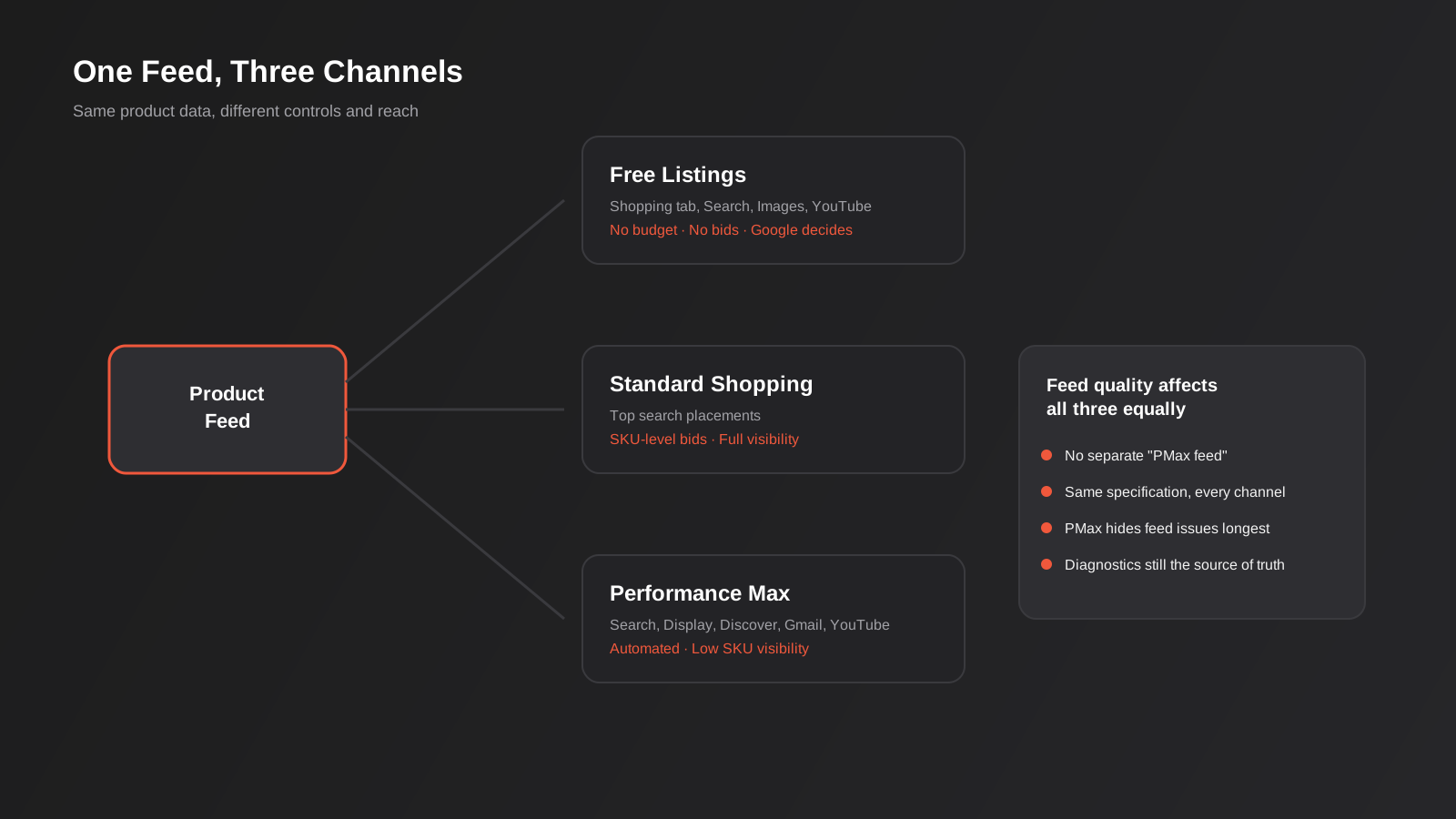
A surprising number of Australian store owners don’t realise free product listings exist at all, or assume they stopped once Google introduced paid Shopping. They didn’t. Since Google opened up free listings on the Shopping tab (and extended them into regular Search, Google Images and YouTube), every merchant with a Merchant Center account and an approved feed is eligible for placements that cost nothing per click and don’t require a Google Ads account at all.
The catch is that free listings are entirely at Google’s discretion. There’s no bidding, no budget, no targeting control — Google decides whether and where to show your product based on feed quality, policy compliance, pricing competitiveness and the experience on your site. You can’t force visibility the way you can with a bid increase. That’s exactly why feed quality matters even for stores not running any paid Shopping campaigns: a clean, complete, competitively priced feed is the only lever you have.
Paid Shopping ads and Performance Max both sit on top of the same feed but add control: budgets, bidding strategies, geographic targeting, product group segmentation (standard Shopping) or asset groups and campaign-level goals (PMax). They also reach placements free listings can’t touch — Discover, Gmail, Display inventory and search partner sites. None of that changes what the feed needs to look like. A feed built to Google’s full specification serves free listings, standard Shopping and PMax identically well; there’s no separate “PMax-optimised” feed format, despite what some agencies imply when they pitch a feed rebuild as part of a PMax migration.
What does change between the three is how forgiving they are of weak data. Standard Shopping campaigns let you see exactly which product groups are underperforming at the SKU level, so a feed gap shows up as a specific, diagnosable problem. Performance Max pools everything into automated bidding and asset groups with far less visibility into individual product performance, which means a feed-level issue inside a PMax campaign can sit there quietly dragging down the average for months before anyone notices it’s a data problem rather than a bidding problem.
Why products get disapproved — and the traps specific to Australian merchants
Most disapproval guides are written for a US audience and gloss over or simply get wrong the settings that matter for an Australian account. A few are worth calling out specifically because we see them cause real, avoidable suspensions.
GST and the price field
The price attribute in your feed must never include GST, sales tax or any other tax component — it has to be the exact price shown to the customer at checkout, tax-inclusive, matched to the dollar. For most Australian stores that’s not actually a tax-exclusion problem (GST is baked into the displayed retail price already), it’s a synchronisation problem: the feed price and the live checkout price drift apart during a sale, a bulk pricing update, or a currency/rounding error in the export, and Google treats the mismatch as a policy violation rather than a glitch. Automatic price updates (mentioned above) help, but the real fix is making sure whatever generates your feed pulls price at the same point in the pipeline as your checkout, not from a cached or secondary price field.
Shipping settings and regional transit times
Australia is one of the handful of countries where Google lets you configure shipping settings by region rather than a single flat national rate — which matters enormously here given how differently delivery times and costs behave between, say, metro Sydney and regional WA or the Northern Territory. Merchants who set a single flat shipping rate and transit time across the whole country are either overpromising to regional customers (hurting the post-purchase experience and triggering account-level merchant quality flags) or overcharging metro customers to compensate. Set region-based shipping services that reflect reality, and revisit them whenever your carrier contracts change. Note also that automatic shipping updates — where Google infers shipping cost and speed from your site — are a US-only feature; outside the US you’re submitting shipping settings manually or via the shipping settings API, full stop.
Policy violations and restricted categories
Healthcare, supplements, financial products and anything making therapeutic claims sit under extra scrutiny in Merchant Center, independent of the advertising-content rules that already apply under Australian regulation (we’ve written separately about the AHPRA-specific constraints on healthcare marketing if that’s your category). A supplement listed with a feed description that makes an unsubstantiated health claim will get disapproved at the Merchant Center policy layer even if your website copy is scrupulously compliant, because the feed is reviewed as its own surface. Keep feed copy conservative and factual regardless of what your landing page says elsewhere.
Feed health monitoring: the part almost nobody does consistently
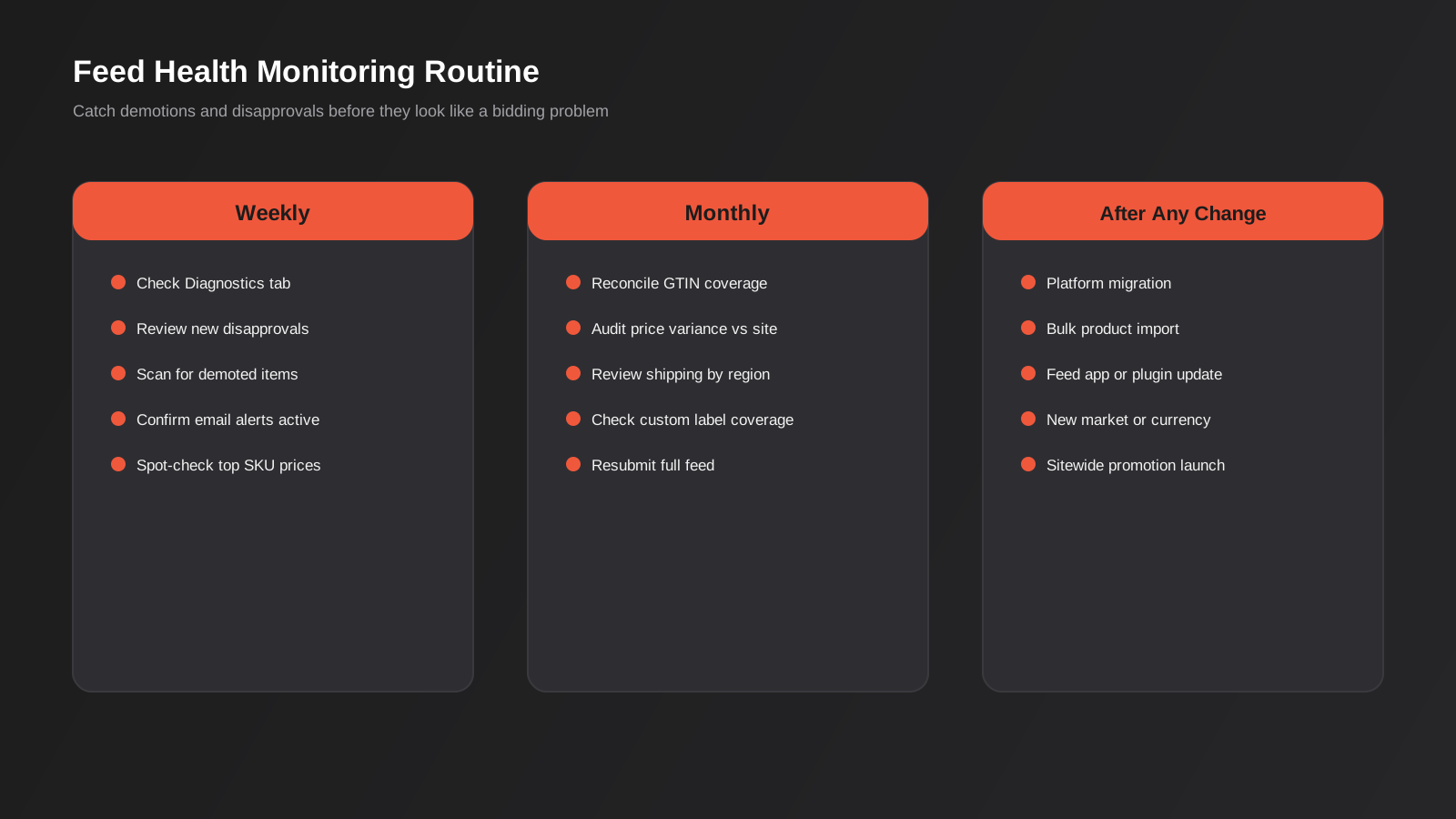
Merchant Center’s Diagnostics tab is the single most under-used screen in the entire platform. It reports item-level issues (disapproved, under review, pending), account-level issues, and increasingly flags “demoted” items — products that aren’t technically disapproved but are being shown less because of a data quality or policy concern that falls short of a hard rejection. Demotions are the quiet killer, because they don’t throw an error anywhere in Google Ads; the campaign just spends against fewer eligible products than the merchant assumes.
A workable monitoring routine doesn’t need to be elaborate. At minimum: check Diagnostics weekly for new disapprovals and demotions, not just at campaign setup; set up the automatic email alerts Merchant Center offers for item and account-level issues so you’re not relying on someone remembering to log in; and reconcile feed GTIN and price coverage against your actual catalogue at least monthly, because a plugin update, a platform migration or a bulk product import is exactly the kind of event that silently breaks feed mappings without anyone noticing until performance drops. If you’re migrating platforms, align that reconciliation with the broader checklist in our platform migration guide — feed continuity deserves the same discipline as URL redirects.
For stores with a developer or an agency managing the integration, it’s worth building a simple scheduled report (even a basic script hitting the Content API) that flags products missing a GTIN, products with a price variance above a set threshold between the feed and the live site, and products that have sat in “disapproved” status for more than 48 hours. None of this is exotic engineering — it’s the kind of job our API integrations team builds routinely for ecommerce clients who’ve outgrown manually checking a dashboard.
Multi-feed strategy for growing catalogues
A single store with 200 SKUs can run comfortably on one primary feed with a couple of supplemental feeds for promotions. Past a few thousand SKUs, or once a business starts running multiple brands, regions or languages through one Merchant Center account, a single-feed structure becomes a liability — one bad export breaks everything downstream, and testing a change means testing it against the entire catalogue at once.
The more resilient pattern splits feeds by logical boundary — by brand, by product category, or by region — each as its own primary data source feeding into the same Merchant Center account, with shared supplemental feeds layered on top for cross-cutting changes like a sitewide promotion. This also makes it much easier to isolate a feed problem: if Shopping performance drops for one brand but not others, a split feed structure tells you immediately where to look, where a single monolithic feed leaves you debugging the whole catalogue. It’s more setup work up front, and for most businesses under a few thousand SKUs it’s not worth the added complexity — but it’s worth knowing the option exists before the catalogue outgrows the simple approach and nobody’s planned for it.
Multiple feeds also matter the moment a business starts selling into more than one market. A store shipping to both Australia and New Zealand under one Merchant Center account needs separate feeds (or at minimum separate target country settings) because price, currency, availability and shipping all differ by market, and a single feed can’t carry two conflicting prices for the same SKU. We see this trip up growing ecommerce brands constantly during expansion planning — the website might already support multi-currency, but the feed infrastructure behind Shopping wasn’t built for it, and nobody notices until New Zealand customers start seeing Australian dollar prices with Australian shipping times attached.
Custom labels: the feed attribute most accounts leave empty
Merchant Center gives every product five custom label fields (custom_label_0 through custom_label_4), and in most of the accounts we audit, all five sit empty across the entire catalogue. That’s a missed lever, because custom labels are the only way to segment products inside a Shopping or Performance Max campaign along dimensions Google doesn’t infer on its own — margin, season, clearance status, bestseller rank, or anything else specific to how the business actually thinks about its catalogue.
The practical use case is bid and budget control by profitability rather than by category. A generic product_type split groups a $40 low-margin item next to a $40 high-margin item just because they’re both “homewares,” even though the business wants to bid far more aggressively on one than the other. A custom label built from margin tier (high / medium / low, calculated in the platform or during feed generation and pushed through as a field) lets a standard Shopping campaign build product groups around profitability instead of category, and lets a Performance Max listing group assign separate budgets or ROAS targets to each tier. The same pattern works for clearance stock (push harder on a declining margin as it ages), for seasonal relevance (so a winter category doesn’t keep competing for budget into summer), or for a simple bestseller flag that lets a campaign structure protect spend on proven sellers during a tight budget month.
None of this requires an enterprise feed tool. If margin, season or bestseller status already exists as a field in your product database or platform admin, it’s usually a small mapping job to push it through as a custom label in the feed export — whether that’s a Shopify metafield, a WooCommerce custom field, or a column in whatever system generates the export. The return is disproportionate to the effort: segmentation that would otherwise need a manual campaign restructure every time the catalogue changes becomes automatic, because the label travels with the product.
Common mistakes we see in Australian Merchant Center accounts
- Inventing a GTIN for products that don’t have one, instead of setting identifier_exists to false and submitting brand plus MPN.
- Exporting titles straight from an internal SKU naming convention instead of writing them as a buyer would search.
- Running one national shipping rate and transit time when regional Australian delivery times genuinely differ.
- Letting a promotional price change in the cart or checkout without updating the feed in the same window, triggering a price mismatch flag.
- Treating Performance Max as a reason to stop checking feed diagnostics, when PMax actually hides feed-level problems more effectively than standard Shopping does.
- Never reconciling the feed after a platform migration, app update or bulk product import, and only discovering the gap weeks later when impressions have already dropped.
- Using stock or placeholder images for variants that don’t have individual product photography yet, rather than excluding those variants until real images exist.
Frequently Asked Questions
Do I need a Google Ads account to show up in Google Shopping?
No. Free product listings on the Shopping tab, in regular Search, on Google Images and on YouTube only require an approved Merchant Center account and feed — no Google Ads account, no budget, no bids. You only need Google Ads if you want paid Shopping campaigns or Performance Max, which add targeting, budget control and extra placements (Display, Discover, Gmail) that free listings don’t reach.
Why was my product disapproved when nothing in my feed changed?
Google periodically re-reviews live listings against current policy, and policies themselves change without much notice. A product that passed review six months ago can fail a later review if Google tightened a category policy, if your landing page changed (a price update, a redesigned product page that now trips an image check), or if automatic item updates pulled in an unexpected value from your site’s structured data. Check the specific disapproval reason in Diagnostics rather than assuming it’s a feed submission error.
What’s the difference between a feed rule and a supplemental feed?
A supplemental feed is a separate file or data source that patches specific attributes on top of your primary feed — useful for overlaying sale prices or correcting a batch of GTINs without re-exporting the whole catalogue. An attribute rule (formerly called a feed rule) transforms data inside Merchant Center itself, such as deriving a value or stripping unwanted text from a title, without a second file at all. Supplemental feeds are better for data you already have somewhere else; attribute rules are better for reshaping data you already have in the primary feed.
How often should I resubmit or refresh my product feed?
Google recommends submitting your full feed at least once every 30 days even if nothing has changed, since feeds expire, and most ecommerce platforms default to a daily automatic refresh regardless. The bigger question isn’t submission frequency but update latency for fast-moving fields like price and availability — if your checkout can go out of stock or change price within hours, your feed-to-checkout sync needs to happen close to real time, not just once a day, or you’ll accumulate mismatch disapprovals.
Does feed quality actually affect Performance Max, or only standard Shopping?
It affects both, and arguably matters more for PMax because the campaign type gives you so much less SKU-level visibility to diagnose a problem when it shows up. PMax also pulls feed text (titles, descriptions) directly into some automatically generated ad assets, so weak feed copy doesn’t just hurt matching — it can show up verbatim in ad creative.
Should I use a feed management tool or just export directly from my platform?
For a straightforward catalogue under a thousand SKUs on Shopify or WooCommerce, the platform’s native export or a basic plugin is usually enough, provided someone actually checks Diagnostics regularly. Once you need multi-market feeds, heavy title/description rewriting at scale, or frequent attribute transformations, a dedicated feed tool (or custom API integration) earns its cost back quickly in reduced manual handling and fewer missed disapprovals.
Where to start
If you’re running Shopping campaigns or Performance Max and haven’t looked at the Merchant Center Diagnostics tab this month, that’s the first five minutes to spend before touching a single bid. Most of what we’ve covered here isn’t expensive to fix — it’s attention that’s gone somewhere else because the campaign dashboard is where the eyes naturally go. A GTIN correction, a title rewrite pass, and a shipping settings review by region will usually move the needle faster than another round of bidding strategy changes.
For stores where the feed itself is the real constraint — multiple brands, a few thousand SKUs, a platform migration on the horizon, or a Shopify-to-custom build that needs the feed rebuilt from scratch — that’s a scoped piece of work, not a settings tweak. If you want a second set of eyes on what’s actually happening inside your Merchant Center account, our Google Ads team is happy to have a look and tell you honestly whether it’s a feed problem, a bidding problem, or both.
Keep reading
Related posts
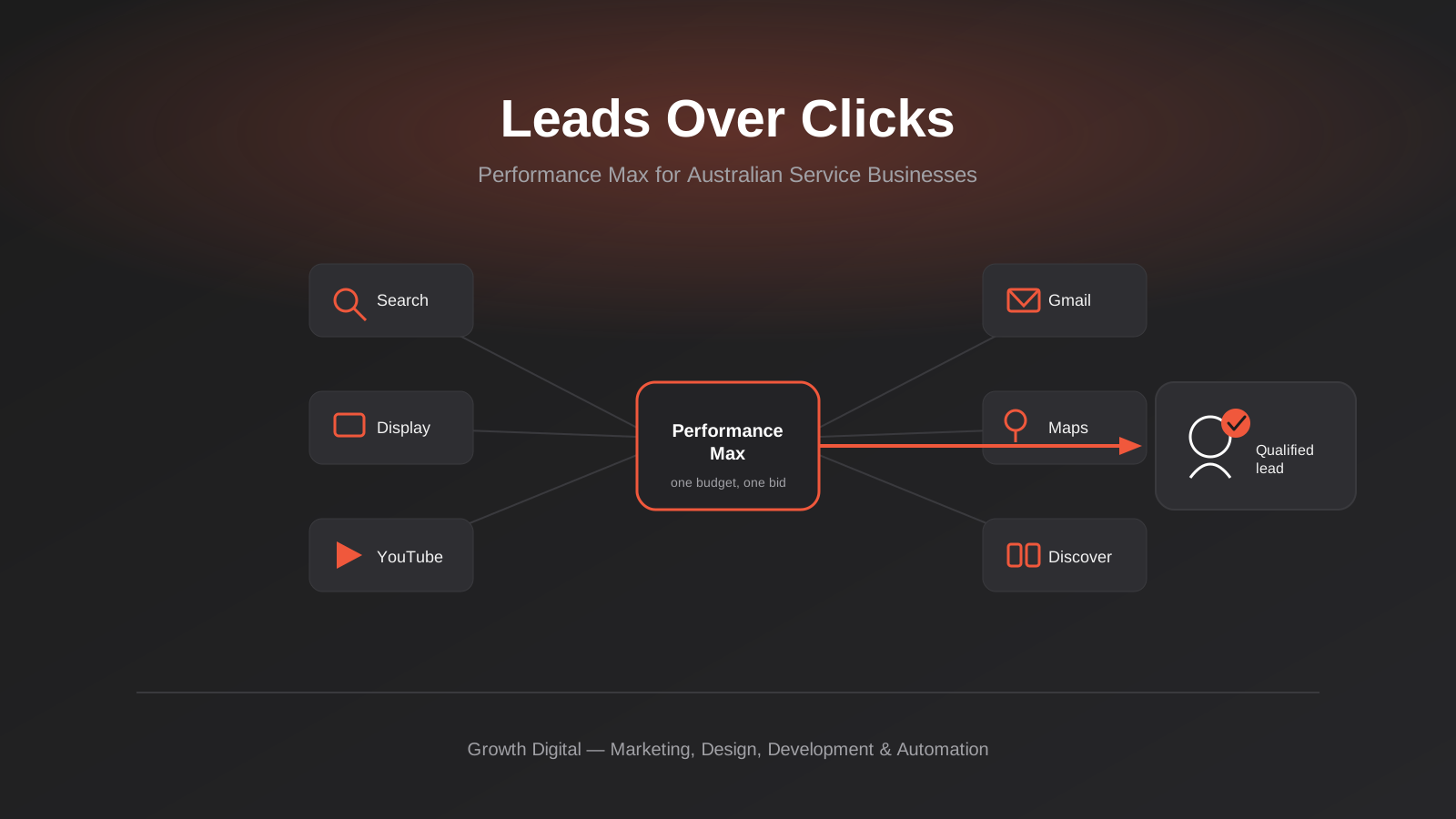
Performance Max for Lead Generation: A 2026 Guide for Australian Service Businesses
Performance Max for lead gen needs different conversion tracking and asset groups than ecommerce PMax. How Australian service businesses should set it…
Microsoft Advertising (Bing Ads) for Australian Businesses: Cost, LinkedIn Profile Targeting and the Google Ads Import Trap (2026)
What Microsoft Advertising actually costs in Australia, how LinkedIn profile targeting works for B2B, and what breaks when you import from Google…
Google Ad Grants for Australian Non-Profits: Eligibility, Application and the Rules That Keep It Alive (2026)
A practical guide to Google Ad Grants for Australian non-profits: who qualifies, how to apply, and the compliance rules that keep the…
Got a project you'd like to talk through?
Tell us what you're working on — we'll come back with a plan.
