
How to Give an Agency Google Ads Manager Access: Step-by-Step Guide
 Jignesh Vagadiya
04/11/2026
11 min read
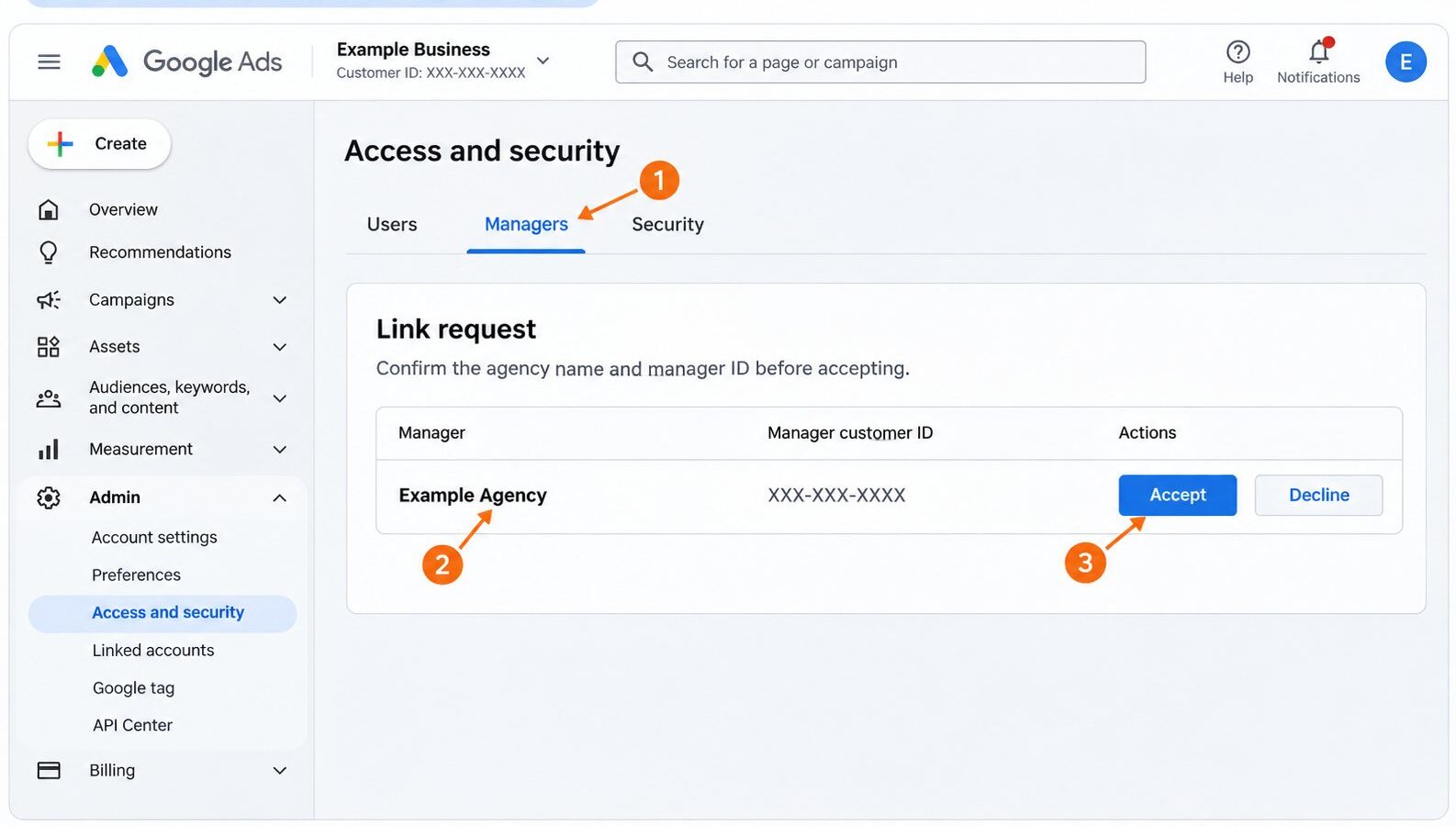
The usual way to give an agency access to Google Ads is to link your existing advertising account to the agency’s Google Ads manager account, often called an MCC. You keep your own login, and the agency manages campaigns through its manager account.
This guide explains how to give an agency Google Ads manager access, from finding your Customer ID to approving the request, checking permissions and removing access later. It also covers the separate email-invitation route for individual consultants and the related accounts you may need for tracking or Shopping campaigns.
The short version: send your Google Ads Customer ID to your agency through your usual onboarding channel. The agency requests a link. A client-account administrator reviews and approves it in Admin → Access and security → Managers.
Checked against Google’s official guidance on 4 November 2026. All images below are AI-generated screenshot-style recreations with numbered callouts, not captures of a live Google Ads account. Names and IDs are placeholders; use the written instructions if your interface differs.
Manager access, individual access and ownership: three different things
An MCC is a separate Google Ads account used to work across client accounts. It is not the same product as Google Ad Manager, the publisher platform. Google’s manager account overview explains the structure.
| Access route | Best used for | Where you check it |
|---|---|---|
| Manager-account link | An agency managing your account through its MCC | Access and security → Managers |
| Individual user invitation | A named consultant, employee or reporting user | Access and security → Users |
| Manager ownership | Additional administrative powers where specifically needed | The linked manager’s ownership status |
Linking an existing account does not make that manager its owner by default. Ownership enables additional administration, such as managing client users and other manager links. Google recommends granting it only when those powers are needed. A manager that creates a new client account becomes its owner automatically, so discuss that arrangement before a new account is created. See Google’s ownership explanation.
Before you begin
- Identify the existing Google Ads account your business uses. Do not create another account simply because you cannot find the current one.
- Have someone with Admin access to the client account available to approve the link.
- Confirm the agency’s manager-account name and ID through your normal contact.
- Keep an internal administrator on the account, using a business-controlled Google Account.
- Agree whether the work covers campaign management, an audit, tracking implementation, Shopping feeds or billing support.
You do not need to share your Google password or verification codes. This guide describes what you and your agency should do in your own accounts; it does not require either party to sign in as the other.
Step 1: Find your Google Ads Customer ID
Who does this: the client.
- Sign in at Google Ads using your own Google Account.
- Select the business’s advertising account.
- Open your profile picture in the top-right corner. Find the Customer ID beneath the account name; it may also be displayed in the account header.
- Copy that ID and send it privately to your agency.
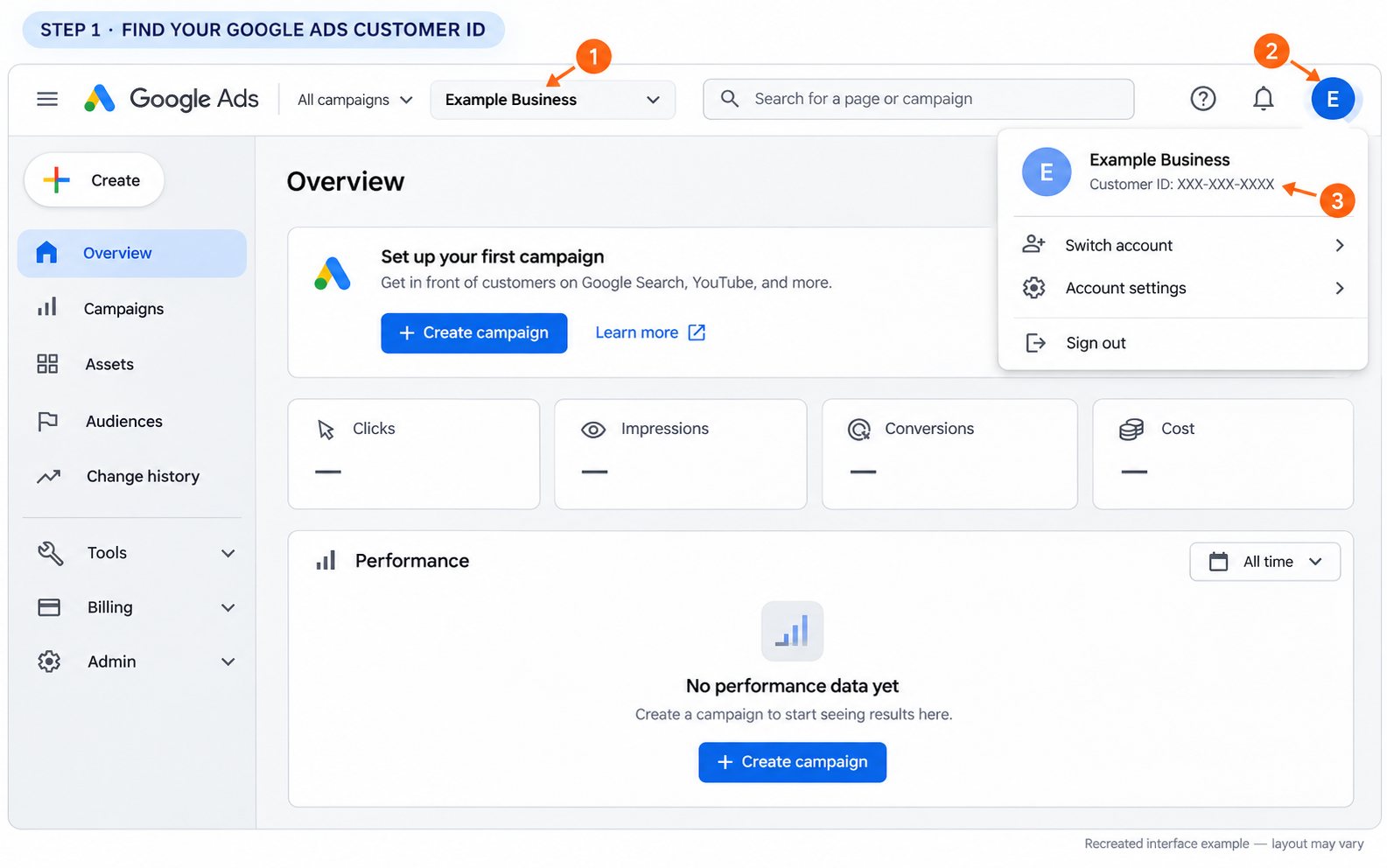
The Customer ID identifies the account to link. Check that it belongs to the intended client account, rather than a manager account or another business. The image uses XXX-XXX-XXXX only as a placeholder. Google provides additional ways to find your Customer ID, including previous account correspondence.
Step 2: The agency sends a manager-link request
Who does this: the agency.
- In the agency’s manager account, open Accounts → Sub-account settings.
- Select the plus control, then Link existing account.
- Enter the client’s Customer ID; use one ID per line for multiple accounts.
- Select Preview, check the account details, then Send request.
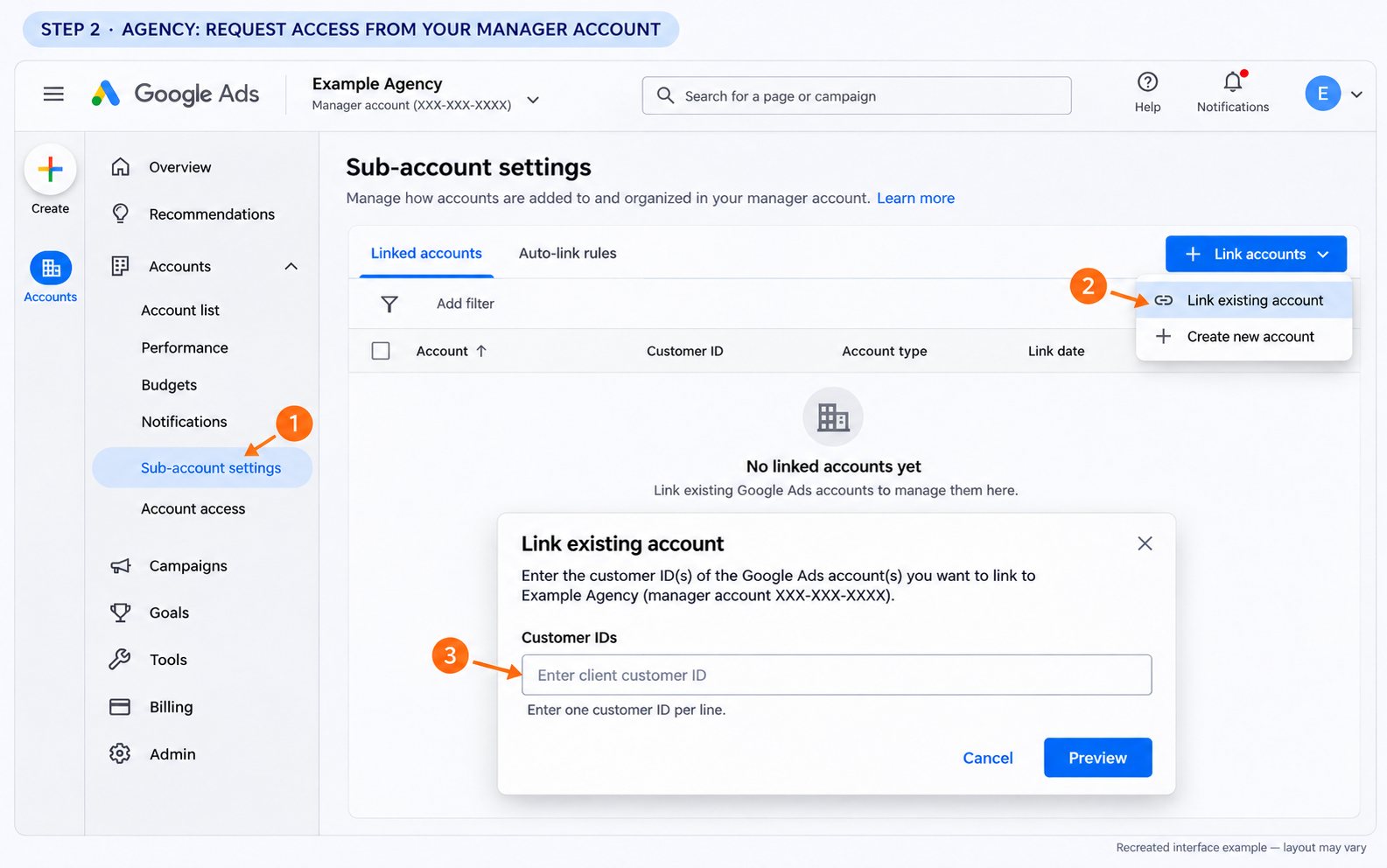
The client does not need to complete this agency-side step. Google’s manager-linking instructions cover the request and approval flow.
Step 3: Open the client’s access settings
Who does this: a client-account administrator.
- Sign in to the client account.
- Open Admin → Access and security.
- Select Managers.
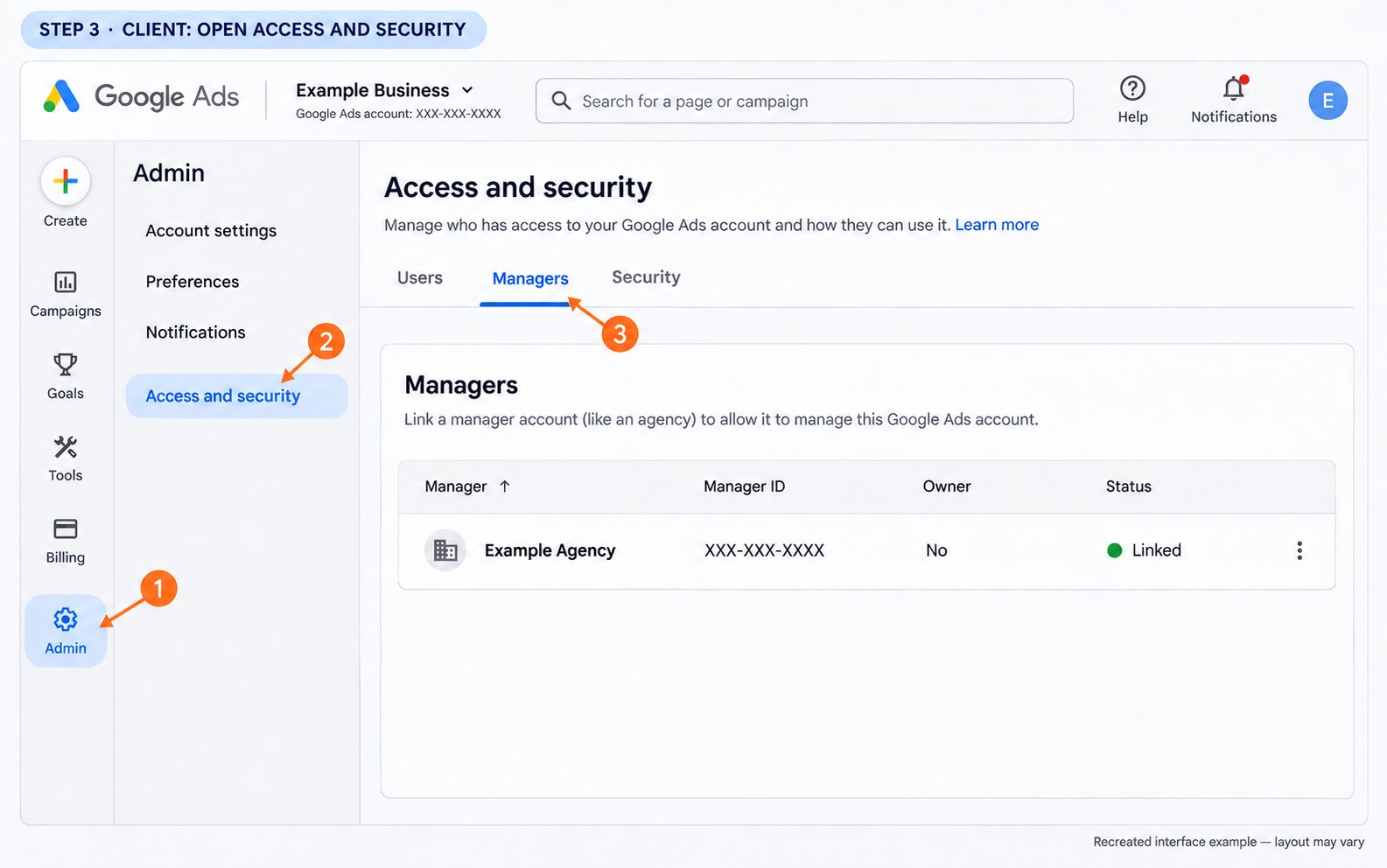
Use Managers for an MCC request. The Users tab is for individual invitations.
Step 4: Review and accept the agency’s request
Who does this: a client-account administrator.
- Under Link request, find the agency.
- Verify its name and manager ID with your contact.
- Select Accept and complete the on-screen confirmation.
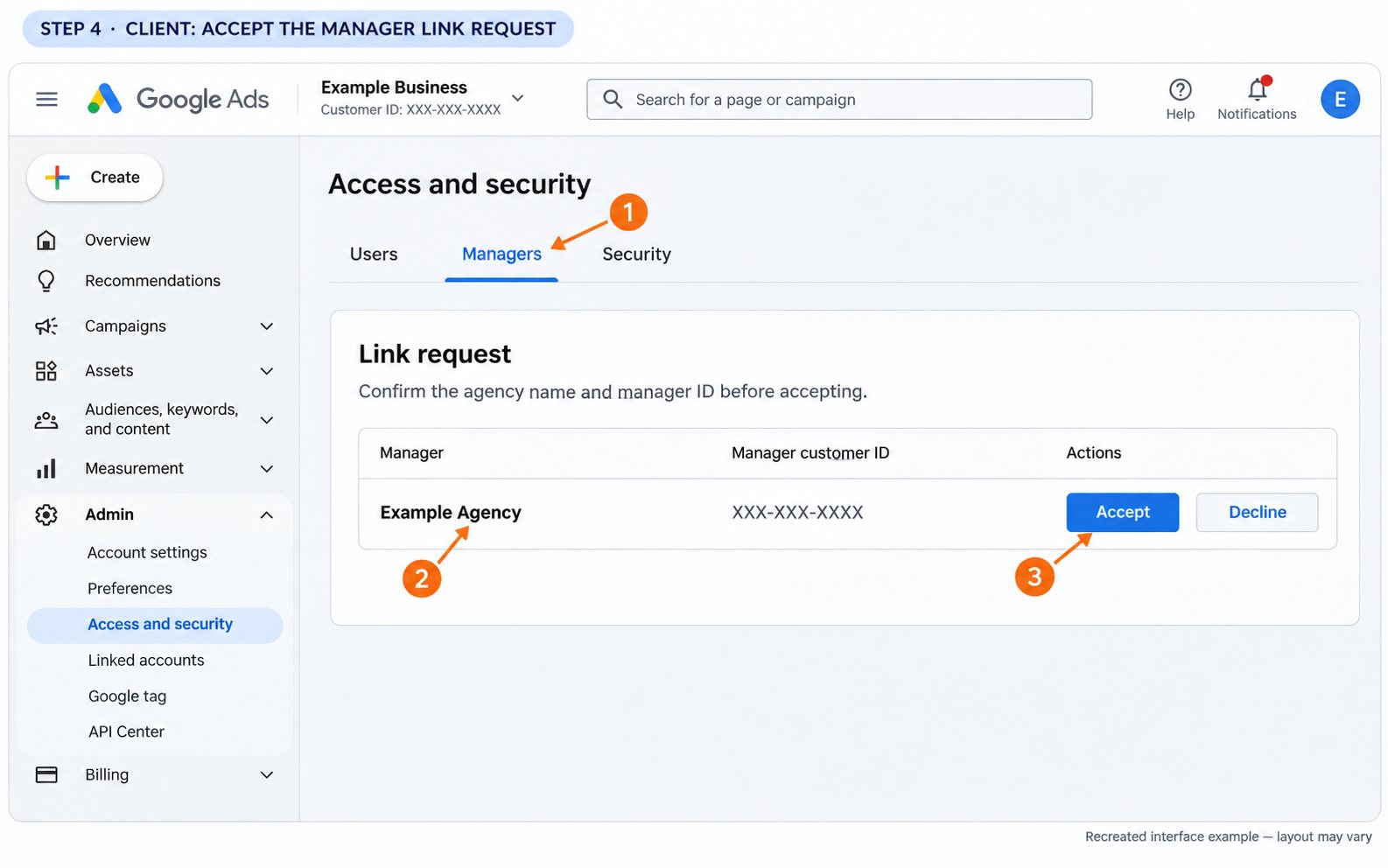
If the request is unexpected, verify it before taking action. Approval authorises a real account relationship.
Step 5: Verify access and agree the working boundaries
Review the manager entry and have the agency confirm it can open the correct client account. Check the Customer ID together, particularly where several businesses or locations use similar names.
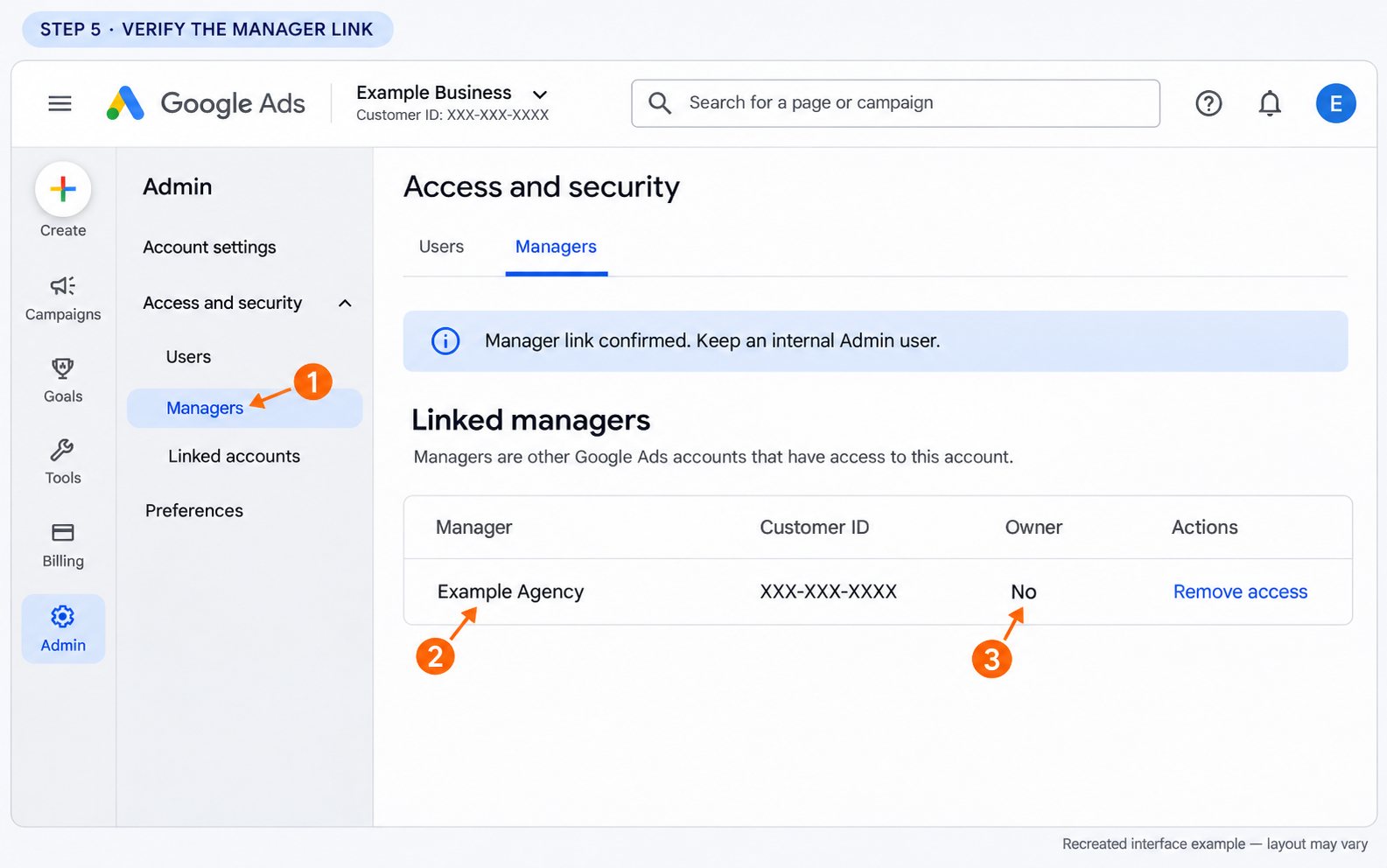
Use this practical handover checklist:
- The agency can find the intended campaigns and reporting period.
- Your internal administrator can still sign in independently.
- Both parties understand the manager’s ownership status.
- The agreed budget, approval process and campaign-change scope are recorded.
- Tracking, product feeds and other implementation work have named owners.
- Any previous provider’s access has a planned handover date.
Do not change a live budget or launch an ad just to prove access works. Ask the agency to review the account first and flag any permissions it cannot use. A manager link is meaningful campaign access; if the engagement is strictly read-only, discuss an appropriately restricted individual-user arrangement instead.
Step 6: Optional alternative—invite an individual by email
Use this route when you need a named person to access the account directly. It is not an extra requirement for every employee at an agency already linked through its MCC.
- Open Admin → Access and security → Users.
- Choose the add-user control.
- Enter the agreed email address associated with the person’s Google Account.
- Select the access level and send the invitation.
- Have the recipient accept using the intended Google Account.
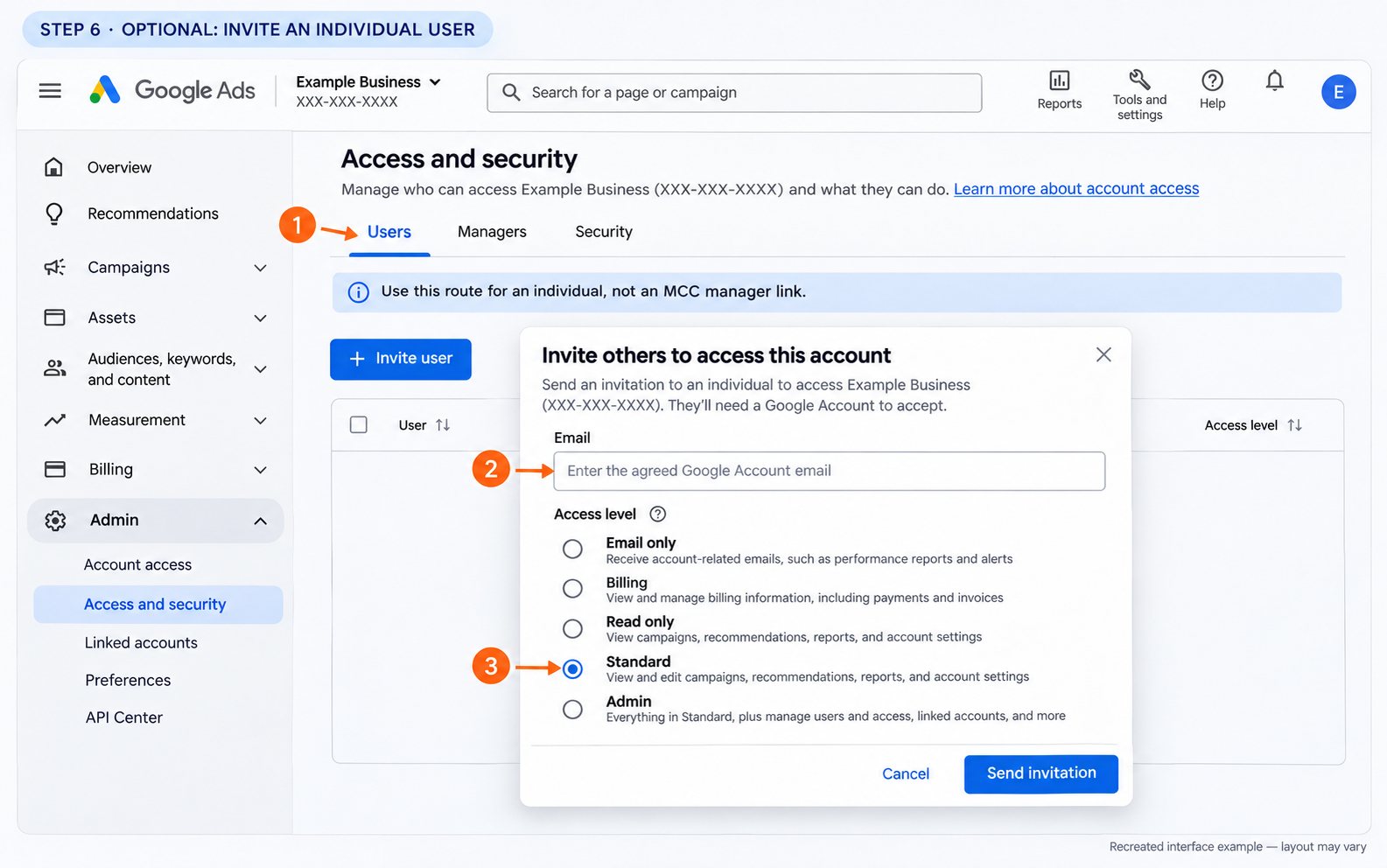
Follow Google’s user-access instructions for invitations and subsequent changes.
| Role | Typical fit |
|---|---|
| Read-only | Reviewing campaigns and reports without editing campaigns |
| Standard | Day-to-day campaign editing; also includes certain billing capabilities |
| Admin | Managing users, product links and manager requests, alongside campaign work |
| Billing | Billing responsibilities rather than campaign management |
| Email-only | Receiving account communications without normal campaign access |
This is a brief selection guide, not the full permission matrix. Read Google’s access-level table before granting a role. In particular, Standard is not a campaign-only permission with all financial functions excluded.
Step 7: Review related accounts and tracking separately
A Google Ads link does not prove the agency has the access needed to implement everything in your scope. Review the relevant tools with the person responsible for each one.
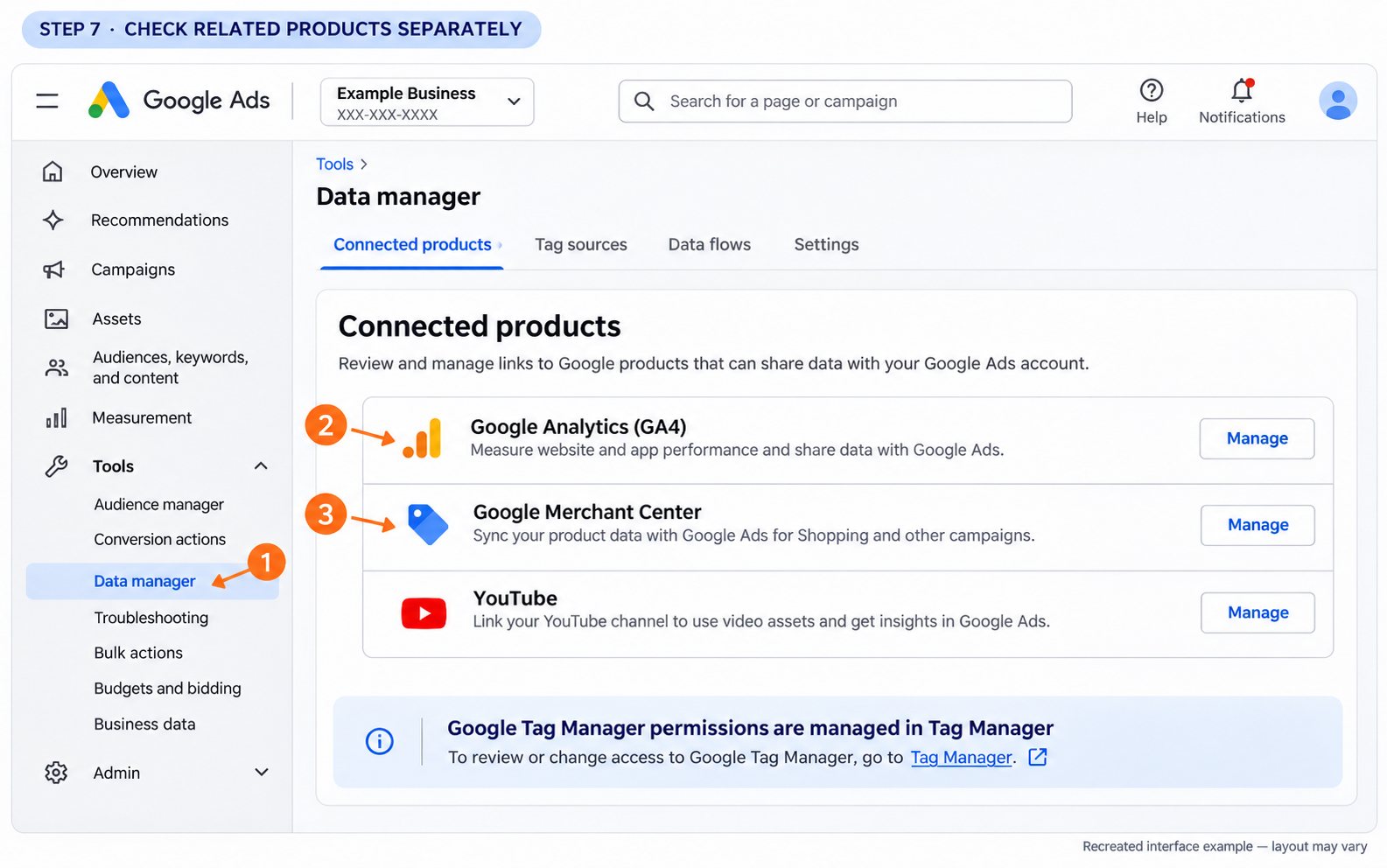
In Google Ads, Tools → Data manager is the place to review product connections. A product connection and permission to work inside the other product are different checks. See Google’s Data manager and product-linking guide.
Google Analytics 4
For direct Analytics access, an administrator can use Admin → Property access management to add the agreed Google Account and role. Prefer the relevant property over account-wide access when that meets the scope. Also review any access inherited through Ads-linked roles. Google’s Analytics user-management guide and linked-role explanation cover these separate mechanisms.
Google Tag Manager and the Google tag
Review the correct Tag Manager account and container. Container permissions distinguish reading, editing, approving and publishing; editing alone does not allow a person to publish a container. Agree who will release tracking changes. See Tag Manager permissions. If the work concerns Google tag destinations or tag administration, check its separate tag-user settings too.
Google Merchant Center
For Shopping or retail Performance Max work, verify both the Ads connection and feed-management access. Direct users can be invited through Access and services → People and access; agency-specific access arrangements may also be available. Use Google’s Merchant Center access guide. Our Merchant Center feed guide explains why access to the feed matters alongside campaign access.
Other work in the engagement
Ask whether the agency also needs YouTube channel permissions, Business Profile access, website or store access, CRM authorisation, call-tracking access or a reporting-tool connection. Document each requirement and use that product’s own invitation process. Do not send a bundle of passwords as a substitute for scoped access.
Step 8: Remove manager access when the engagement ends
Plan the handover before unlinking. Check whether the account depends on manager-owned conversion tracking, shared audiences or a manager’s billing arrangement. Google warns that unlinking can interrupt those dependencies; a monthly-invoiced account can stop serving if its paying manager is removed without replacement billing. See the effects of unlinking.
- Sign in with administrative access to the client account.
- Open Admin → Access and security → Managers.
- Find the agency and choose Remove access.
- Review Google’s impact preview, then confirm Unlink when the transition is ready.
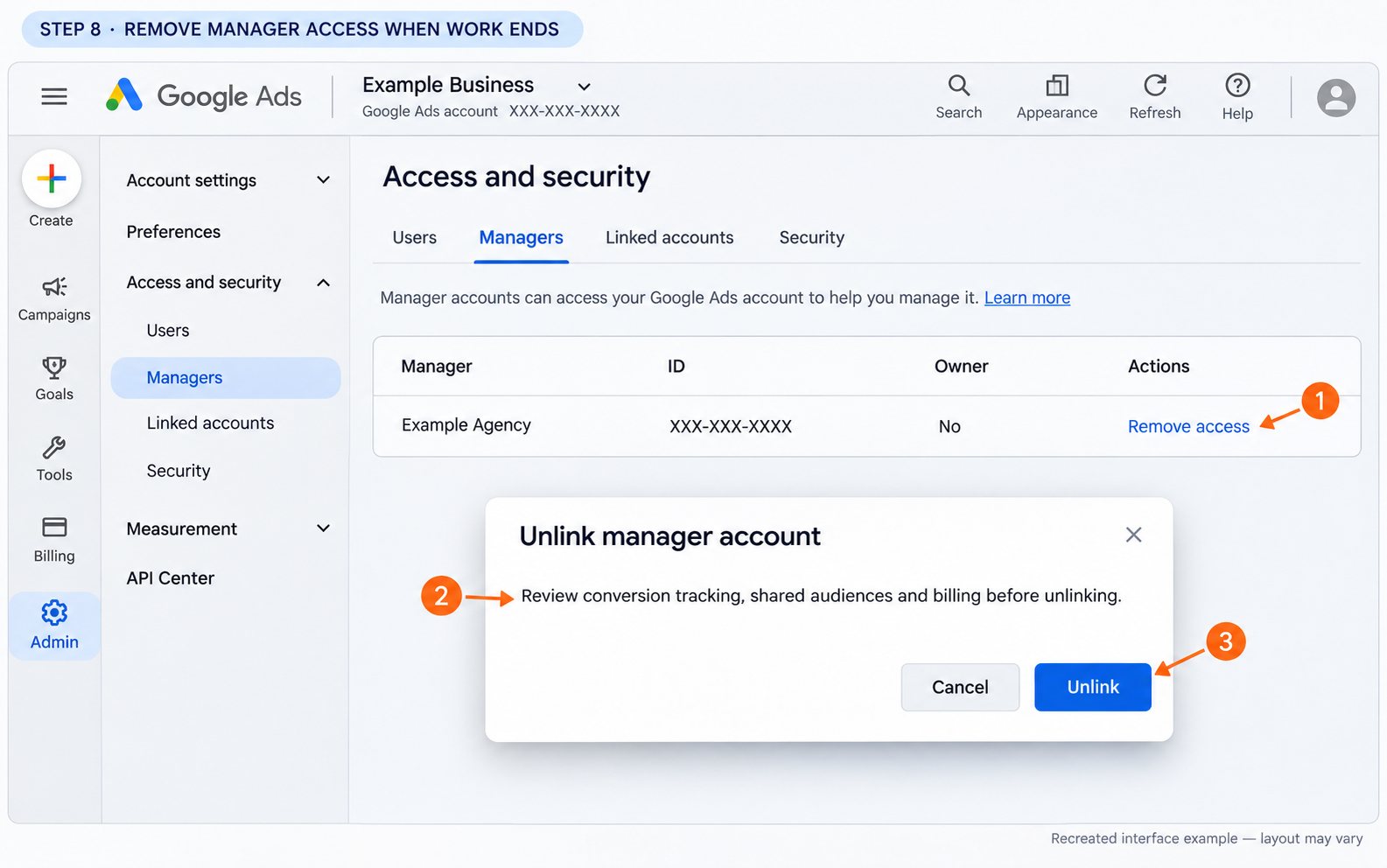
Google’s unlinking instructions cover the client and manager routes. Review direct users separately under Users, along with access to Analytics, Tag Manager, Merchant Center, websites and third-party integrations. Unlinking the MCC is not a complete offboarding check for every other system.
Troubleshooting Google Ads manager access
| Problem | What to check |
|---|---|
| The client cannot find the request | Match the client Customer ID with the agency and check the Managers tab in that account, rather than Users. |
| Accept or removal controls are unavailable | Check client-account Admin access. Administration through another manager can require that manager to have ownership. |
| The agency sees a pending request | Sending is not approval. The client administrator still needs to complete the request. |
| Google reports a duplicate or hierarchy conflict | Have the agency review its existing account hierarchy rather than sending repeated requests. |
| A manager or invitation limit is reported | Ask the agency to review existing links and stale requests. Follow the exact error rather than removing a working manager without a handover. |
| The agency can open Ads but not fix tracking or feeds | Use the separate-product checklist above and identify the missing implementation permission. |
| Nobody at the business can approve access | Find the current administrator or use Google’s support/account-recovery process. Creating a duplicate account is not an access recovery plan. |
Google’s manager linking and unlinking errors guide explains hierarchy, ownership and limit-related failures.
Frequently asked questions
Do I give the agency my Customer ID or ask for its ID?
For the usual agency-initiated workflow, send your client Customer ID so the agency can request the link. Ask the agency for its manager name and ID as well, so you can verify the request you receive.
Will the agency need my Google password?
No. You use your own login to approve access, and the agency uses its manager account or its invited Google Account.
Is the Managers tab the same as the Users tab?
No. Managers contains manager-account relationships. Users contains individual accounts invited directly. Check both when auditing access.
Should every agency staff member be invited individually?
That is generally unnecessary when the agreed arrangement is access through the agency’s MCC. Ask your agency how it assigns its team and maintains continuity before adding parallel direct invitations.
Should I create a new account when changing agencies?
Start by reviewing the existing account, access and handover requirements. A change of provider is not by itself a reason to abandon the current setup.
Need help with your Google Ads handover?
Send your Growth Digital contact the client Customer ID and the scope of work through your normal onboarding channel. Tell us who can approve access and whether another agency is currently involved, so the transition can be planned around live campaigns and tracking.
See our Google Ads management service and Google Ads management cost guide for the work involved. If we are also managing paid social, use the matching Facebook and Instagram agency access guide.
Keep reading
Related posts
Google Display Ads in 2026: Costs, Demand Gen Migration and Whether It’s Worth Running
Google Display Ads in 2026: what's changing as Display moves into Demand Gen, real Australian costs, and where it actually belongs in…
Performance Max for Lead Generation: A 2026 Guide for Australian Service Businesses
Performance Max for lead gen needs different conversion tracking and asset groups than ecommerce PMax. How Australian service businesses should set it…
Microsoft Advertising (Bing Ads) for Australian Businesses: Cost, LinkedIn Profile Targeting and the Google Ads Import Trap (2026)
What Microsoft Advertising actually costs in Australia, how LinkedIn profile targeting works for B2B, and what breaks when you import from Google…
Got a project you'd like to talk through?
Tell us what you're working on — we'll come back with a plan.
