
How to Give an Agency Access to Facebook, Instagram and Meta Business Assets
 Jignesh Vagadiya
02/11/2026
16 min read
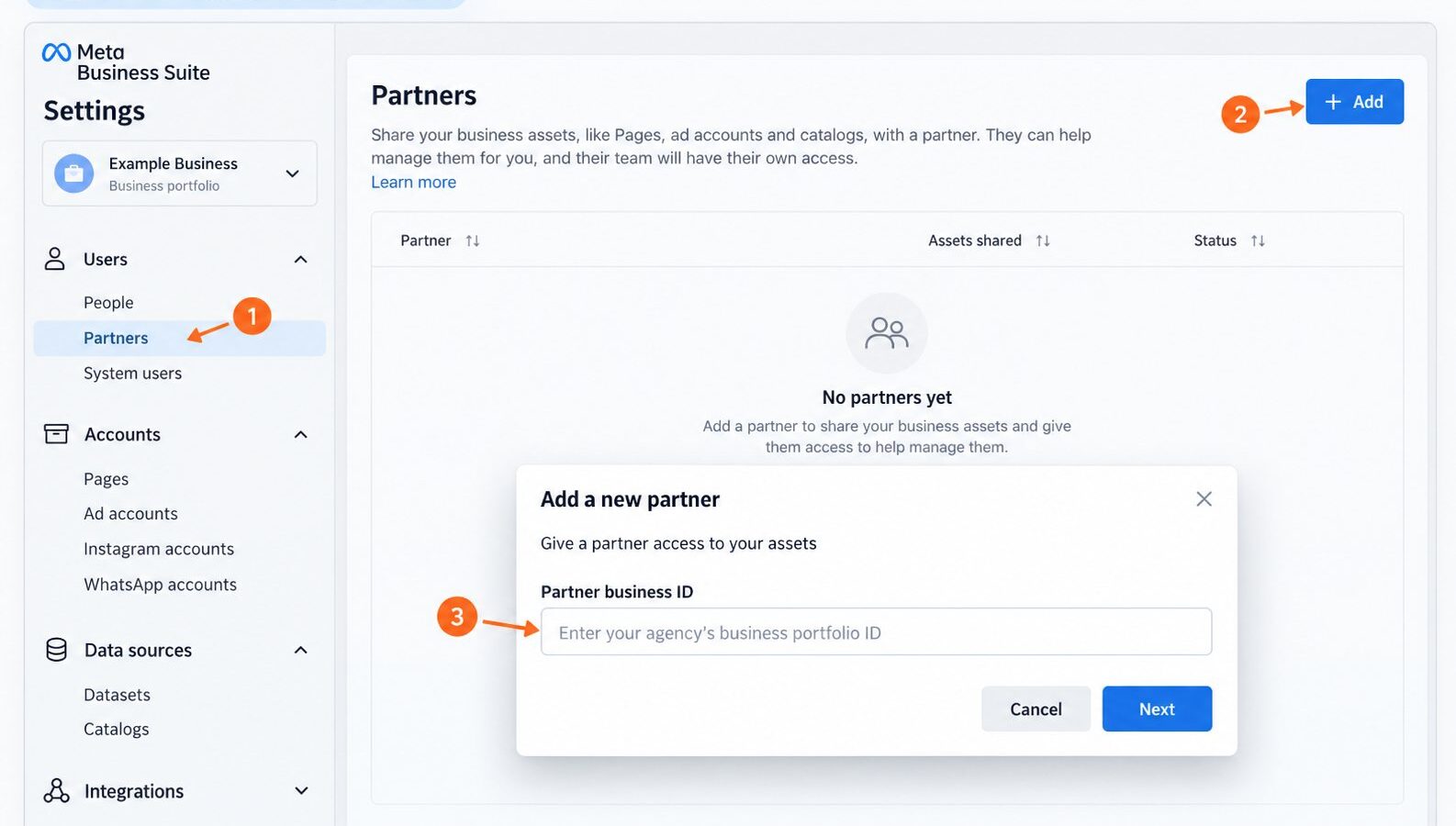
Giving your agency access to Facebook should be a straightforward handover. In practice, the Facebook Page, Instagram account, ad account and pixel can all have different permissions. Sharing one does not automatically share the others.
This guide explains how to give an agency access to Meta Business Suite and the assets it needs: your Facebook Page, Instagram professional account, ad account, pixel or dataset, product catalogue and lead forms. It also covers CRM permissions, optional WhatsApp and messaging accounts, testing and removing access.
The recommended starting point: keep your business assets in your own business portfolio and add the agency as a partner using its business portfolio ID. Share the assets and tasks agreed for the work. You do not need to send the agency your personal Facebook password.
Prepared 2 November 2026 using Meta’s official help guidance. The images below are AI-generated screenshot-style recreations with numbered callouts, not screenshots captured from a live Meta account. They illustrate the navigation and permission concepts; exact controls and layouts may differ. Meta changes menus and permission labels, so use the named asset and task as your guide if your screen looks different.
Before you begin: the access checklist
- Use a desktop browser and sign in to Meta Business Suite with your own Facebook login.
- You need full control of the business portfolio to share its assets with a partner. Being able to post on the Page is not the same permission.
- Ask your agency for its business portfolio ID and confirm the business name it should display. An ad account ID, Page ID and Instagram username are different identifiers.
- List the assets the agency will work on, including their names and IDs. Check which business owns each asset.
- Have the owner of the Instagram account available if it needs connecting or reauthentication. The owner should complete login and two-factor authentication directly.
- Enable two-factor authentication for the portfolio and retain an internal person with full control.
Working with Growth Digital? Ask your contact for our confirmed partner business ID before starting. Use the ID supplied directly for your onboarding; do not guess it from another account or copy an ID from an example online.
Meta explains the ownership and access requirements in its guide to sharing assets with a partner. An agency can manage its own team’s access within the permissions you give it.
Which assets and permissions does an agency need?
Use this as a scope checklist, rather than switching on every permission. Reporting, running ads, posting content and managing integrations are different jobs.
| Asset | When it is needed | Access to discuss |
|---|---|---|
| Facebook Page | Ads using your Page, publishing or community management | Advertising tasks; add content, messages, community activity and insights only where included |
| Ad account | Campaign creation, optimisation and reporting | Campaign management and performance access; administration only for agreed setup work |
| Instagram account | Instagram identity in ads, publishing, inbox or insights | The relevant advertising, content, messages and insights tasks available in your account |
| Pixel/dataset | Website conversion reporting, optimisation and tracking setup | Viewing or management permissions appropriate to the work; connect the correct ad account separately |
| Catalogue | Product ads and ecommerce feeds | Partial access for using the catalogue in ads; full control when managing products, feeds or catalogue settings |
| Leads and CRM | Downloading instant-form leads or routing them into a CRM | Page access plus leads access; authorise the CRM and its integration identity separately |
| WhatsApp/messaging accounts | WhatsApp campaigns, messaging or integrations | Only the account and messaging tasks in scope; messaging-account sharing may also be required |
| Other assets and systems | Apps, shared audiences, commerce setup, domains or Conversions API work | Assess individually; website, store, DNS and integration permissions are separate from Meta partner access |
Full control of an asset is different from full control of your entire business portfolio. Routine campaign management is not a reason to automatically give the agency portfolio-wide administration or finance access. Agree any broader permission explicitly.
Step 1: Open the correct business portfolio and Settings
- Open Meta Business Suite.
- Use the business selector to choose the portfolio that owns your assets.
- Open Settings. Depending on the layout, you may see a link to more business settings.
- Confirm you are looking at the client’s business, rather than a personal Page view or another portfolio.
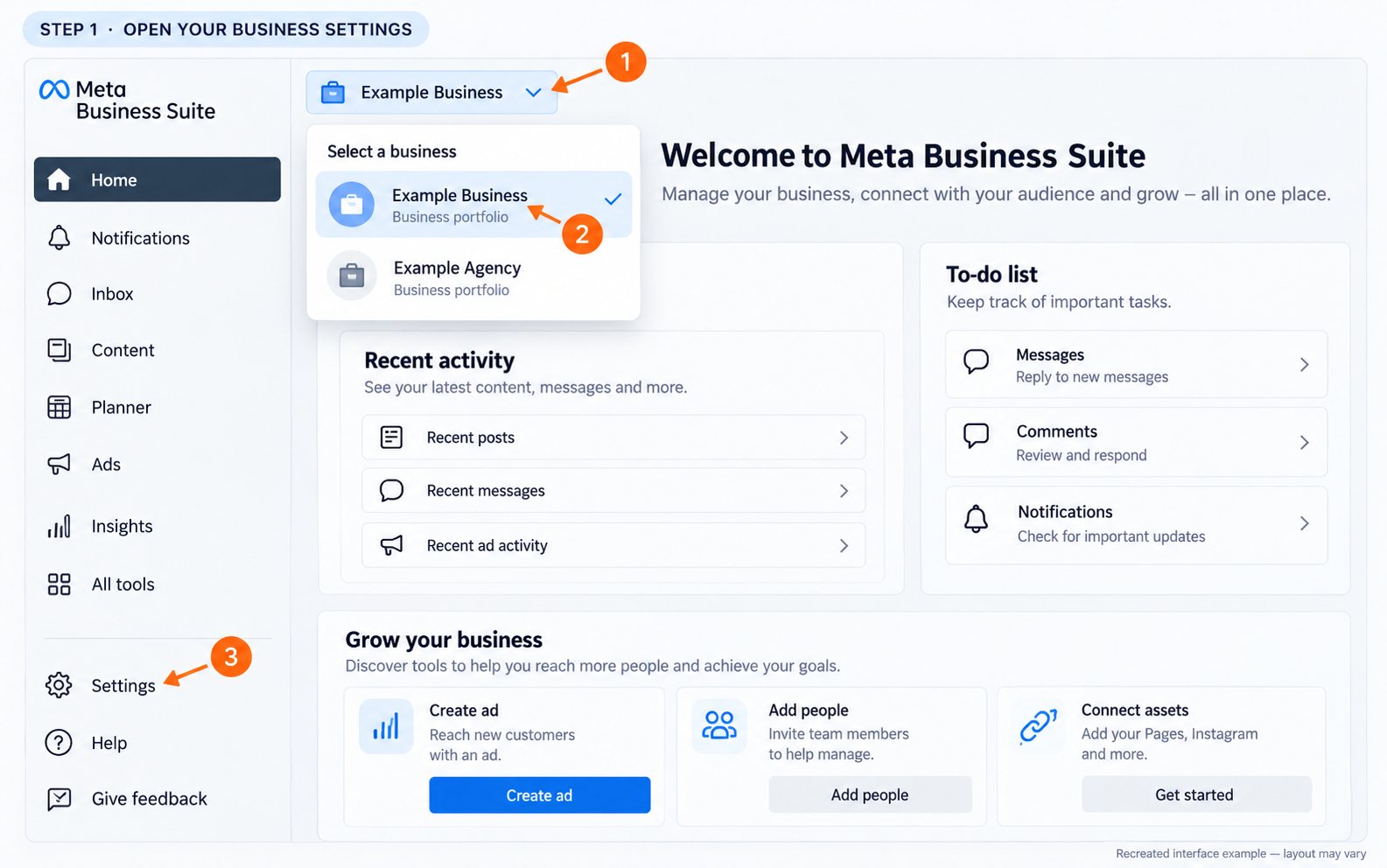
If you need to check an ID, open Business portfolio info in Settings. Meta’s business portfolio ID instructions explain where to find it. For the next step you need the agency’s ID, rather than your own.
Step 2: Add the agency as a partner
- In Settings, find Users → Partners.
- Select Add → Give a partner access to your assets.
- Enter the agency’s business portfolio ID and select Next.
- Check any business details Meta displays before continuing.
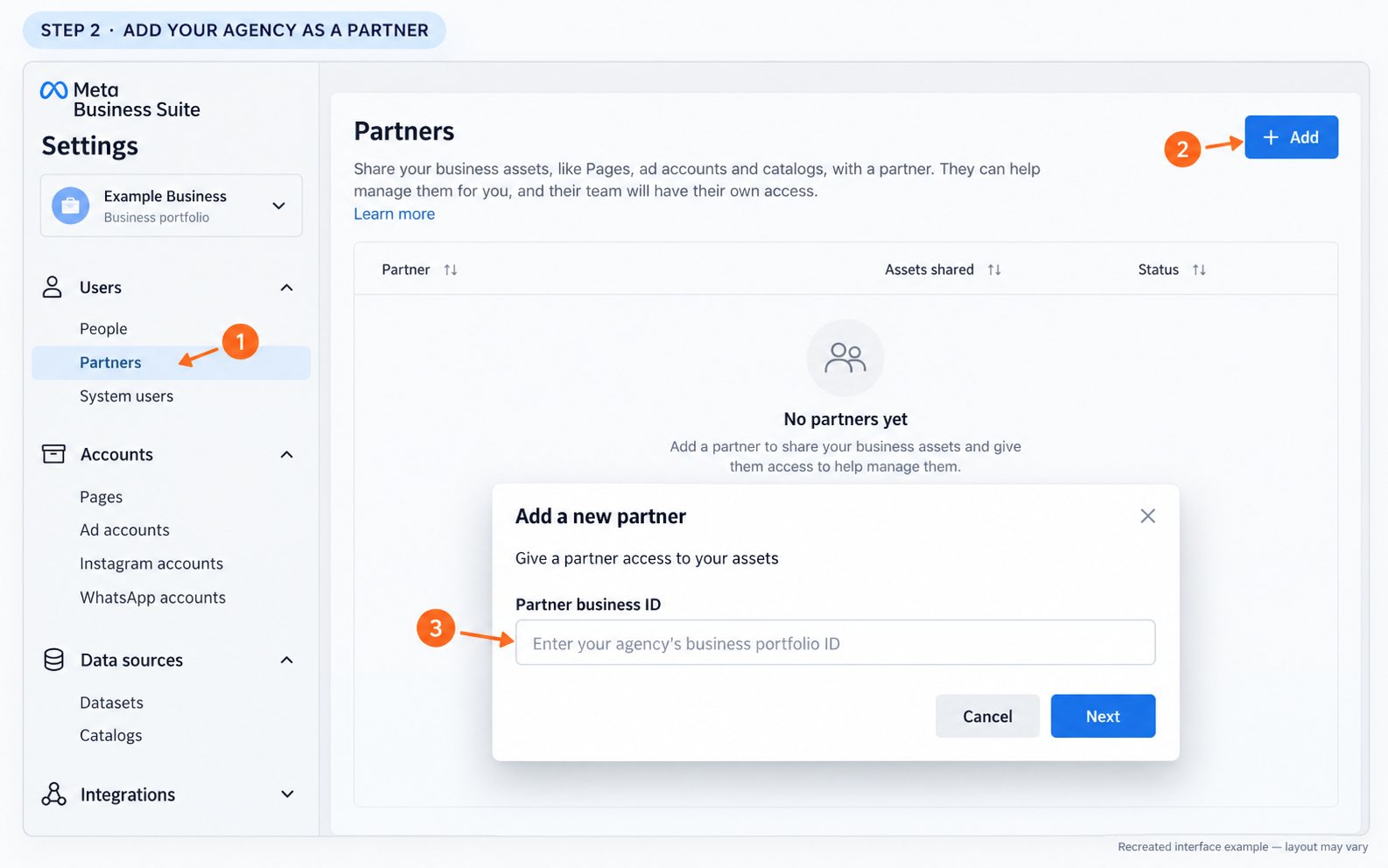
Select the option for giving access. The option for asking a partner to share assets starts the opposite workflow. If the agency has already requested access, review that request in Settings instead of creating a duplicate. Meta describes both approaches in About partners in Meta Business Suite.
Step 3: Select your Facebook Page and its tasks
- In the asset selection screen, choose Pages.
- Select the correct Page, checking its name and ID where available.
- Choose the advertising tasks your agency needs.
- Add publishing, messages, community management or insights tasks if those services are part of your agreement.
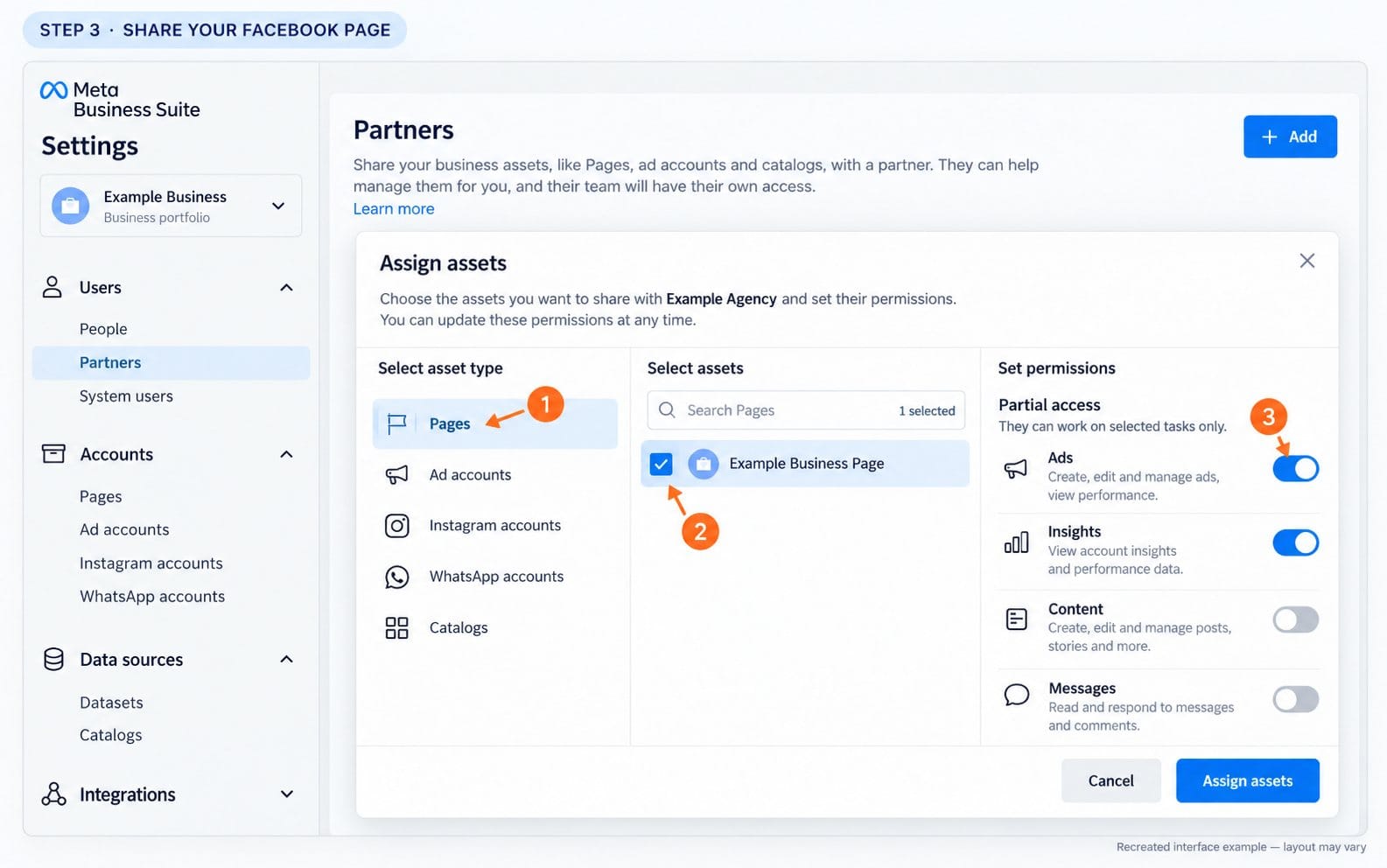
You can select multiple relevant Pages, but check them individually. Sharing a Page does not by itself provide access to its ad account, Instagram account or lead data. If you are returning to an existing partner, select that partner in Settings and use the available asset-assignment controls.
Step 4: Select the ad account
- Choose Ad accounts in the asset selector.
- Select the account your business actually uses for advertising. Match the numeric ID, particularly if several accounts have similar names.
- Enable the available campaign-management tasks for an agency running your campaigns, or reporting access for a reporting-only engagement.
- Review any additional administration permissions separately.
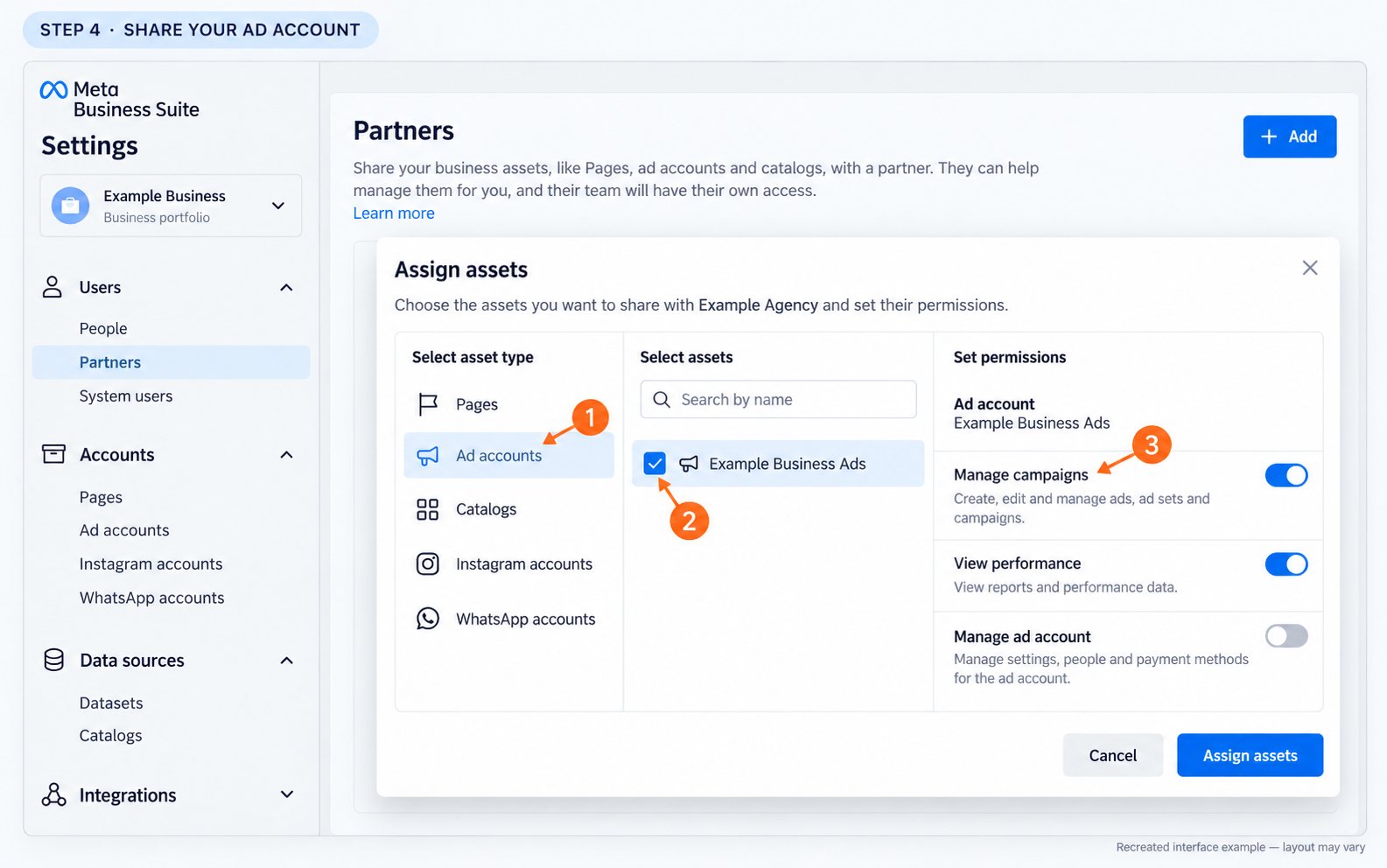
An agency may be able to see a Page while still being unable to create or edit campaigns. Check the ad account assignment before assuming the whole invitation failed. Your payment method and account billing setup also need to be valid before ads can run; partner access does not resolve billing restrictions.
Step 5: Share Instagram access as a separate asset
First check Settings → Accounts → Instagram accounts. The intended Instagram professional account should be present in the correct portfolio.
- If it is missing, the owner can select Add and complete Meta’s Instagram connection flow, including login and two-factor authentication.
- If Meta says it belongs to another portfolio, resolve ownership or access with that portfolio’s administrator. Do not remove accounts blindly.
- Share the Instagram asset with the agency through partner asset assignment, or the asset’s partner controls where offered.
- Choose the advertising, publishing, messaging and insights tasks needed for the engagement.
- Check the intended Facebook Page connection and ad account association where relevant.
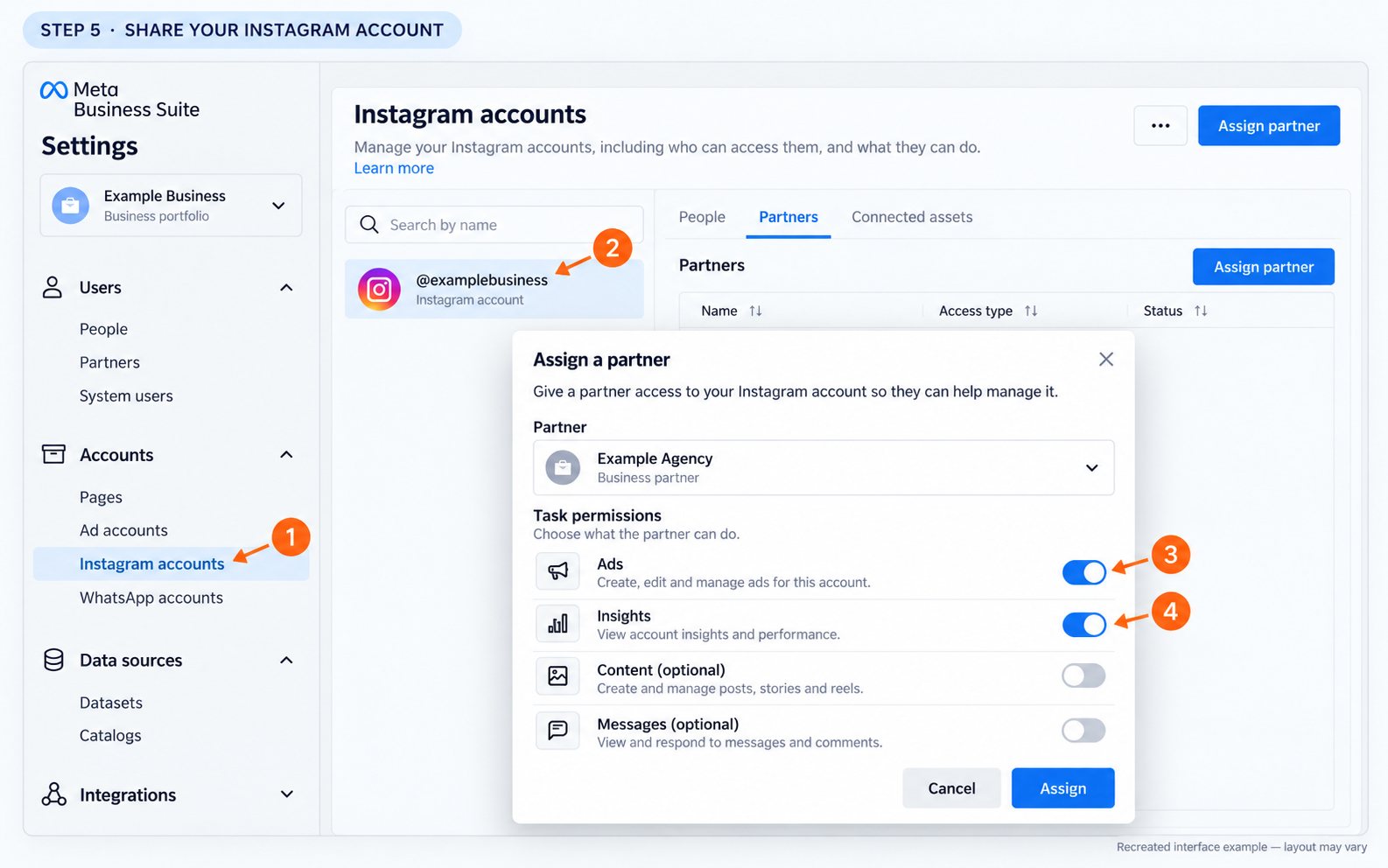
Meta’s Instagram business portfolio setup guide explains the professional-account and ownership requirements. Advertising access does not necessarily enable every organic publishing feature or direct login to the Instagram app.
Creator partnership ads are a separate permission. If you want to advertise using a creator’s identity or content, business asset access alone does not grant that permission. Follow Meta’s Instagram partnership ads permission instructions with the creator.
Step 6: Give access to the pixel or dataset
Meta may list the website data source under Datasets or Datasets and pixels. Check the ID used on your website rather than creating a replacement because the menu name changed.
- Go to Settings → Data sources → Datasets.
- Select the correct website dataset.
- Choose Assign partners.
- Enter the agency’s business portfolio ID.
- Choose the access level needed and select Next, completing any confirmation shown.
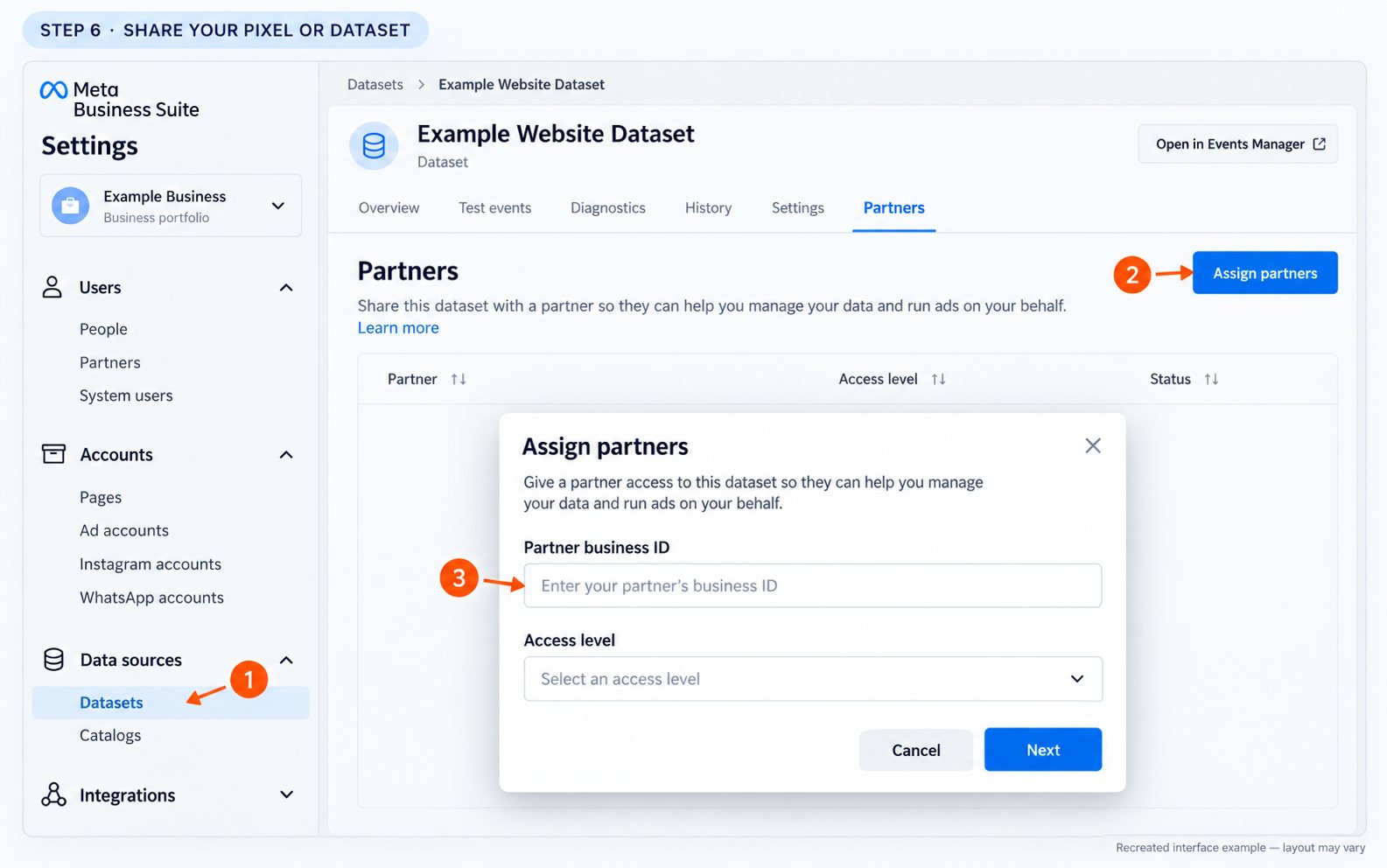
Use Meta’s dataset partner access guide if this asset needs a separate assignment after the main partner flow. Tracking implementation and diagnostics may require management access beyond viewing events.
Step 7: Connect the dataset to the correct ad account
There are two connections to verify: the agency can access the dataset, and your ad account can use it. Completing one does not prove the other is set up.
- In Data sources → Datasets, select the dataset.
- Use Add assets, or open Connected assets → Connect assets → Other business assets, depending on the interface.
- Select the intended ad account and confirm with Add.
- Ask the agency to check that the correct dataset and conversion event are available in an unpublished campaign setup.
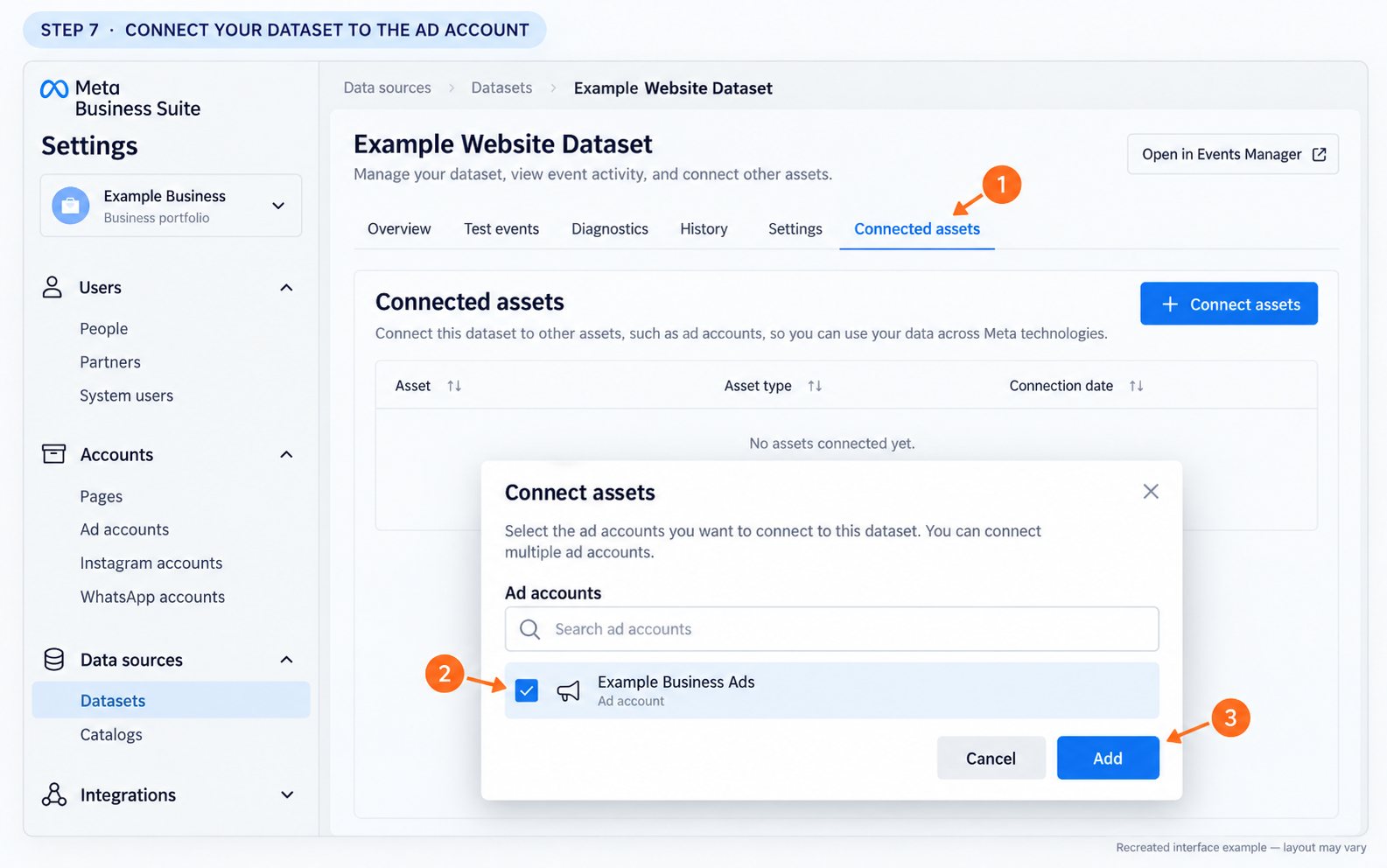
Meta documents these layout variants in Add an ad account to a dataset and Assign an ad account to a Meta pixel.
Conversions API needs its own setup review. Dataset sharing does not automatically install browser tracking, configure server events, connect your ecommerce platform or authorise a CRM. Agree the integration method and give the implementer access to the relevant website, tag manager, store or server through that system’s own permissions. Do not send access tokens or two-factor codes in an onboarding email.
Step 8: Share the catalogue if you use product ads
- Open Settings → Data sources → Catalogs.
- Select the correct catalogue and choose Assign partners.
- Choose Business ID and enter the agency’s business portfolio ID.
- Select Partial access for catalogue use in ads and product-set work, or Full control if the agency will manage products, data sources, connections and catalogue settings.
- Choose Next → Done, as shown in your flow.
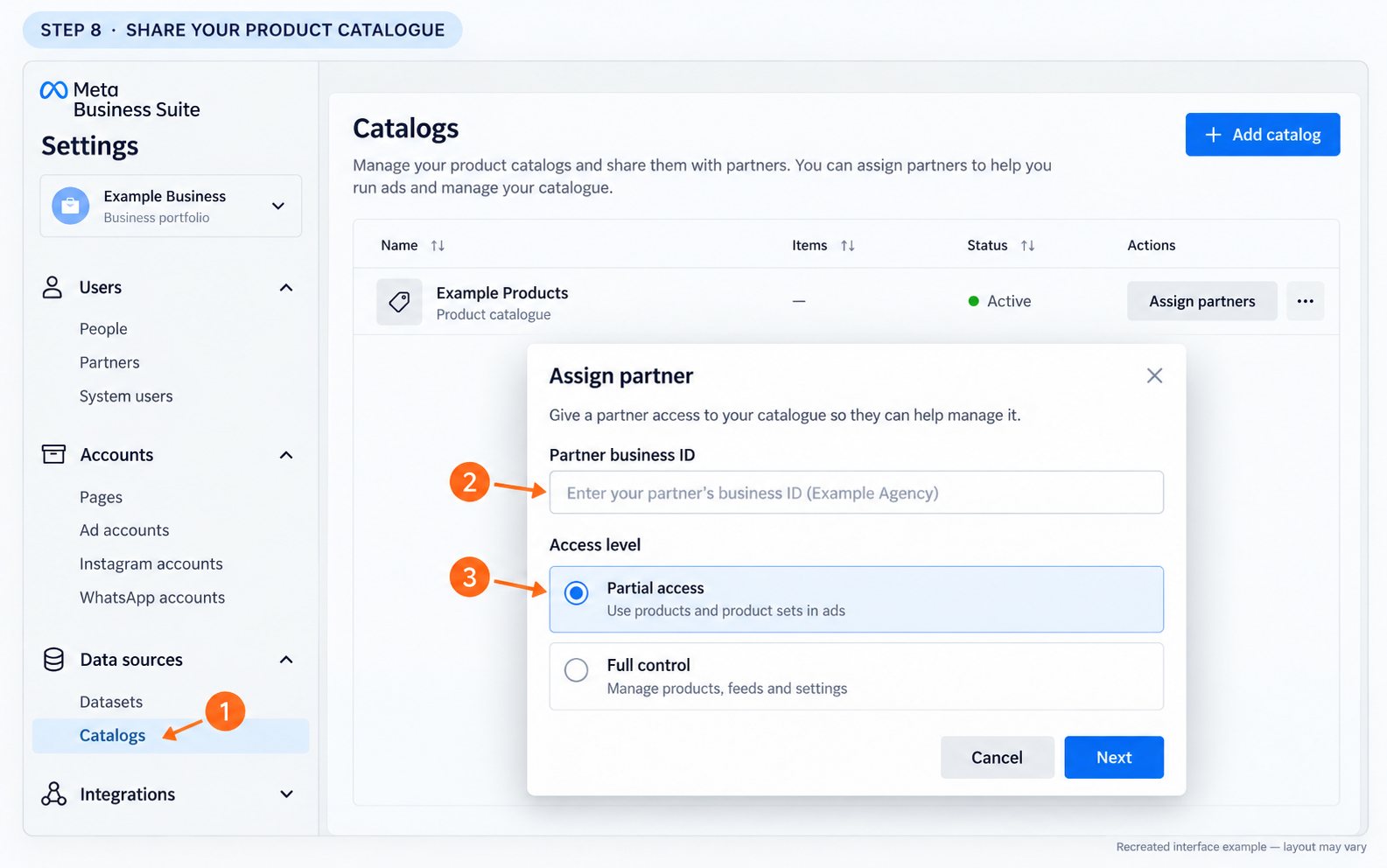
Check the catalogue in Commerce Manager with the agency: products should be present, the feed should update, and the correct dataset should be associated where required for your product-ad setup. Catalogue permissions do not automatically grant access to Shopify, WooCommerce, a feed application or every shop-management function.
Meta sets out the permission differences in Assign catalogue access in Meta Business Suite, with related connections in Manage a catalogue. Skip this step if you do not have a catalogue and do not need one for the campaign.
Step 9: Add leads access and the CRM connection
If your campaigns collect enquiries through Meta instant forms, check lead permissions explicitly. The ability to create an ad does not prove that its leads can be downloaded or sent to your CRM.
- Go to Settings → Integrations → Leads access and select the relevant Page where prompted.
- If you choose to customise leads access for the first time, review the current people and CRM assignments as part of that change.
- Select Assign partners, choose your agency and confirm the assignment.
- For automated lead delivery, connect the CRM through its supported integration and assign it under the CRM controls as required.
- Check that the person or identity authorising the integration also has the necessary Page and leads permissions.
- Submit a test lead using the integration’s test workflow and confirm it arrives in the intended pipeline.
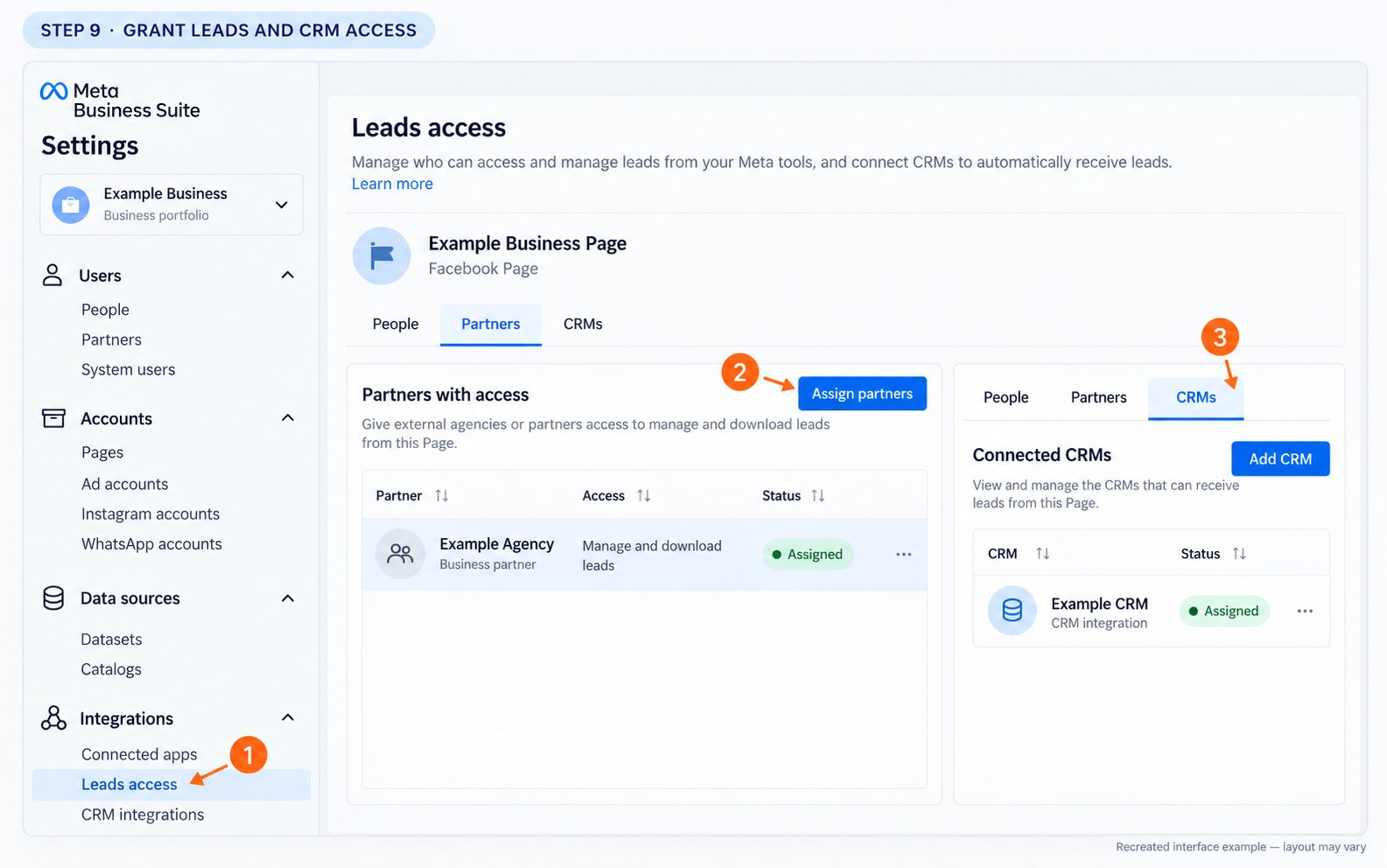
If the partner is missing, confirm it has already been assigned to the Page. Follow Meta’s leads access permission instructions and guide to enabling leads access. Once access is customised, remember to assign new people and CRM connections rather than assuming they inherit access.
Step 10: Review optional WhatsApp, messaging and other assets
For businesses using the WhatsApp Business Platform, Meta provides a separate account-sharing workflow:
- Open Settings → Accounts → WhatsApp accounts.
- Select the relevant account and choose Assign partner.
- Enter the agency’s business ID, choose the agreed permissions and select Assign.
- If Meta prompts you to share a messaging account for messaging permissions, complete that separate assignment too.
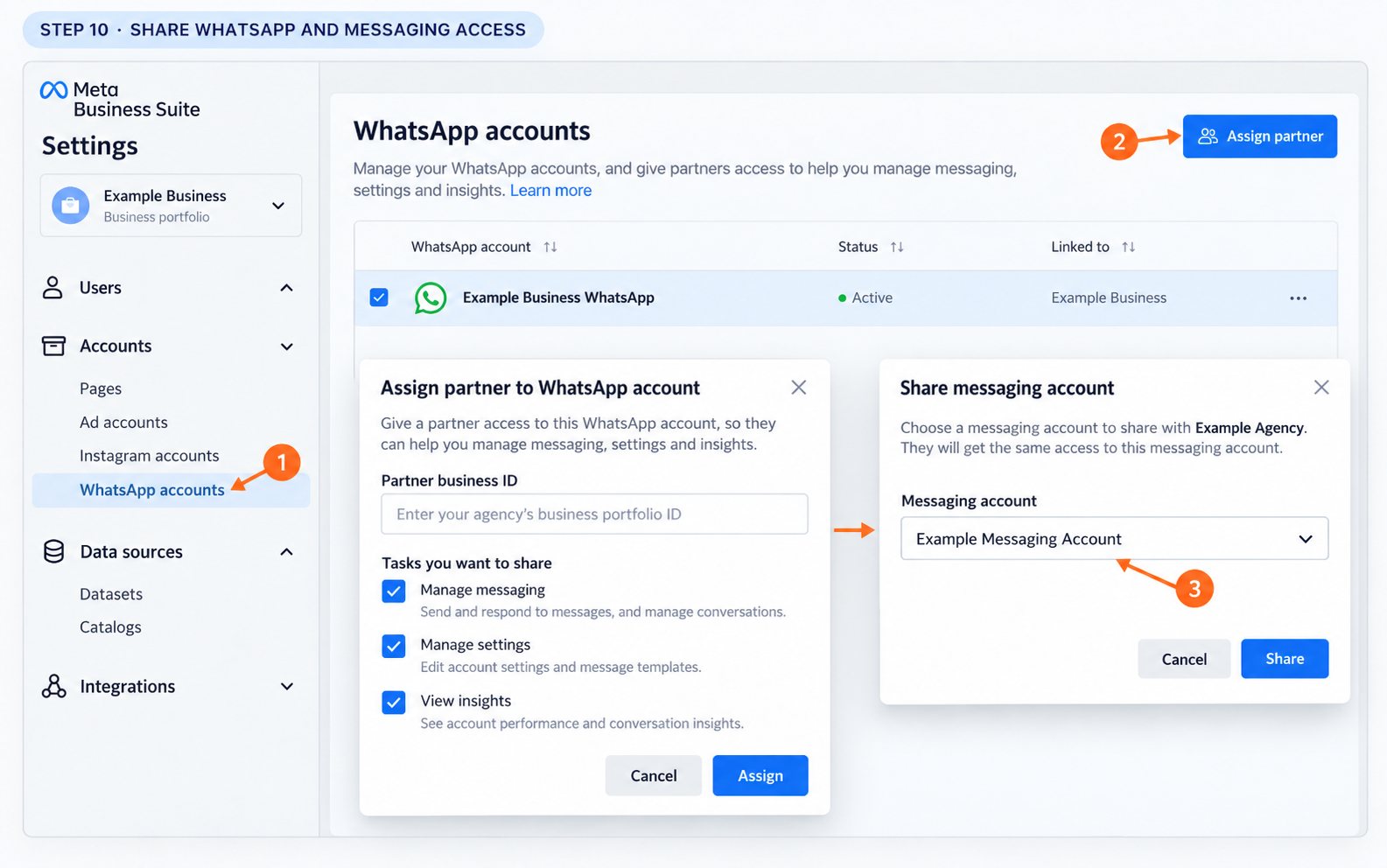
Messaging accounts have their own partner and payment constraints. Use Meta’s WhatsApp and messaging partner guide before changing an existing provider arrangement. This workflow is not a blanket invitation to take over a WhatsApp number.
For a complete handover, also review these items with the agency:
- Commerce accounts and shops: check any shop-specific work in Commerce Manager; catalogue access may not cover it all.
- Apps and app-event data: confirm app-specific roles and data-source access for app campaigns.
- Audiences: check whether the needed custom audiences are available in the correct ad account and whether separate sharing is supported and appropriate.
- Domains: check ownership and verification if the implementation requires it. DNS or website access is a separate handover; do not transfer the domain as an onboarding shortcut.
- Offline/CRM events and custom conversions: verify the relevant data source and conversion definitions in Events Manager and Ads Manager.
- Finance and integrations: agree any billing, system-user, app or integration access explicitly. There is no single partner toggle that automatically configures every external service.
Step 11: Review and confirm each assignment
In the main partner flow, review the selected assets and permissions, then select Assign assets. For assets shared through their individual settings, finish the corresponding confirmation there. You may need approval from another person with full control of the owning portfolio.
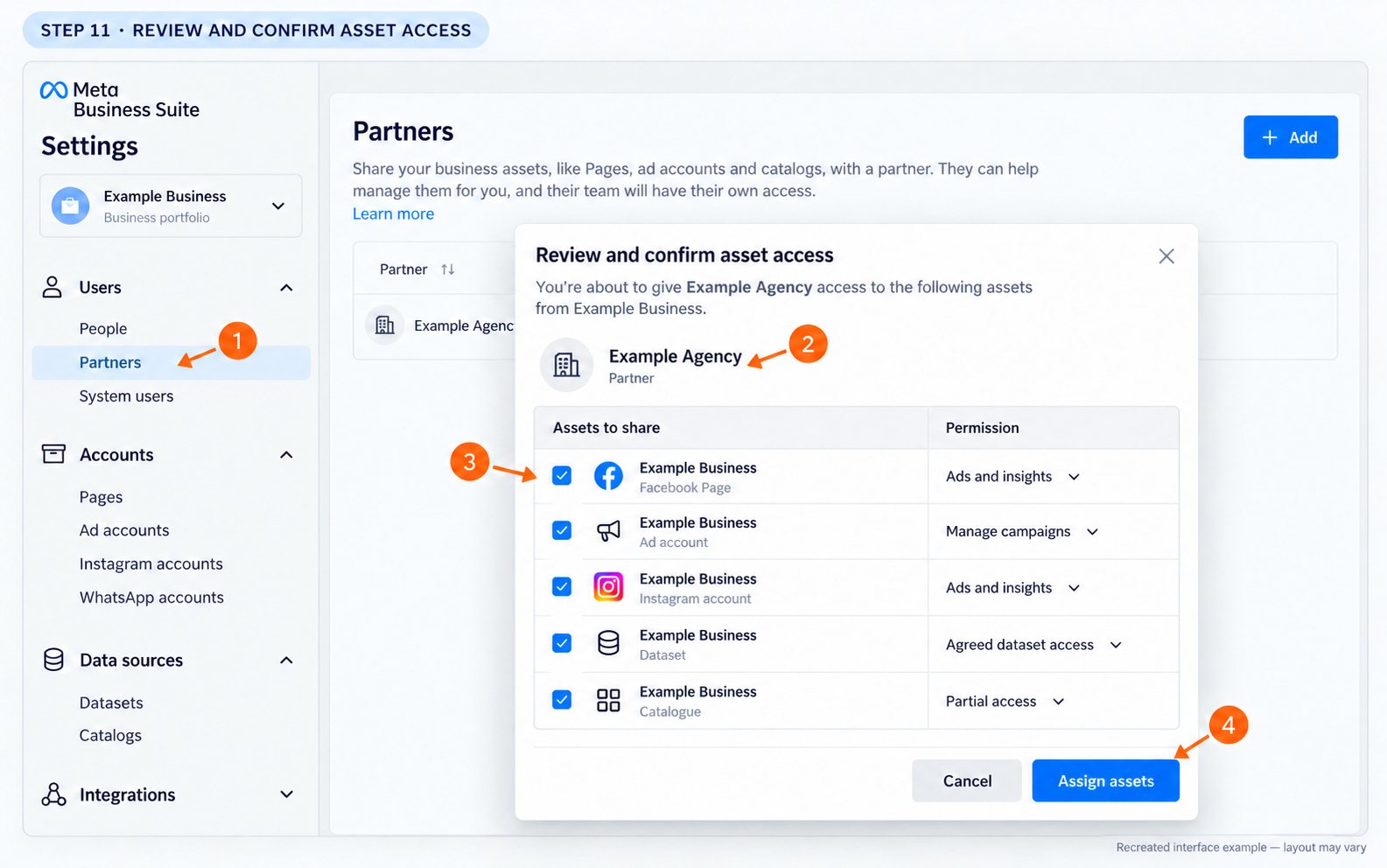
Check the partner’s assigned-asset list afterwards. Record what was shared and any approvals still pending. Send your agency the asset names and IDs through your usual onboarding channel, without passwords, payment-card details or security codes.
Step 12: Have the agency test the complete setup
The agency should assign its own team members to the shared assets, within the permissions you granted. Ask it to confirm these checks before the first campaign launch:
- The intended ad account opens and existing campaigns can be reviewed.
- The correct Facebook Page and Instagram identity are available in an unpublished ad.
- The website dataset and intended conversion event are available, with event activity checked in Events Manager.
- The catalogue, product sets and product diagnostics can be accessed where relevant.
- A test lead reaches the correct CRM or can be retrieved by the authorised team.
- Any agreed inbox, publishing, WhatsApp or app tasks work.
- Account restrictions, billing problems and pending approvals have been identified separately.
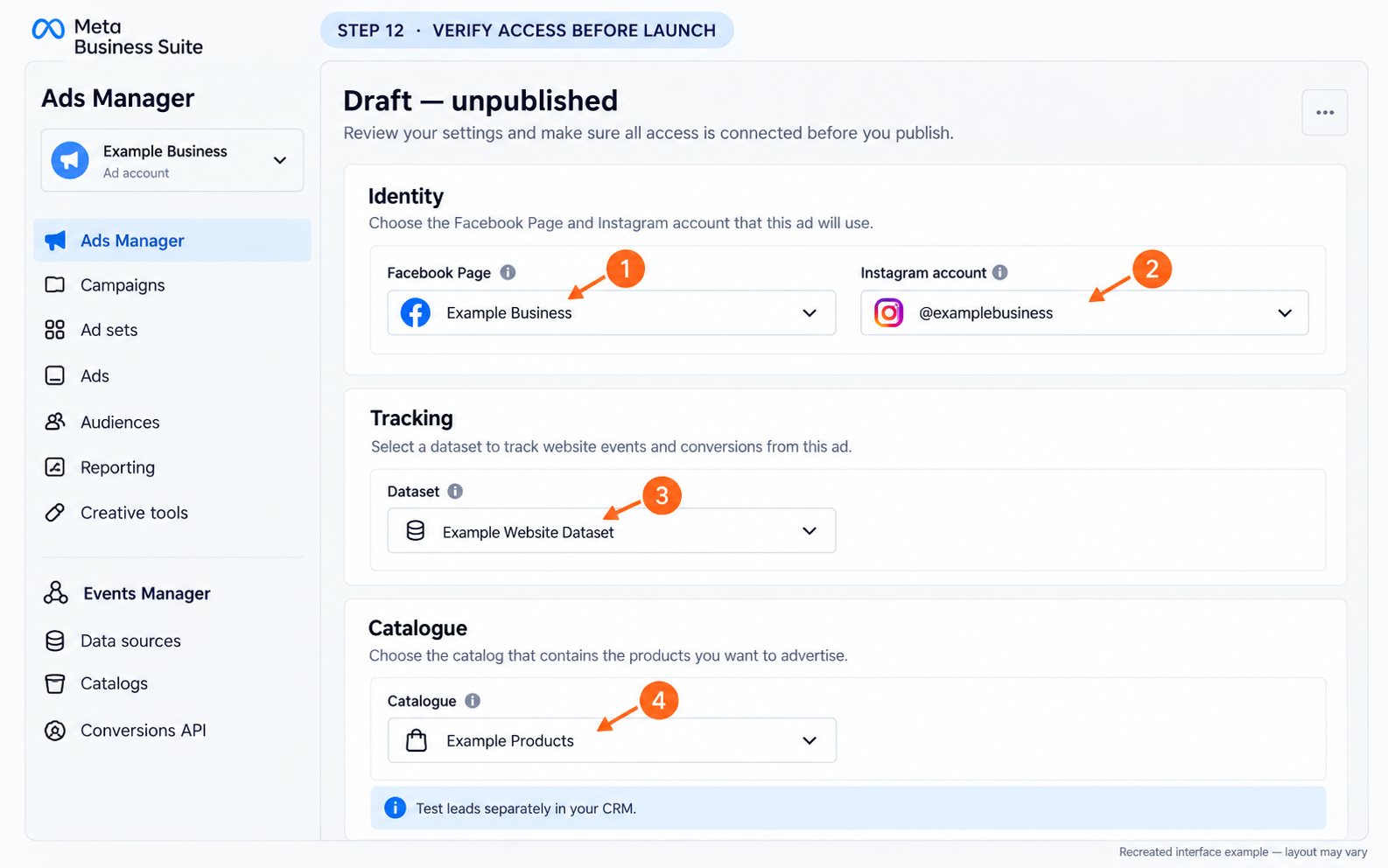
Keep verification ads unpublished. Testing access does not require starting ad spend or changing a live campaign.
Common access problems and what to check
| Problem | Check next |
|---|---|
| Partners is missing | Confirm the selected portfolio and whether you have full control of it. Ask its owner to complete the assignment if needed. |
| A Page or account is missing | Check which portfolio owns it. A business that only has shared access may be unable to reshare it with another partner. |
| The business ID is rejected | Confirm it is the agency’s portfolio ID, copied exactly, rather than an ad account or Page ID. Review any restriction shown by Meta. |
| Agency sees assets but its staff cannot work | The agency must assign its own people to the shared assets and appropriate tasks. |
| Instagram is missing in Ads Manager | Check the professional-account connection, partner assignment, intended Page connection and access to the associated ad account. |
| Dataset cannot be selected | Check both dataset partner access and the dataset’s ad account connection, then the agency user’s assignment. |
| Catalogue is visible but cannot be edited | Partial access may permit ad use without product/feed management. Review whether catalogue full control is needed for the agreed work. |
| Ads work but leads do not reach the CRM | Check Page, partner leads, CRM and integration-user permissions, then run a test lead. |
| Access is pending | Review requests and any second-owner approval. Do not assume a successful form submission completed the sharing. |
| A previous agency owns an asset | Establish the ownership and recovery route with that business or Meta support. Do not create replacements or remove assets before assessing history and connections. |
How to change or remove agency access later
Open Settings → Users → Partners, choose the agency and review the available controls to edit asset access or remove the partner. Also review separately assigned leads/CRM permissions, WhatsApp and messaging accounts, direct people access and external integrations. Removing one relationship should not be treated as proof that every separate integration has been revoked.
Before offboarding, arrange a campaign and reporting handover, confirm who is managing active ads, and retain your internal access to the assets. Coordinate messaging-provider changes carefully so you do not interrupt customer conversations. Keep the business’s original assets and data in place.
Frequently asked questions
Do I need to give the agency my Facebook or Instagram password?
No personal Facebook password is needed for partner asset sharing. If Instagram needs connecting or reauthentication, its owner should enter credentials directly in Meta’s own flow. Business Suite access and direct Instagram-app access are different things.
Is adding an agency as a partner the same as adding a person?
No. A partner is another business with its own portfolio. You share specified assets with that business, which then assigns its own team within the allowed permissions. Adding an individual is a separate access relationship.
Can I give access to everything at once?
You can select several assets in the partner flow, but datasets, catalogues, leads, messaging and integrations may need additional assignments or connections. Use the checklist above and confirm each required task works.
Does the agency become the owner?
Partner access shares permissions to work on assets; it is not an ownership transfer. Check the owning business in your settings, particularly where an older provider originally created an asset.
Do I need a catalogue or pixel just to give access?
No. Share the assets you already use and plan any missing tracking or catalogue setup separately. A lead-form campaign and an ecommerce product-ad campaign have different requirements.
Need help completing the handover?
Send your Growth Digital contact the names of the assets you can see and the step where you are stuck. A screen-share with the person who has portfolio full control is often the most practical way to resolve an ownership or permissions mismatch. Keep account credentials and security codes private during that session.
Our Meta Ads management service covers Facebook and Instagram advertising. For related reading, see our Facebook ecommerce advertising guide and Meta Ads management pricing guide.
Keep reading
Related posts
Meta Ads Cost and Targeting in Australia: A 2026 Deep Dive
Real 2026 Meta Ads cost benchmarks for Australia, plus how Advantage+, detailed targeting and placement strategy actually work now.
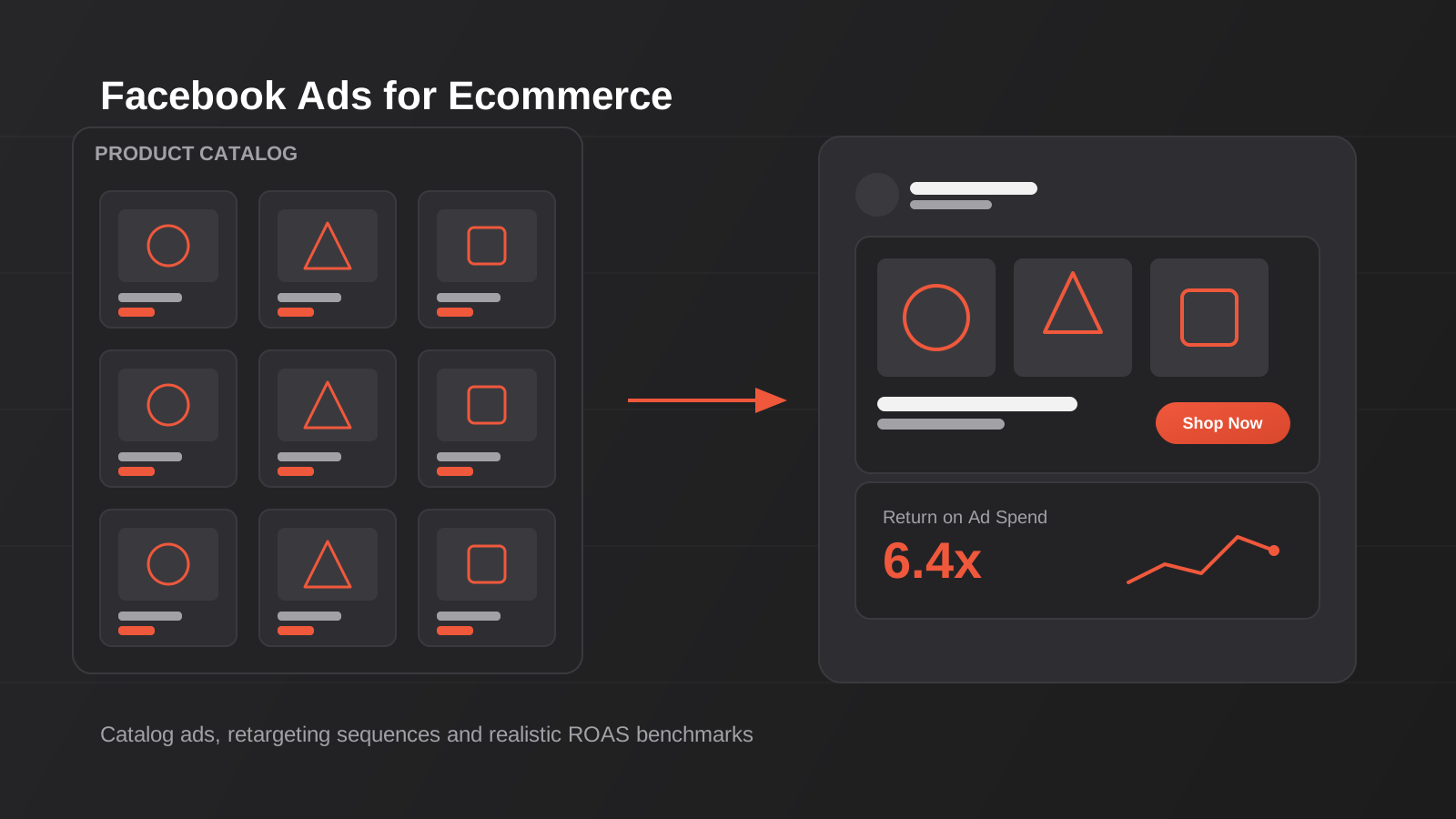
Facebook Ads for Ecommerce Stores: Catalog Ads, Retargeting and ROAS That Works (2026)
How ecommerce stores use Facebook catalog ads, product feeds and cart retargeting to hit real ROAS — on Shopify and WooCommerce.
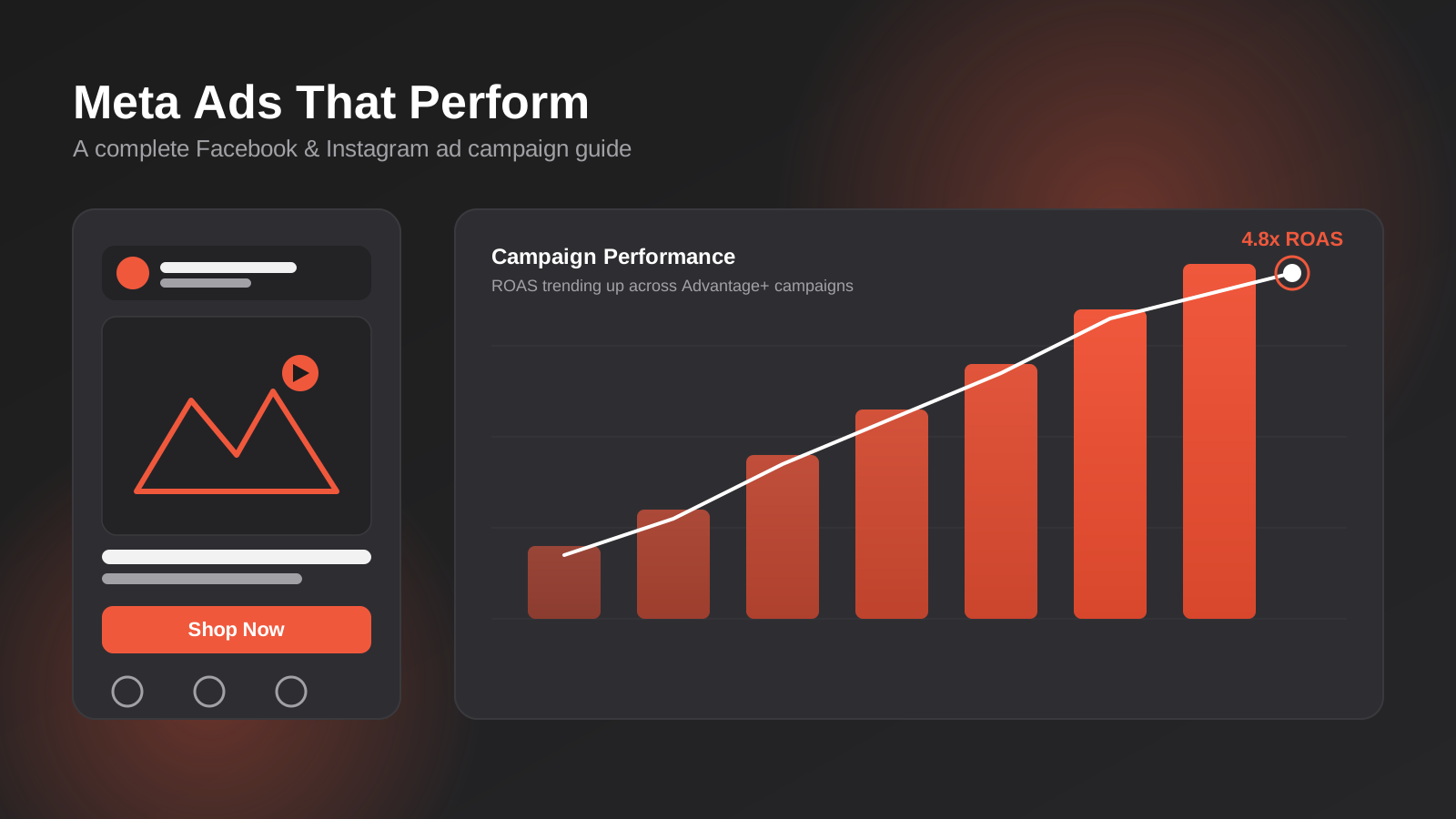
How to Run a High-Performing Facebook Ad Campaign: A Complete Guide (2026)
A complete guide to Facebook ads for Australian businesses in 2026 — campaign structure, creative, targeting, budget and measuring ROAS properly.
Got a project you'd like to talk through?
Tell us what you're working on — we'll come back with a plan.
