
How to Update Shopify Inventory in Bulk by SKU: A Spreadsheet Workflow for Multiple Locations (2026)
 Jignesh Vagadiya
22/10/2026
9 min read
Jignesh Vagadiya
22/10/2026
9 min read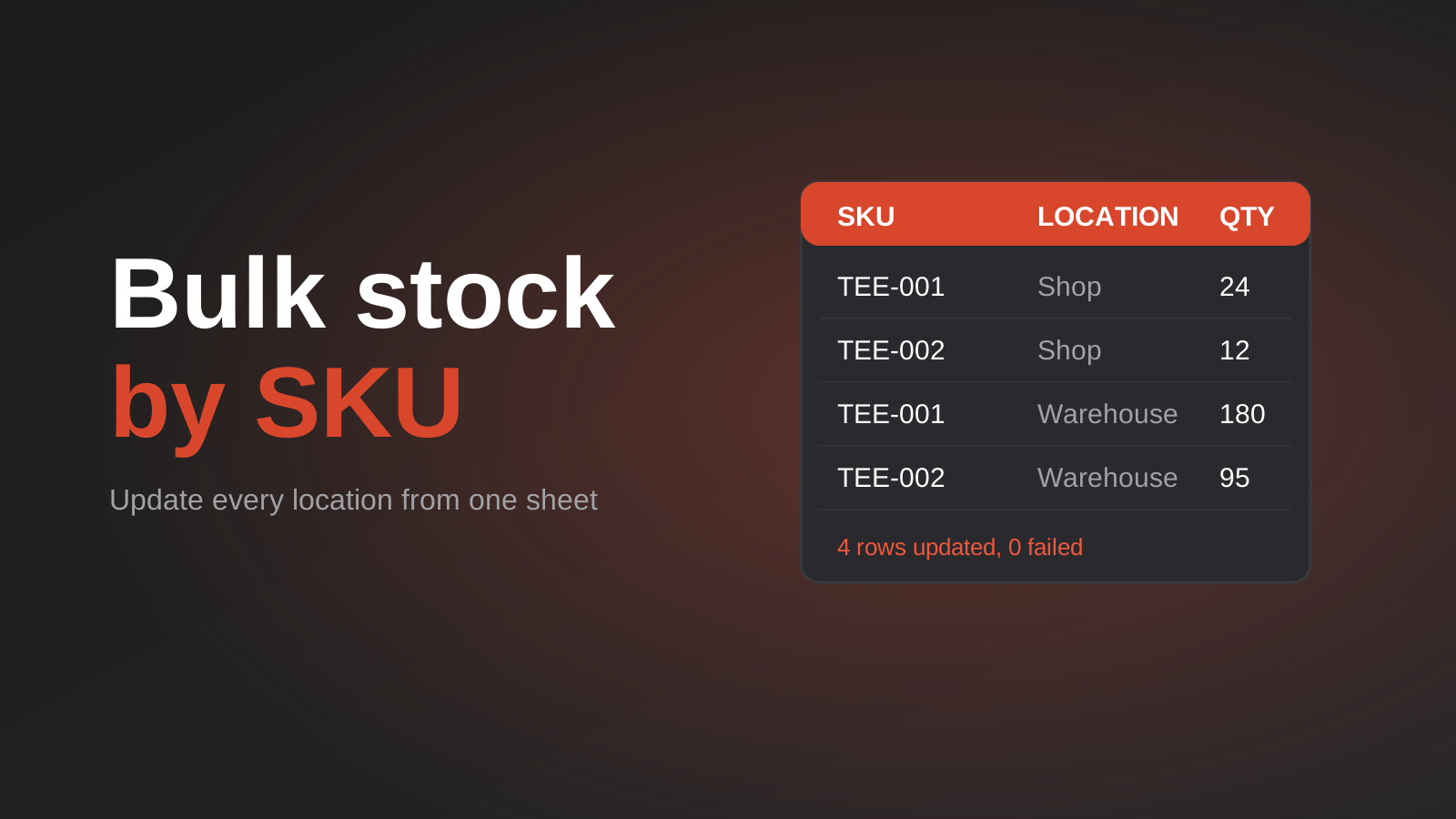
Every Shopify store reaches a point where editing inventory product by product stops being sensible. You’ve just received a pallet of forty different lines. A stocktake produced a spreadsheet of corrections. A supplier sent a delivery note with a hundred SKUs on it. Opening each product to change a number takes the best part of a day, and it’s the kind of job that tends to produce mistakes by the afternoon.
The alternative is a spreadsheet workflow: export what the store holds, change the numbers in bulk, import them back, and check the result. It’s faster, and it can be safer, provided you avoid a handful of well-known traps. This guide covers the workflow, how it changes when you hold stock in more than one location, and the point at which a spreadsheet stops being the right tool and an automatic connection takes over. We built a free app for exactly this job, GD: Inventory Sync Pro, and we explain where it fits at the end.
Your Options for Bulk Stock Updates
- Shopify’s own tools. Shopify’s admin offers ways to edit inventory in bulk and to import products from a CSV file, which can include stock quantities. These are worth knowing about and may be enough for simple cases. Their exact capabilities change over time, so check the current Shopify documentation for what they cover, particularly for multi-location stores.
- A bulk inventory app. Apps that update stock by SKU from a spreadsheet, usually with reports on what changed and what failed. A good fit when you do this often, or hold stock in several locations.
- An automatic integration. A connection between Shopify and your point of sale, warehouse system or ERP, so stock moves without anyone preparing a spreadsheet. The right answer when stock changes constantly in another system.
The spreadsheet approach sits in the middle. It suits stocktakes, deliveries, and periodic corrections. It doesn’t suit a business where stock changes every few minutes in a till or warehouse system, because the spreadsheet is out of date the moment you finish it.
Get Your SKUs in Order First
Bulk inventory updates match rows by SKU, so your SKUs need to be unique, consistent, and present. Before you try your first bulk update, spend an hour on this:
- Every variant has a SKU. Blank SKUs can’t be matched. Find them and fill them in.
- No duplicates. Two variants with the same SKU means an update will land on one of them, and it may not be the one you intended.
- One format. Decide on capitalisation, separators and length, and stick to it. “TEE-001”, “tee001” and “TEE 001” will not match each other.
- Match your supplier and warehouse. If the same product has a different code in your supplier’s list, keep a mapping sheet so you can translate between them.
The Workflow, Step by Step
- Export current stock. Start from what Shopify actually holds, for one location or all of them. Never build a stock update from a list that could be weeks old.
- Edit a copy. Keep the original untouched so you can compare or restore. Change only the quantity column.
- Clean the file. Check the traps below, particularly SKU formatting and blank quantities.
- Test on a few rows. Import a small sample first and confirm the right products changed in the right locations.
- Import the full list. Then read the report. Don’t just trust that it finished.
- Spot check. Open five or six products at random and compare their stock with the sheet. Do the same for any product that appeared in the error list.
The Traps That Corrupt Stock
Leading zeros disappear
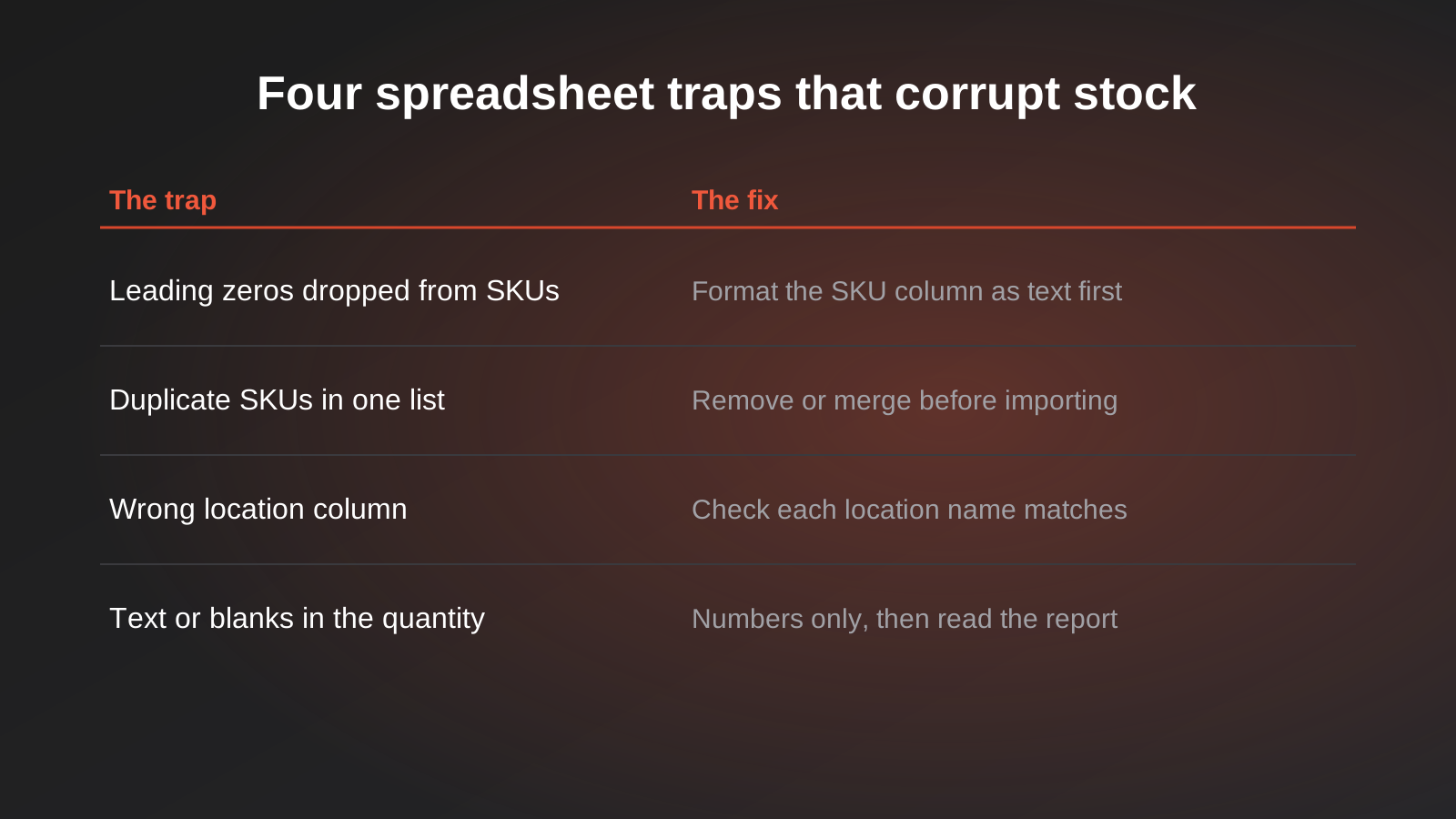
Spreadsheet software treats a SKU like 00123 as a number and quietly turns it into 123. Your import then fails to match, or worse, matches a different product. Format the SKU column as text before you paste anything into it, and be careful when a file passes through someone else’s computer on its way back to you.
Duplicates in the list
If a SKU appears twice for the same location, one of the two rows will win and the other will be ignored or will overwrite it. Sort the sheet by SKU and look for repeats before importing. If a SKU legitimately appears once per location, check that each row names a different location.
Location names that don’t match
Multi-location stores hold stock under named locations. A sheet that says “Warehouse” when the location is called “Main Warehouse” may be rejected or, with the wrong tool, misapplied. Copy location names from the export rather than typing them.
Text and blanks in the quantity
“12 units”, “N/A” and an empty cell are not quantities. Decide what a blank means (leave alone, or zero?) before you import, because tools differ. The safest approach is to remove any row you don’t intend to change.
Overwriting instead of adjusting
A bulk import typically sets stock to the number you provide. If you receive twenty units and enter “20” instead of the new total, you’ve just set stock to twenty. Be clear about whether your sheet holds new totals or changes, and label the column accordingly.
Importing while orders are coming in
If you export at 9am and import at 2pm, any sales in between are not reflected in your sheet. For busy stores, do stock imports in quiet periods, or count and import as quickly as you can after exporting.
Multiple Locations
Holding stock in several places adds a layer of choices. Decide up front which location is used for online fulfilment and in what order, because it affects what customers see as available. When you update, work location by location, or use a tool that updates several in one action, and keep a separate column for each. Be especially careful with transfers between locations: moving 50 units from the warehouse to the shop is two changes, a decrease and an increase, and entering only one of them leaves your total stock wrong.
When to Stop Using Spreadsheets
Spreadsheet updates are great for periodic jobs. They are the wrong tool when:
- Stock moves constantly in a point of sale or warehouse system, and the website must keep up.
- You sell the same stock in several channels and oversell is a real risk.
- Someone spends more than an hour a week preparing stock files.
- Errors in stock are costing you sales or refunds.
At that point you want an integration, where one system owns the stock number and the others follow it. We cover how that works in our guide to POS integration for Australian retail and hospitality, and our point of sale integration and ERP integration services build these connections.
Where GD: Inventory Sync Pro Fits
GD: Inventory Sync Pro is our free Shopify app for the spreadsheet middle ground. It updates inventory by SKU for one or several locations in a single action, imports and exports stock-by-SKU lists for a single location or all of them, and produces detailed update reports with error alerts and failed items, so you can see what didn’t update and why.
To be clear about what it is: it’s built around importing and exporting stock lists, not around live automatic syncing with a till or ERP. If you need that, it’s a different (custom) piece of work, and we’re happy to scope it. For the app itself, check the Shopify App Store listing for current pricing and compatibility.
Frequently Asked Questions
How do I update Shopify inventory in bulk?
Export your current stock by SKU, edit the quantities in a spreadsheet, and import the file back, then check the update report. You can use Shopify’s own bulk and CSV tools for simple cases, or an inventory app for more control, especially with multiple locations. Always test on a few rows first.
Why did my bulk inventory import fail or update the wrong products?
The usual causes are SKUs that don’t match (leading zeros removed by the spreadsheet, different formatting, blanks), duplicate SKUs, location names that don’t match Shopify’s, or non-numeric values in the quantity column. Fix the file and re-run only the rows that failed, then spot-check some products.
Can I update stock for several locations at once?
Yes, if your tool supports it. Keep a clear column per location, copy location names exactly as Shopify shows them, and be careful with transfers, which are a decrease in one location and an increase in another. Some apps, including GD: Inventory Sync Pro, let you update multiple locations in a single action.
Should my sheet contain new totals or changes?
Most bulk imports set stock to the figure you supply, so the sheet should hold the new total, not the amount received. Label the column clearly. If you only have a delivery quantity, add it to the current stock figure from a fresh export before you import.
When should I connect my POS or ERP instead of using spreadsheets?
When stock changes constantly in another system, when you sell the same stock across several channels, or when someone spends significant time preparing stock files. At that point an integration where one system owns stock and the others follow is more reliable than periodic imports.
Where to Start
Before your next stocktake, export your current stock, check for blank and duplicate SKUs, and try an import on five rows. That single test will show you most of the problems. If you’d like a free tool that adds reports and multi-location updates, see GD: Inventory Sync Pro, and if you’ve outgrown spreadsheets, our Shopify development team can talk through the integration options.
Keep reading
Related posts
Best Ecommerce Platforms for Australian Retailers in 2026: Six Options Compared
Six ecommerce platforms for Australian retailers compared honestly: real fees, GST and payments, drawbacks and who each one actually suits.
How to Bulk Update Shopify Prices From a Supplier Price List (Without Breaking Your Catalogue) (2026)
How to update Shopify prices in bulk from a supplier spreadsheet: SKU matching, cost vs sell price, GST, compare-at prices, and a…
How to Set Up Wholesale Pricing on Shopify: Sign-Up, Approval and Price Lists (2026)
How to add wholesale pricing to a Shopify store: the options, how to decide who qualifies, structure price lists and tiers, handle…
Got a project you'd like to talk through?
Tell us what you're working on — we'll come back with a plan.
