
Backup and Disaster Recovery Automation: Protecting Your CRM, Accounting and Ecommerce Data
 Jignesh Vagadiya
07/10/2026
21 min read
Jignesh Vagadiya
07/10/2026
21 min read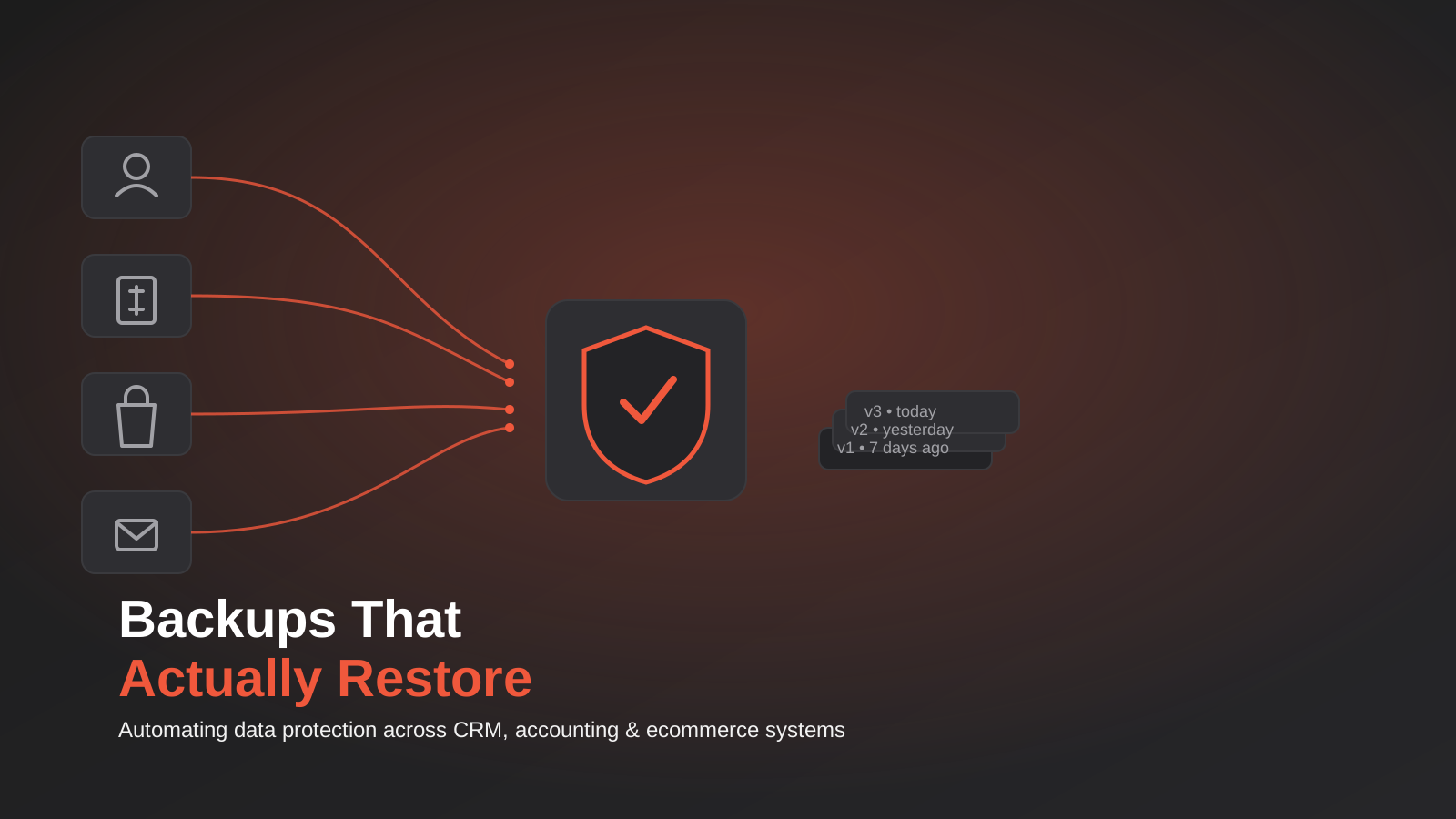
A Melbourne wholesaler we spoke with recently had a Make.com scenario quietly duplicate itself after a reconnected integration. It ran twice for eleven hours before anyone noticed, bulk-updating stock levels in their inventory system off a stale export. By the time it was caught, there was no clean copy of the data left to roll back to — just a production database full of numbers nobody trusted anymore. Nothing was hacked. No server went down. It was an ordinary Tuesday automation fault, and it cost them three days of manual stocktake to untangle.
That’s the story behind most data loss in Australian businesses now, and it has almost nothing to do with the disaster movie version of “disaster recovery” — the flood, the fire, the server room catching alight. Your CRM, your accounting platform and your ecommerce store all live in someone else’s cloud already. The risk that actually bites is quieter: a bad CSV import, a sync loop that overwrites good data with old data, an ex-employee’s access that wasn’t revoked before they deleted a pipeline out of spite, or ransomware that doesn’t touch your laptop at all but encrypts the SaaS account it compromised.
We build a lot of workflow automation for Australian businesses, and we’ve noticed the backup conversation almost never comes up until after something has gone wrong. People assume the platform handles it, because the platform handles everything else. It doesn’t, and the gap between what businesses assume and what their SaaS vendors actually promise is where backup automation earns its place — automating the part of data protection that nobody’s job description currently covers.
Why “the cloud handles it” is the wrong assumption
Every SaaS platform you use — Xero, HubSpot, Shopify, Salesforce, MYOB, your email provider — operates on a shared responsibility model, even though almost none of them explain it to you in plain language at sign-up. The vendor is responsible for infrastructure: keeping their servers running, patching their software, protecting against outages on their end. You are responsible for the data you put into it. If you delete something, import something wrong, or get your account compromised, that’s categorised as your problem, not theirs, and their terms of service generally say so explicitly.
What your SaaS vendor actually backs up
Most platforms do keep some form of internal backup, but it exists to protect the vendor against their own infrastructure failing, not to protect you against yourself. There are three practical limits worth understanding:
- Recycle bins and trash folders exist on most platforms, but they typically purge permanently after 30 to 90 days. If nobody notices the problem inside that window, the safety net is already gone.
- Bulk operations usually bypass the recycle bin entirely. A bad import, a mass update via API, or a field recalculation across thousands of records often doesn’t create a recoverable trail at all — it just overwrites.
- Vendor-side backups restore the vendor’s infrastructure, not your account to a specific point in time. If your request is “put my CRM back to how it looked on Tuesday before the import,” most support teams can’t do that even if they want to.
None of this is a conspiracy or a vendor shortcoming. It’s a reasonable division of labour that most businesses have simply never had explained to them. The CRM vendor’s job is uptime. Your data’s integrity, history and recoverability is yours.
The failure modes that aren’t disasters, they’re Tuesdays
The scenarios that actually cause data loss for the businesses we work with are mundane, which is exactly why they’re dangerous — nobody plans for mundane the way they plan for dramatic:
- The bulk import that went wrong. Someone maps a column incorrectly in a CSV upload and 4,000 contact records get the wrong email field. The import tool doesn’t warn you, because syntactically the data was valid.
- The automation loop. Two systems both think they own the source of truth for a field, each update triggers the other, and stale data cycles back and forth until someone notices the numbers don’t add up anymore.
- The offboarded staff member. Access wasn’t revoked promptly, or was revoked from the main account but not a connected integration token, and records get deleted or exported before anyone locks the door.
- The ransomware that skips your laptop. Credential-stuffing or a phished token compromises a SaaS account directly. There’s no ransom note on your desktop because there’s no desktop involved — just data that’s suddenly encrypted, deleted or exported somewhere you don’t control.
- The sync that ran before anyone checked the mapping. A new integration goes live, a field mapping is subtly wrong, and thousands of records get silently corrupted before the first person spots an invoice total that doesn’t look right.
If you’ve read our piece on idempotency and retries in automation, this will sound familiar — it’s the same family of problem. An automation doing exactly what it was told, at a scale and speed no human would ever operate at, turning a small mistake into a very large one before anyone has a chance to intervene.
RPO and RTO, in plain English
Two acronyms do almost all the useful work in this topic, and they’re worth understanding properly because they’re the two numbers that actually determine what your backup strategy should look like. Neither is about technology. Both are about how much pain your business can tolerate.
Recovery Point Objective (RPO) is how much data you’re willing to lose, measured in time. If your last backup ran at 2am and something goes wrong at 5pm, your RPO in that scenario is fifteen hours — every order, lead and invoice entered in that window is gone unless it existed somewhere else too. A tighter RPO means backups run more frequently.
Recovery Time Objective (RTO) is how long it takes to get back to a working state once something has gone wrong, from the moment the problem is found to the moment the system is usable again. A tighter RTO means someone has actually rehearsed the restore process, rather than discovering how it works for the first time during a live outage.

Setting numbers you’ll actually hit
Most businesses that have never thought about this before will instinctively say “zero” to both, which is understandable and almost always unrealistic. A more useful exercise is to ask, system by system: if we lost everything entered today, would that be a bad afternoon or a genuine crisis? For a CRM with a handful of new leads a day, a daily RPO is often fine. For an ecommerce store doing hundreds of orders an hour, losing a day of orders is a different order of problem entirely, and the backup frequency needs to reflect that.
The honest version of this exercise usually produces different numbers for different systems, not one blanket policy. That’s fine — better a backup strategy matched to actual risk than a uniform one that’s too slow where it matters and overkill where it doesn’t.
What to actually back up across your stack
Most businesses we talk to are running the same five or six categories of system, each with different native recovery options and different blast radius if something goes wrong.
CRM and sales data
Contacts, deals, notes, custom fields and pipeline history. This is usually the data most tightly coupled to revenue, and the data most frequently touched by bulk imports and bulk cleanups — the exact operations most likely to go wrong. If you’ve already got CRM and sales automation running record updates automatically, the backup layer needs to sit outside that same automation, not depend on it.
Accounting and financial records
Xero and MYOB both offer official export tools and a small ecosystem of third-party backup apps built specifically for their platforms, which is a sign of how seriously accountants take this problem compared to most other business software categories. Invoices, reconciliations and payroll records carry legal retention obligations in Australia on top of the operational risk, so this category deserves backup automation even if nothing else on this list gets one.
Ecommerce catalogue and order data
Product catalogues, customer records, order history and inventory counts. Shopify and WooCommerce both have genuine export tools, but neither restores to a point in time out of the box. If you’re running ecommerce automation across inventory, orders and fulfilment, the sync layer moving data between your store, your 3PL and your accounting platform is exactly the kind of thing that can propagate a bad record across three systems in minutes — which is precisely why the backup needs to be independent of it.
Email, documents and file storage
Microsoft 365 and Google Workspace both default most people into thinking their built-in retention covers everything, and both have had well-documented cases of account-level data loss that the native tools couldn’t recover from, particularly around compromised accounts and malicious bulk deletion from inside a compromised session.
Internal tools and custom databases
If you’ve built or commissioned a custom web application or an internal tool that holds its own database, this is the one category where backup responsibility can’t be outsourced to a vendor at all — there isn’t one. Database-level backups and a tested restore process need to be part of the build from day one, not an afterthought bolted on after launch.
How much backup history to actually keep
Frequency gets most of the attention in this conversation, but retention — how many old versions you keep, and for how long — matters just as much and gets ignored far more often. A single daily backup overwritten every night protects you against a server dying. It does nothing against the far more common problem of a mistake that isn’t noticed for a week, because by the time anyone spots it, last night’s backup already contains the same mistake.
A simple tiering approach
You don’t need an enterprise-grade retention schedule to solve this well. A practical version that works for most Australian SMBs looks something like: keep every daily backup for the last fortnight, then thin that down to one backup per week for the last two months, then one per month for the last year. That gives you enough recent granularity to catch a mistake discovered within a couple of weeks, while the sheer volume of daily snapshots doesn’t accumulate into an unmanageable (and, if you’re paying per gigabyte of cloud storage, an unnecessarily expensive) pile.
The specific numbers matter less than having thought about it at all. A manufacturing business we spoke with during research for this piece had been keeping exactly one rolling backup of their inventory system for over a year, with each new export overwriting the last. When a stock count error from a faulty barcode scanner went unnoticed for ten days, every single backup in their possession already contained the corrupted counts. There was nothing left to restore to.
Matching retention to how fast each system changes
Just as RPO should vary by system, retention should too. A CRM where deals move slowly might only need monthly snapshots going back a year, since nobody’s likely to need a CRM state from three weeks ago specifically. An accounting platform has the opposite shape — end-of-quarter and end-of-year states matter for tax and audit purposes well beyond what operational recovery alone would justify, so those snapshots are worth keeping regardless of how granular your day-to-day backups are.
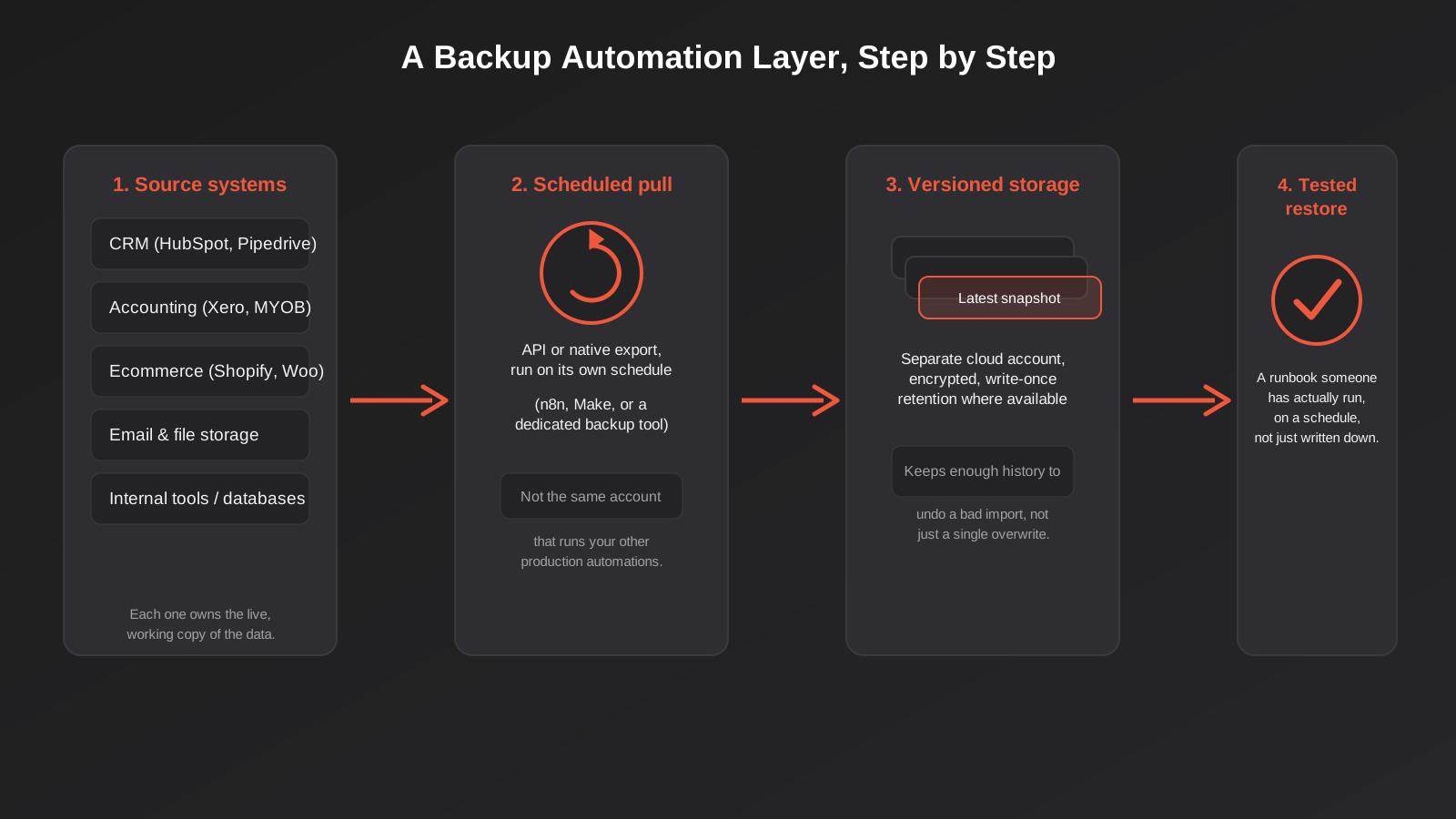
Building the backup automation layer
There isn’t one correct way to do this, and the right answer depends heavily on how many systems you’re protecting and how technical your team is. In practice, most Australian businesses land on one of three patterns, often a mix of more than one, built up gradually as new systems get added to the stack rather than designed all at once on a whiteboard.
Pattern one: dedicated backup tools for a single platform
For Xero specifically, there’s a small category of purpose-built backup apps that connect via the official API and run on a schedule, storing exports somewhere independent of Xero itself. The same category exists, with less maturity, for Microsoft 365 and a handful of other major platforms. Where one of these tools exists for a system you depend on heavily, it’s usually the lowest-effort, most reliable option — purpose-built beats general-purpose for this specific job.
Pattern two: a scheduled workflow automation pull
For platforms without a dedicated backup product — which is most of them — a scheduled scenario in n8n, Make or Zapier can call the platform’s API on a timer, pull the relevant records, and write them to cloud storage as dated, versioned files. This is the same toolset most businesses already use for workflow automation, which makes it accessible, but it comes with one critical rule: the backup workflow must not live in the same automation account, on the same credentials, or trigger from the same events as your production automations. If a compromised token or a runaway scenario takes down your main automation account, you don’t want your backup system going down with it.
Pattern three: direct API exports to object storage
For businesses with developer resources, a scheduled script hitting the relevant APIs directly and writing to a cloud storage bucket (with versioning and, ideally, object lock enabled so backups can’t be deleted or overwritten even by someone with full account access) gives the most control and the strongest protection against the ransomware scenario where an attacker has valid credentials and goes looking for backups to destroy first. This is the pattern we build into API integration work when a business’s compliance or risk profile calls for it.
Keeping this separate from your other automations
We wrote previously about auditing a workflow stack that’s gotten away from you, and the same discipline applies here in reverse: don’t let your backup automation become one more undocumented scenario buried inside a Zapier account nobody’s reviewed in a year. It needs its own entry in whatever inventory you keep of what’s running where, its own alerting if it fails to run, and ideally its own credentials scoped to read-only access on the source systems, since a backup process has no legitimate reason to need write access to anything except its own storage.
If you’re already running monitoring and alerting on your Zapier, Make or n8n workflows, the backup scenario is one of the highest-priority things to put on that watch list — a backup that silently stopped running three months ago is worse than no backup at all, because everyone still believes it’s there.
Testing restores: the step almost everyone skips
A backup you’ve never restored from isn’t a backup. It’s an assumption wearing a backup’s clothes. The gap between “we have backups” and “we know our backups work” is where most businesses actually get caught out, because the first time anyone attempts a real restore is during the incident itself, under pressure, often discovering for the first time that the export format doesn’t match what the platform’s import tool expects, or that three fields got silently dropped somewhere in the process months ago.
A runbook that’s actually been run
A useful restore runbook doesn’t need to be elaborate. It needs to answer four questions, written down somewhere more durable than one person’s memory:
- Where exactly do the backup files live, and who has access to that storage?
- What’s the exact sequence of steps to restore from a given backup file back into the live system?
- How do you tell if a restore partially succeeded — which is often worse than an obvious total failure, because it looks fine until someone notices a gap?
- Who is actually allowed to make the call to restore, given that restoring will usually overwrite whatever’s currently in the live system?
Then, critically, run it. Not in a real emergency — on a calm Tuesday, into a sandbox or test environment if the platform supports one, on a schedule (quarterly is reasonable for most businesses). The first restore attempt is always slower and messier than anyone expects. Better to discover that on a test run than during an actual outage with customers waiting.
Ransomware and the 3-2-1 rule, adapted for SaaS
The old IT department rule of thumb — three copies of your data, on two different types of storage, with one copy kept offsite — was written for a world of physical servers and tape drives, but the underlying logic still holds for a business that’s entirely cloud-based. It just needs translating.
For a modern SaaS-heavy business, “offsite” means a different cloud account, ideally with a different vendor and different login credentials entirely, so that a single compromised password or a single vendor outage can’t take out your live system and your backup at the same time. “Different storage type” is less critical than it used to be, but the principle of not putting all your eggs in one authentication basket still matters enormously.
The specific thing ransomware operators have gotten good at in the last few years is going after backups first, deliberately, before triggering the visible part of the attack — because a business with intact backups can usually just restore and ignore the ransom demand, so removing that option is now a standard part of the attack playbook. This is the practical argument for write-once or object-locked storage wherever your cloud provider supports it: a backup copy that can’t be deleted or overwritten even by an account with full administrative access is worth the small extra setup effort, because it’s specifically designed to survive the scenario where an attacker already has your passwords.
The Australian compliance angle
We’re not your lawyers, and nothing here is legal advice, but there’s a compliance dimension to this worth knowing about. Under Australia’s Notifiable Data Breaches scheme, a data loss event involving personal information can trigger mandatory reporting obligations to the Office of the Australian Information Commissioner if it’s likely to result in serious harm — and a ransomware event that encrypts or exfiltrates customer records absolutely qualifies as the kind of incident this scheme was built for. Being able to demonstrate you had reasonable data protection measures in place, including backups, is relevant both to how an incident plays out and to the broader question of whether your business met its obligations under the Privacy Act. Separately, the ATO generally expects most financial and payroll records to be kept for at least five years, which is a retention requirement in its own right, quite separate from the operational backup question — and it’s one more reason that category of data shouldn’t be the one left without a proper backup plan. A backup strategy that quietly cycles out everything older than a few months, because nobody thought about the tax side when setting the retention window, can create a compliance gap even if it was never designed to.
Common mistakes
- Assuming the platform’s recycle bin is a backup. It’s a short-lived undo button for a narrow set of actions, not a point-in-time restore for your whole account.
- Backing up with the same credentials and account that run production. If that login is compromised or that automation account goes down, your backup goes down with it.
- Never testing a restore. A backup process that’s never been exercised end-to-end is a guess, not a safety net, and the gaps only show up when it’s too late to fix them calmly.
- Treating every system the same. A CRM that gets a handful of updates a day doesn’t need the same backup frequency as an ecommerce store doing constant transactions, and a uniform policy usually means the high-risk system is under-protected.
- Forgetting integrations and connected apps. Revoking a staff member’s login doesn’t automatically revoke every API token or connected app they set up. Those need their own offboarding checklist.
- No alerting on backup failure. A backup scenario that silently stopped running months ago provides a false sense of security that’s arguably worse than knowing you have no backup at all.
- Keeping the runbook in one person’s head. If the one person who knows how to restore is on leave, overseas, or has left the business, the runbook needs to exist somewhere else too.
Frequently Asked Questions
Doesn’t Xero, Shopify or my CRM already back up my data?
They back up their own infrastructure, which protects against their servers failing. They generally don’t protect against you deleting something, a bad import overwriting good data, or your account being compromised — that’s categorised as your responsibility under the shared responsibility model almost every SaaS vendor operates on, even though it’s rarely explained clearly at sign-up.
How often should we actually be backing up each system?
It depends on how much data you’d be comfortable losing, which is what Recovery Point Objective measures. A system with a handful of updates a day can often run on a daily backup. A high-transaction ecommerce store or booking system usually needs something closer to hourly. There’s no single right answer for every system in your stack — it’s worth setting the frequency per system, not applying one blanket rule.
Can we just use the same automation tool we already use for everything else?
You can, and for many businesses that’s the practical starting point, but the backup scenario needs to be isolated — its own credentials, ideally read-only, and not dependent on the same account or triggers as your production workflows. The entire point of a backup is that it survives something going wrong elsewhere, and that’s not true if it’s tangled up with the thing that might go wrong.
What does a “tested restore” actually involve, practically?
Taking an actual backup file and running it through the real restore process into a test or sandbox environment, on a schedule, rather than assuming the export works because it completed without an error. Quarterly is a reasonable cadence for most businesses. The goal is finding out your restore process has a gap during a calm test, not during a live outage with customers waiting.
Is this actually worth the cost for a small business, or is it overkill?
It scales down a long way. For a small business, this might just mean a single scheduled export of your CRM and accounting data into a separate cloud storage account, checked quarterly, costing very little in tooling and an afternoon of setup. The cost of getting this wrong — a wholesaler we know lost three days to a stocktake after one bad automation run — is usually far higher than the cost of a basic version done properly.
What happens if ransomware hits one of our SaaS accounts specifically?
If your backups live in the same account, under the same credentials, or in storage that can be overwritten by anyone with account access, there’s a real chance the attacker finds and destroys them before you notice anything’s wrong — this is now a standard part of how these attacks run. Backups kept in a separate account, under separate credentials, ideally with write-once protection enabled, are specifically designed to survive that scenario.
Where to start
You don’t need to solve this for every system in your business in one go. Start with whichever platform holds the data that would genuinely hurt to lose — for most businesses that’s the accounting platform or the CRM — and get one scheduled, independent backup running for it this month. Write down, in plain language, how you’d restore from it. Then actually try the restore once, somewhere that isn’t production, before you need it for real.
If you’d rather talk it through than build it alone, that’s a conversation we have often as part of broader reporting and data automation work — it tends to come up naturally once a business can see everything their systems are actually doing. Get in touch and we’ll have an honest look at what’s genuinely at risk in your stack, and what a backup layer that matches your business, rather than a generic template, would actually look like.
Keep reading
Related posts
Changing Live Automations Safely: Staging, Version Control and Rollback for Zapier, Make and n8n (2026)
How to draft, test, release and roll back changes to live Zapier, Make and n8n automations without breaking invoices, orders or customer…
Peppol E-Invoicing for Australian Businesses: Automating Accounts Payable From Structured Invoices (2026)
Peppol e-invoicing in Australia: what is and isn't mandatory, how to pick an access point, and how to automate accounts payable once…
Clean Your Data Before You Automate: A Practical Guide to CRM Data Cleanup for Australian Businesses (2026)
Connecting systems on messy data copies the mess everywhere. Here's how to clean, match and merge records before you automate or integrate.
Got a project you'd like to talk through?
Tell us what you're working on — we'll come back with a plan.
