
Who Owns Your Automations? Account Ownership, Service Accounts and Staff Offboarding for Zapier, Make and n8n (2026)
 Jignesh Vagadiya
07/11/2026
21 min read
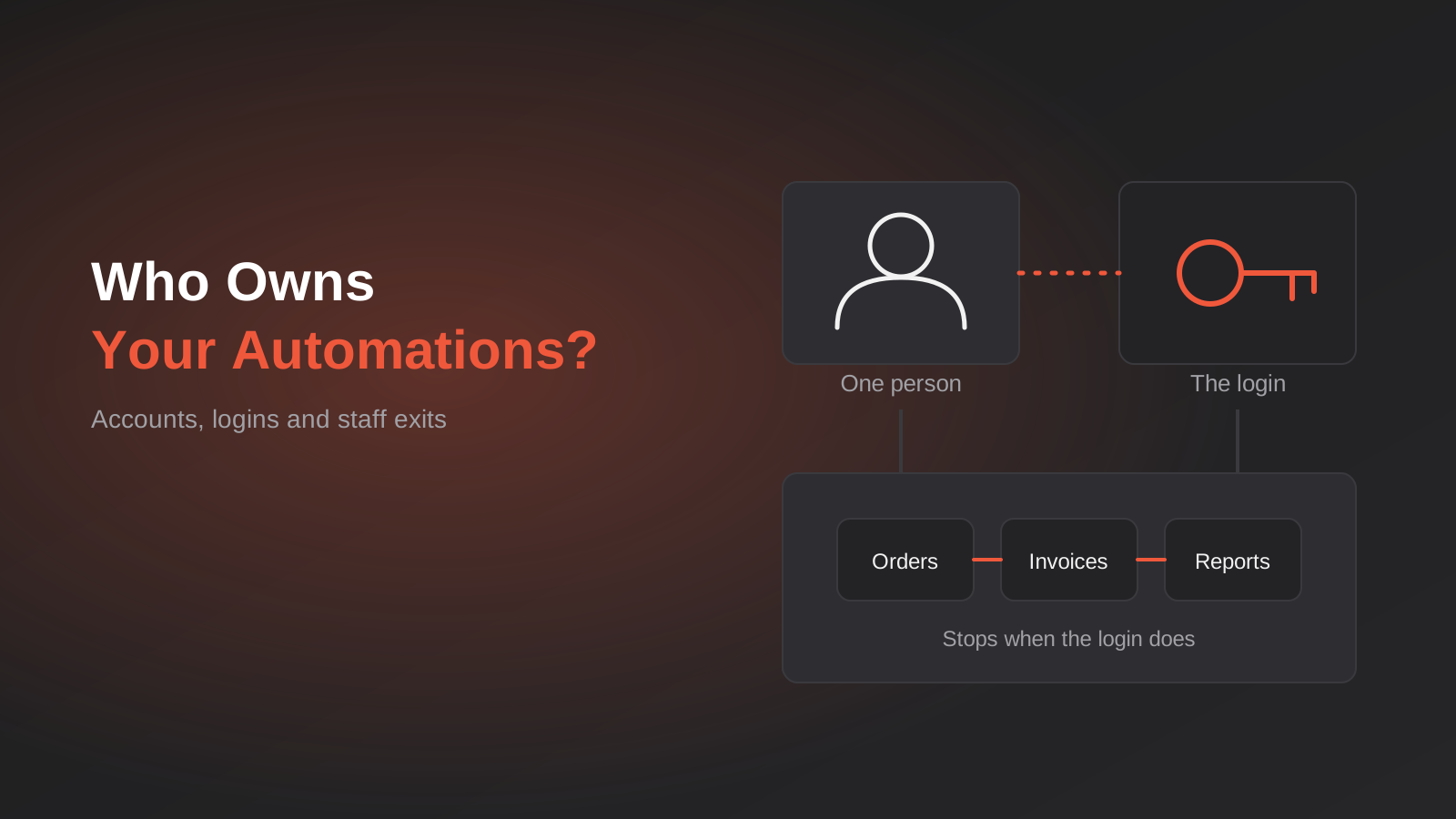
Somewhere in your business there’s an automation that sends the weekly invoice reminders, or pushes web orders into your accounting file, or creates a job card when a quote is accepted. It has been running quietly for eighteen months. Nobody thinks about it. And it belongs, in every way that matters to the software, to a person who handed in their notice on Monday.
That’s the problem this guide is about. Not how to build an automation, but who it belongs to once it exists. In most small and mid-sized Australian businesses the honest answer is “whoever happened to set it up, using whatever login they had open at the time.” That works right up until the day that person leaves, changes roles, loses access to a mailbox, or simply forgets which of their three Google accounts they used.
We see this regularly when we take over or audit automation stacks. The workflows themselves are usually fine. What’s fragile is the thread of ownership running underneath them: whose login holds the connection, who gets the failure emails, who pays for the plan, who can even see the thing. This post lays out how to untangle that before you need to, and what to do on the day someone leaves. If you’re after the wider clean-up question, our guide to auditing and consolidating a sprawling workflow stack covers the inventory side. This one is narrower: the people and permissions behind the inventory.
Why automations fail when people leave
Automation tools make it very easy to start. You sign up with your work email, click “Connect Google Sheets”, approve a permission screen, and thirty minutes later you have a working flow. Nothing in that experience asks “should this belong to you personally?” The platform quietly records you as the owner, and your login becomes the foundation everything else stands on.
The connection is the person
Most no-code platforms separate the workflow (the steps) from the connection (the saved credentials that let the workflow talk to an app). The connection is almost always created with the authority of an individual user. If Sam connects the company’s Xero file using Sam’s own Xero login, then the automation acts as Sam every time it runs.
Now Sam leaves. IT disables Sam’s Google Workspace account on the last afternoon, which is exactly what good security hygiene says to do. Depending on how that connection was authorised, a few things can happen. The token Sam granted might be revoked along with the account. The Xero user might be removed to stop paying for a seat. The password might be rotated. In each case the workflow is still sitting there, switched on, and every run now fails with an authentication error.
Three ways it breaks
In practice the failures fall into three patterns, and they show up differently:
- The loud break. The connection dies and the platform emails the failure to its owner. That owner is the person who just left, so the alert goes to a disabled mailbox. Nobody sees it. This is the most common version, and the reason problems surface weeks late.
- The silent partial break. Only some steps depend on the departed person. The order import still works, but the step that tags the customer in the CRM fails quietly because it used Sam’s CRM token. Reports look slightly off, and it takes someone a month to notice.
- The orphaned workflow. The platform account itself was Sam’s personal sign-up, on a free or trial plan, with the company card attached. When the card expires or the mailbox closes, the whole account lapses, and every automation in it stops at once.
The first two are repairable with an afternoon of reconnecting things. The third can be nasty, because you may not be able to prove you own the account, and platform support teams tend to be cautious about handing an account to someone who isn’t the registered user.
It isn’t only staff
The same thing happens with contractors, freelancers and agencies. A previous agency builds your flows in their own workspace, and when the engagement ends they’re still running on the agency’s subscription and the agency’s connections. We’ve covered the code-and-IP side of that in who owns your custom software. Automation workspaces have exactly the same issue, just with less paperwork around it.
What automation ownership actually covers
When people say “we need to know who owns our automations” they usually mean one thing. There are really five, and each one fails independently. It helps to pull them apart.
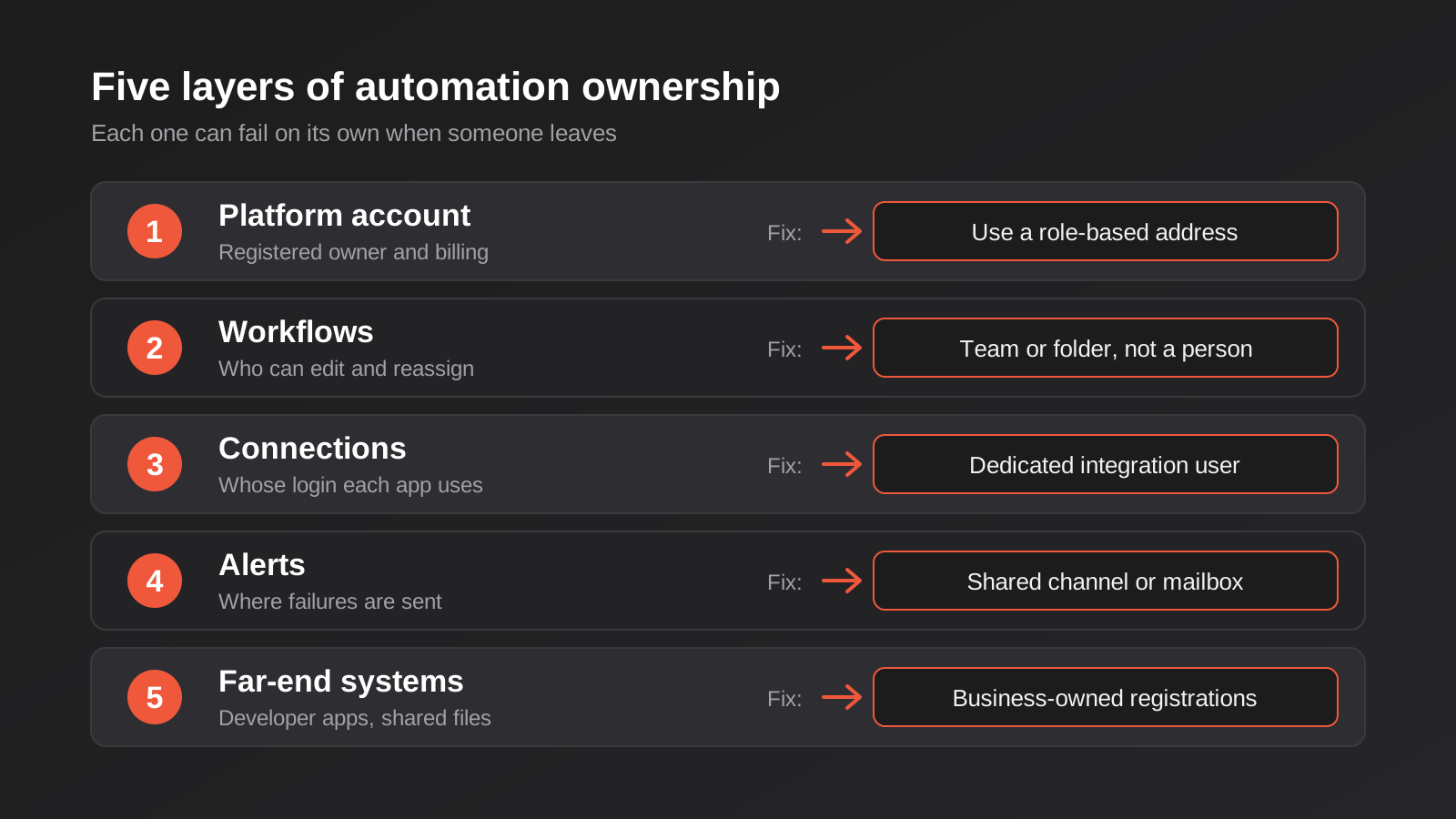
1. The platform account and billing
Who is the registered owner of the Zapier, Make or n8n account? Whose email receives the invoices? Whose card is on file? If the answer is a named individual, that’s a risk. The owner identity should be a role-based address the business controls, such as [email protected], backed by two or more named administrators.
2. The workflows themselves
Each workflow has an owner or creator in the platform’s data model. Some platforms let you transfer workflows between users, some only let admins reassign them, and some tie them to a folder or team. The point is to know where each one lives and who can edit it, and to make sure that’s a role, not a single human.
3. The connections and credentials
This is where the real damage happens. For every app a workflow touches, there’s a credential: an OAuth grant, an API key, a username and password. The key question is “whose authority is this using?” A connection made with a named employee’s login is a dependency on that employee. A connection made with a dedicated integration user is not. We go through the trade-offs between token types in our OAuth vs API keys guide, and the short version is that the authentication method matters less than who the identity belongs to.
4. Alerts and notifications
Failure emails, Slack alerts and error digests all go somewhere. If the destination is one person’s inbox, you’ve built a single point of failure into your monitoring. Alerts should go to a shared channel or a group mailbox that survives any individual’s departure.
5. The systems on the other end
Sometimes the automation is fine and the thing it talks to is the weak link. A custom app in Shopify created under a staff member’s partner account, a Google Cloud project owned by a personal Gmail, an API application registered in someone’s developer account. If the registrant disappears, the integration can lose its ability to renew tokens or change settings, even though nothing in your automation tool looks wrong.
Build an automation register
You can’t fix what you can’t see, and the first job is a plain list of what exists. We call it a register, but a spreadsheet is fine. What matters is that it’s complete and that someone is responsible for keeping it current.
What to record
For every workflow, capture the fields below. Resist the urge to add twenty more columns; people stop maintaining wide registers.
- Name and a one-line description of what it does in business terms.
- Platform and workspace or folder where it lives.
- Business owner: the person accountable for the outcome (not the person who built it).
- Technical owner or backup: who can open it and fix it.
- Every connection it uses, and which identity each connection runs as.
- Where failure alerts go.
- Criticality: what breaks for customers or finance if it stops for a day.
- Last reviewed date.
The business owner and technical owner are deliberately different. The business owner is the operations manager who’ll notice when invoices stop going out. The technical owner is whoever can actually log in and reconnect an account. Both need to exist, and neither should be the same person for every workflow, or you’ve just moved the single point of failure into a spreadsheet.
Finding the connections nobody remembers
This is the tedious bit, and also where the value is. Most platforms have a connections or credentials page that lists every saved login along with who created it. Export that list if the platform allows it, and compare it against your staff list. Any connection tied to someone who has left, or to someone who is leaving soon, goes straight to the top of the fix list.
Then check the places people forget:
- Browser extensions and “log in with Google” integrations that were authorised once and left in place.
- Scheduled scripts in Google Sheets or Apps Script, which run as the user who last saved them.
- Email rules and forwarding that feed an automation’s trigger mailbox.
- Webhooks pointing at a URL that lives in someone’s personal hosting or tunnel.
- Spreadsheets that automations read from, owned by a person rather than a shared drive.
That last one catches a lot of people. A Google Sheet that sits in a departed employee’s My Drive can become inaccessible when the account is deleted, taking the automation’s data source with it.
Rank by criticality, then fix in that order
Not every workflow deserves the same urgency. Sort the register by what happens if it stops. The flow that pushes paid orders to your warehouse needs a proper service account today. The one that posts a “new blog post” message in Slack can wait until next quarter. Fixing the top five by criticality typically removes most of the risk, and it keeps the project from stalling under its own weight.
Service accounts instead of personal logins
Once you know what depends on whom, the standard fix is to give automations their own identities. A service account (sometimes called an integration user or machine user) is a login that exists for the automation, not for a human.
What a good setup looks like
In a typical business, this means a small set of role-based identities. A shared mailbox or group address such as automation@ or integrations@ is registered as the owner of the platform account and receives its billing and security emails. Each important system (accounting, CRM, ecommerce, helpdesk) gets a dedicated integration user created with the minimum permissions the automation needs. Connections are authorised using that integration user, never a personal login.
The immediate benefit is that offboarding a person no longer touches your automations at all. Sam can leave on a Friday and nothing about the integration user changes.
The practical wrinkles
It’s rarely as tidy as the diagram, and a few snags come up often enough to plan for:
- Seat costs. Some systems charge per user, including integration users. A dedicated Xero or CRM seat might cost real money each month. That’s still cheaper than a broken invoicing run, but budget for it rather than discovering it on the next bill.
- Multi-factor authentication. Good practice says the integration user should have MFA, and MFA needs a device or authenticator. Pointing the codes at one staff member’s phone recreates the original problem. Use an authenticator that can be shared by admins, a hardware key held by the business, or the platform’s own app-token model where that’s available.
- Terms of service. Some vendors prohibit sharing a user login between people or restrict “bot” accounts to certain plans. Read the terms for any system that matters, and use the vendor’s proper API or integration user type where one exists.
- Audit trails. When a service account makes changes, the audit log shows the service account, not a human. That’s fine as long as the workflow’s own logging records what triggered the change and who approved it.
- Mailbox-based triggers. If an automation reads from or sends from a mailbox, that mailbox needs to be a shared or group mailbox, not a person’s. Replies sent from “Sam” on behalf of the business are an offboarding problem and a customer-experience problem.
Least privilege still applies
A service account isn’t an excuse to hand over administrator rights because it’s convenient. Give each integration user only what its flow needs: read access to orders, write access to invoices, nothing else. If the credential leaks or the automation misbehaves, the blast radius is limited to what that one role could do. That matters even more if any of your flows now include an AI step that can take actions on its own.
An offboarding runbook that includes automations
Most businesses have an offboarding checklist: return the laptop, disable email, remove from payroll. Almost none list automations. Add a short section and make it a standing step, not something remembered by whoever happens to be in the room.
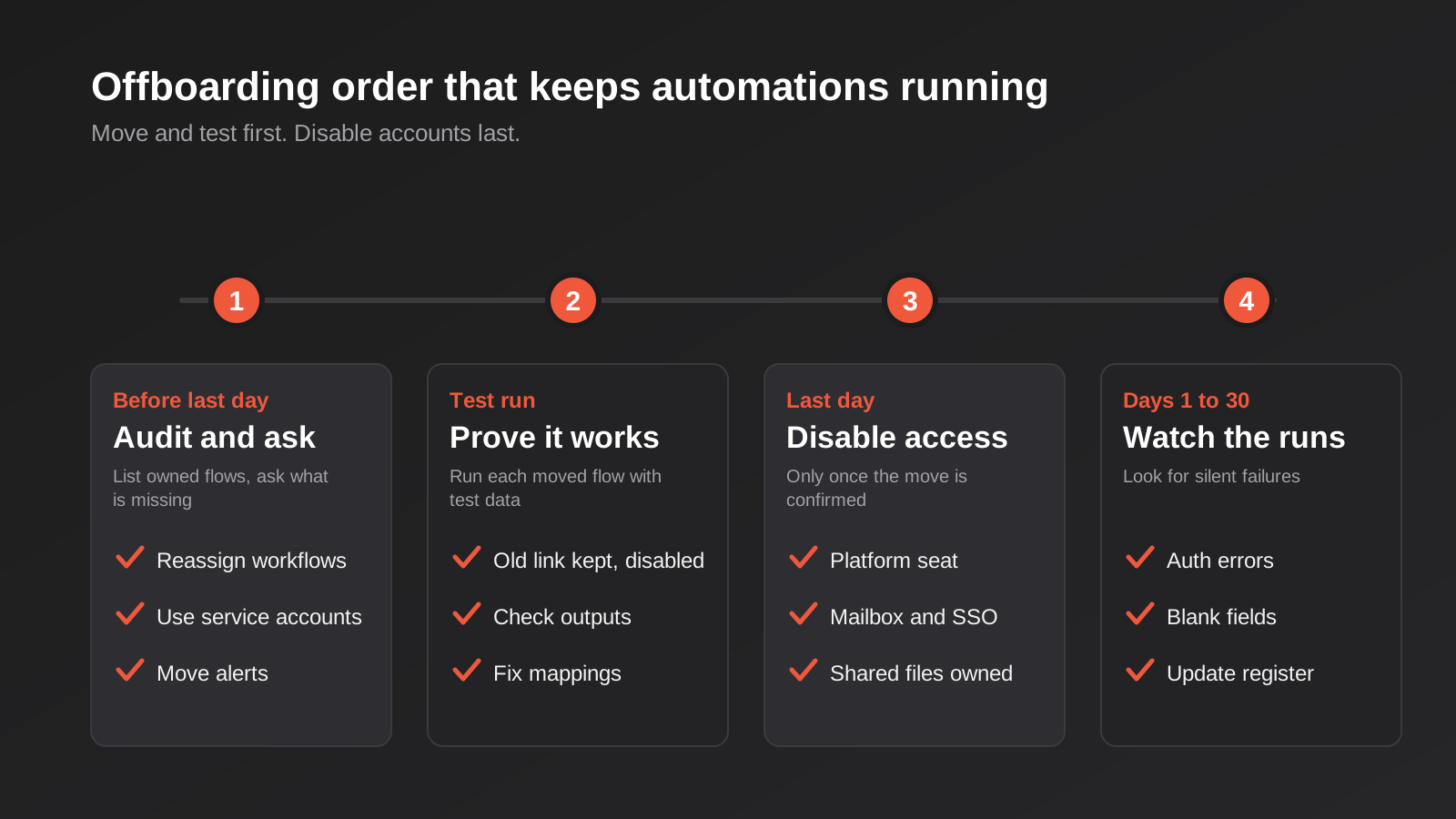
Before the last day
The best time to deal with this is while the person is still around and cooperative. Notice periods are useful here.
- Pull the register entries (or the platform’s own list) for everything the person owns, built or connected.
- Ask them what isn’t on the list. People often know about the Apps Script they wrote at midnight two years ago.
- Reassign workflows to a role-based owner and reconnect each connection to the relevant integration user.
- Move alert destinations to the shared channel or mailbox.
- Transfer ownership of any files, sheets and folders that automations read or write.
- Have the departing person walk the technical owner through anything with unusual logic, and record it.
Run each reassigned workflow once with test data before the person leaves, and keep the old connection in place (but disabled for new runs) until the new one has passed a real run. If something doesn’t work, you want to find out while they can still log in and explain what they did.
On the day
This is the short, mechanical part. Disable accounts in the order that doesn’t strand anything: confirm every automation connection has been moved first, then remove the person’s platform seats, then disable their mailbox and single sign-on. Doing it in the reverse order is how you end up with the loud break described earlier. If you use single sign-on across your tools, central deprovisioning makes this step much easier, and it also makes the “move the connections first” rule more important, because one switch can cut off dozens of apps at once.
The first thirty days
Don’t assume it worked. Watch the run history for the workflows that were reassigned and look for authentication errors or empty results. A flow that “succeeds” but writes blank values because a field mapping referenced a user is a classic. Check the next scheduled report, the next invoice run, the next order sync. Then close out the register entries and note the date. If you’ve got proper monitoring and alerting in place, most of this surfaces automatically, which is the point.
The departures you didn’t plan
A tidy handover assumes a notice period. Sometimes you don’t get one. Someone is dismissed, falls ill, or disappears. Here’s what changes.
When you have no access and no cooperation
First, work out who can still act as an administrator in each platform. If the departed person was the only owner of an account, you may need to prove the business owns it by supplying invoices, domain ownership or a signed letter. That’s slow, so it’s worth knowing in advance whether your platform has a clear process. Some vendors will transfer ownership only in limited situations, and some explicitly can’t move an account’s connections to another user. Check the vendor’s current documentation rather than assuming, because these policies change.
Second, accept that some connections will have to be rebuilt from scratch, not transferred. That’s a nuisance but rarely a disaster if the workflows themselves are intact and documented. It’s much worse if the only copy of the logic was inside a scenario that is now locked. This is where the habit of exporting workflows regularly pays off, as part of a wider backup routine for your business systems. An exported scenario or workflow definition lets you rebuild in a new workspace within hours.
Contractors and agencies
For external parties, put the ownership question into the contract at the start. The workspace should be created under your account, with the contractor invited as a member. If they insist on building in their own workspace, agree in writing that you’ll receive exports and credentials documentation on completion, and that connections will be made with accounts you control. Ask for a handover session at the end of every engagement and treat it as part of the deliverable.
Seasonal and part-time staff
People who come and go, such as seasonal retail staff or school-holiday admin help, are often given logins to speed things up and rarely appear on the offboarding list. Anything automated using their credentials needs the same treatment. The simplest rule is that no automation ever runs as a temporary person.
Platform notes: what to check in Zapier, Make and n8n
We don’t want to pretend to a precision that vendors haven’t promised. Features and rules change, and plan tiers matter. These are the questions to put to each platform, not a statement of how they all behave today.
Zapier
Zapier distinguishes the account owner from other members and admins. In our reading of Zapier’s help documentation, admins can move a departing member’s Zaps and update their app connections, but there are limits when the departing user is the account owner themselves, and Zapier has said it can’t always grant access to or transfer someone’s personal account. The practical consequence is simple: make the account owner a role-based identity, have more than one admin, and use the removal flow to review which Zaps and connections will move before you take a member out. Test every moved Zap afterwards, because a Zap that has been reassigned but still points at the old connection will keep failing.
Make
Check how scenarios and connections are scoped in your plan: by user, by team or by organisation. Find out who receives execution-error notifications, and whether a scenario that was created by a removed user remains editable by your admins. Where connections are tied to a specific user’s authorisation, plan to re-authorise them under the service identity.
n8n
With self-hosted n8n you control the server, but credentials are still created by users and may be shared with projects or other users. Check that production credentials are owned by a project or service identity, that more than one instance owner or admin exists, and that you hold the encryption key and database backups somewhere that doesn’t depend on one person.
Automation inside the tools you already own
Shopify Flow, CRM workflows and Power Automate flows have the same issue. They run under the identity of whoever built or last edited them, and some stop working when that user is deactivated. Add them to the register. They’re the ones most often forgotten, because they don’t live in a separate “automation tool”.
Common mistakes
These are the patterns we run into most often, roughly in order of how much trouble they cause.
- Registering the platform account to a personal email. It feels harmless on day one. It’s the single most expensive shortcut when the person leaves, because the account itself is at stake.
- Using the founder’s or manager’s login for everything. It works because that person has access to everything. It also means every automation runs with maximum privilege, and one departure (or one compromised password) takes down the lot.
- Disabling the user before moving the connections. Order of operations matters. Move first, test, then disable.
- Sending alerts to individuals. If the only person who gets the failure email is the person who left, you’ve built a system that fails silently.
- Treating a shared password as a service account. A password in a shared document isn’t an integration user. It has no audit trail, can’t be rotated cleanly, and tends to end up in a chat history.
- Never recording who the business owner is. Everyone assumes “IT looks after it” and IT assumes the business team will notice if something stops.
- Forgetting data sources. The workflow is reassigned, but the spreadsheet it reads is still in a former employee’s drive.
- Building a register once and never updating it. A stale register gives false confidence. Tie updates to something that already happens: a new automation going live, a staff change, a quarterly review.
- Skipping the test after the change. Reassigning ownership often changes the effective permissions. Run every reassigned workflow with test data.
Frequently Asked Questions
Who should own the Zapier, Make or n8n account in a small business?
A role-based identity that the business controls, such as a shared automation mailbox, with at least two named administrators behind it. Avoid registering it to a single employee’s personal email. If the platform allows only one owner, choose the most stable role available, record the recovery details securely, and keep more than one admin so someone can always act.
Do I need to pay for extra user seats for service accounts?
Often, yes, for systems that charge per user, such as accounting or CRM platforms. Check each vendor’s terms and pricing. The seat cost is usually small compared with the cost of a stalled invoice run, and many vendors have API-only or integration user types that are cheaper than a full seat.
What happens to my automations if the account owner leaves and I can’t reach them?
It depends on the platform and your plan. Some vendors have a process for proving business ownership, and some can’t transfer an account or its connections at all. In the worst case you rebuild the connections in a new account from exported workflow definitions. That is why regular exports and a documented register matter before anything goes wrong.
How often should we review who owns our automations?
Tie it to events rather than only the calendar. Review whenever someone leaves or changes roles, whenever a new critical automation goes live, and at least quarterly for the high-criticality ones. A quick check of the platform’s connections page against your current staff list takes minutes and catches most problems.
Is it safe to give an automation tool admin access to our systems?
Only if you have to. Start with the minimum permissions the workflow needs and add more only when a specific step fails for lack of access. Use a dedicated integration user for each system, use MFA where the vendor supports it, and make sure the credential can be revoked without affecting any person.
We have lots of old automations. Where do we start?
List them, then rank by what would hurt if they stopped for a day. Fix the top handful first: move them to role-based ownership, reconnect them to service accounts and point alerts at a shared channel. Retire anything nobody can explain or that no longer serves a purpose. You don’t have to fix everything at once.
Where to Start
If you only do three things this week, make them these. Find out who the registered owner of each automation platform account is and change it to a role-based identity if it’s a person. Open the connections page in each tool and compare it against your current staff list. And send alerts somewhere a group of people will see them.
Everything else in this guide builds on those basics. Once the register exists and the critical flows run under service accounts, offboarding becomes a routine checklist item, not a scramble, and you’ll find the whole stack easier to change, extend and hand to someone new. It also makes any future workflow automation work cheaper, because whoever builds it can see what already exists. If you want to understand how we scope and price this kind of work, the automation pricing page explains our approach.
Worth saying plainly: Growth Digital doesn’t publish a fixed price for automation work, because every project is scoped individually. What we can say is that, because we run lean as a specialist agency rather than carrying a large account-management layer, our fixed quotes typically come in below the Australian averages for comparable work. If you’ve already got a written quote from another agency for comparable scope, send it through and we’ll do our best to beat it.
We’re happy to talk it through, whether that’s a one-off review of who owns what in your current setup, tidying a stack you’ve inherited, or building new automations on solid foundations from the start. No pressure, and no jargon. Tell us what you’re running and we’ll tell you honestly where the risks are.
Keep reading
Related posts
Best Job Management Software for Australian Trade Businesses (2026)
Six job management tools for Australian trades compared: ServiceM8, Tradify, Fergus, AroFlo, simPRO and Jobber, with real drawbacks and pricing models.
Best CRM for Australian Small Business (2026): 6 Compared
Six CRMs compared for Australian small businesses: free plans, AU data hosting, real costs, Xero fit and the drawbacks vendors skip.
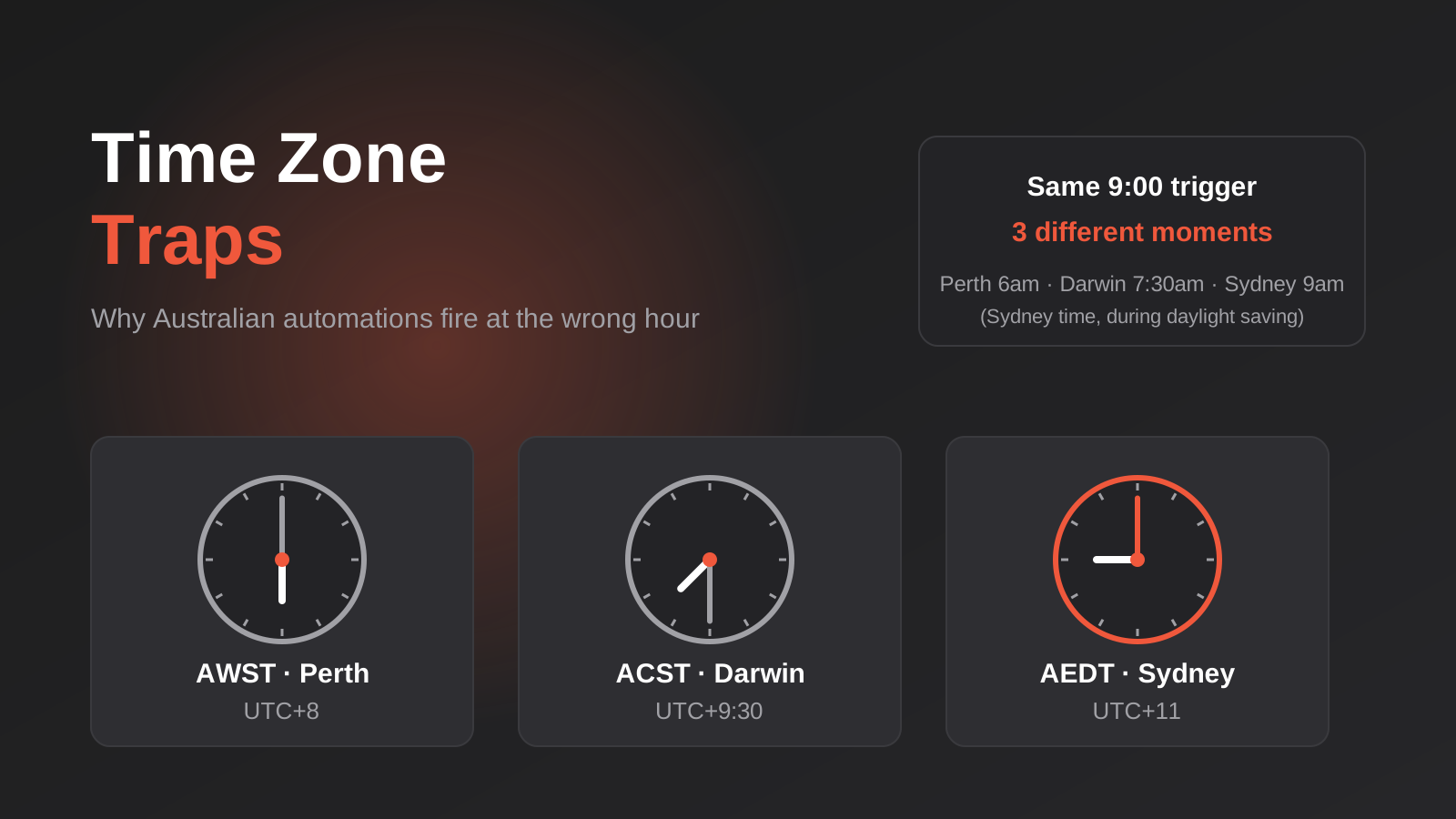
Time Zones, Daylight Saving and Public Holidays: Why Australian Automations Fire at the Wrong Time (2026)
How a 9am automation fires at the wrong time across Australian time zones, daylight saving and state public holidays, and how to…
Got a project you'd like to talk through?
Tell us what you're working on — we'll come back with a plan.
