
How to Optimise a WordPress Website for SEO: A Practical Guide (2026)
 Jignesh Vagadiya
19/08/2026
23 min read
Jignesh Vagadiya
19/08/2026
23 min read
WordPress runs a huge share of the web, and that’s exactly why generic SEO advice falls apart the moment you try to apply it. “Improve your Core Web Vitals” means something completely different on a bloated multi-purpose theme with fourteen plugins than it does on a lean custom build. “Fix your sitemap” is a five-minute job on some WordPress setups and a genuine troubleshooting exercise on others, depending on which SEO plugin, caching layer and page builder are fighting for control of the same output. We build and maintain WordPress sites — this one included, on a custom Oxygen build — and the platform-specific decisions are where most of the real SEO wins (and losses) actually happen.
This guide skips the “install an SEO plugin and write good meta descriptions” basics you’ve read a hundred times. Instead, it’s a practical walkthrough of the WordPress-specific decisions that move the needle: permalink and taxonomy structure, sitemap and robots.txt behaviour inside WordPress, a genuine Rank Math vs Yoast comparison, image optimisation the way WordPress actually handles it, how your hosting and caching stack affects Core Web Vitals, and how to get schema markup onto the page without hand-coding JSON-LD into every template. If you want the platform-agnostic technical SEO fundamentals first, our SEO for Australian Businesses guide covers that ground. This one assumes you’re on WordPress and wants to know what to actually click, install and configure.
Getting Your WordPress Foundations Right
Before any plugin, theme or caching decision, there’s a set of structural choices baked into how WordPress itself organises content. Get these wrong early and you’ll spend years cleaning up redirects.
Permalink structure
WordPress ships with an ugly default permalink structure (?p=123) that nobody should ever launch with, but the more common mistake we see on established sites is a permalink structure that’s technically “clean” but structurally messy — things like /%category%/%postname%/ on a site where posts get reassigned categories regularly, which quietly breaks every internal and external link every time an editor recategorises a post. For most business sites, /%postname%/ (found under Settings → Permalinks) is the safest long-term choice: it’s clean, it’s stable regardless of taxonomy changes, and it keeps URLs short enough to be readable in search results.
If you’re migrating an existing WordPress site and changing permalink structure, this is not a “set and forget” change. Every URL on the site shifts, which means every backlink, every bookmark and every indexed page in Google’s database now points at a 404 unless you handle redirects properly. We map old URLs to new ones and implement 301 redirects at the server or plugin level before we touch the permalink setting — never after.
Taxonomy hygiene — categories, tags and duplicate content
This is the one that catches out almost every WordPress site we audit. Categories and tags in WordPress each generate their own archive page, and each archive page is indexable by default. That’s fine when taxonomies are used deliberately. It’s a genuine SEO problem when a site has forty overlapping tags, each producing a thin archive page with two or three posts on it, competing against each other and against the actual blog posts for the same keywords.
- Use categories for broad, stable groupings — think five to ten categories for a typical business blog, not fifty.
- Treat tags as optional and sparse. If a tag archive would only ever have one or two posts on it, it shouldn’t exist as an indexable page.
- Noindex thin taxonomy archives rather than deleting the taxonomy itself — both Rank Math and Yoast let you set categories and tags to noindex individually or as a blanket rule under their taxonomy settings.
- Watch for duplicate content between a category archive and a manually built landing page targeting the same keyword — pick one to rank and noindex or redirect the other.
XML sitemaps in WordPress
WordPress has generated a basic XML sitemap natively since version 5.5, available at /wp-sitemap.xml. The problem is that most sites are also running an SEO plugin that generates its own sitemap at /sitemap_index.xml — both Rank Math and Yoast use that same path by convention, which causes its own headaches if you ever switch plugins without deregistering the old one first. Having two live, conflicting sitemaps submitted to Google Search Console is more common than you’d think, and it muddies your indexation reporting because Google is trying to reconcile two different pictures of your site structure.
The fix is simple but frequently skipped: pick one sitemap source (your SEO plugin’s, not WordPress core’s, since the plugin version usually gives you more control over exclusions), confirm WordPress’s native sitemap is either disabled or not separately submitted, and verify in Search Console that only one sitemap is active. Then actually look at what’s in it — exclude noindexed taxonomy archives, exclude the media/attachment pages WordPress can auto-generate, and exclude any post types (like WooCommerce order confirmation pages, if applicable) that have no business being indexed. Running an online store on WordPress brings its own set of platform-specific SEO decisions — if Shopify is on your radar as an alternative, our guide to Shopify for Australian ecommerce brands covers the equivalent ground for that platform.
robots.txt in WordPress
WordPress generates a virtual robots.txt file dynamically unless a physical robots.txt file exists in the root directory, in which case the physical file always wins — and we’ve seen sites where a static file was uploaded once during a migration years ago and has been silently overriding every subsequent plugin-level robots.txt change ever since. If you’re managing robots.txt through Rank Math or Yoast and your changes don’t seem to be taking effect, check the server root for a leftover physical file first.
Common WordPress-specific robots.txt mistakes worth checking for: blocking /wp-admin/ entirely (fine) but also accidentally blocking /wp-content/uploads/ (blocks image indexing, which hurts image search traffic), leaving staging-site disallow rules in place after a site goes live, and blocking crawl access to CSS and JS files under a page-builder’s asset directories, which stops Google from rendering the page properly during crawling — a real problem for Core Web Vitals assessment via Googlebot.
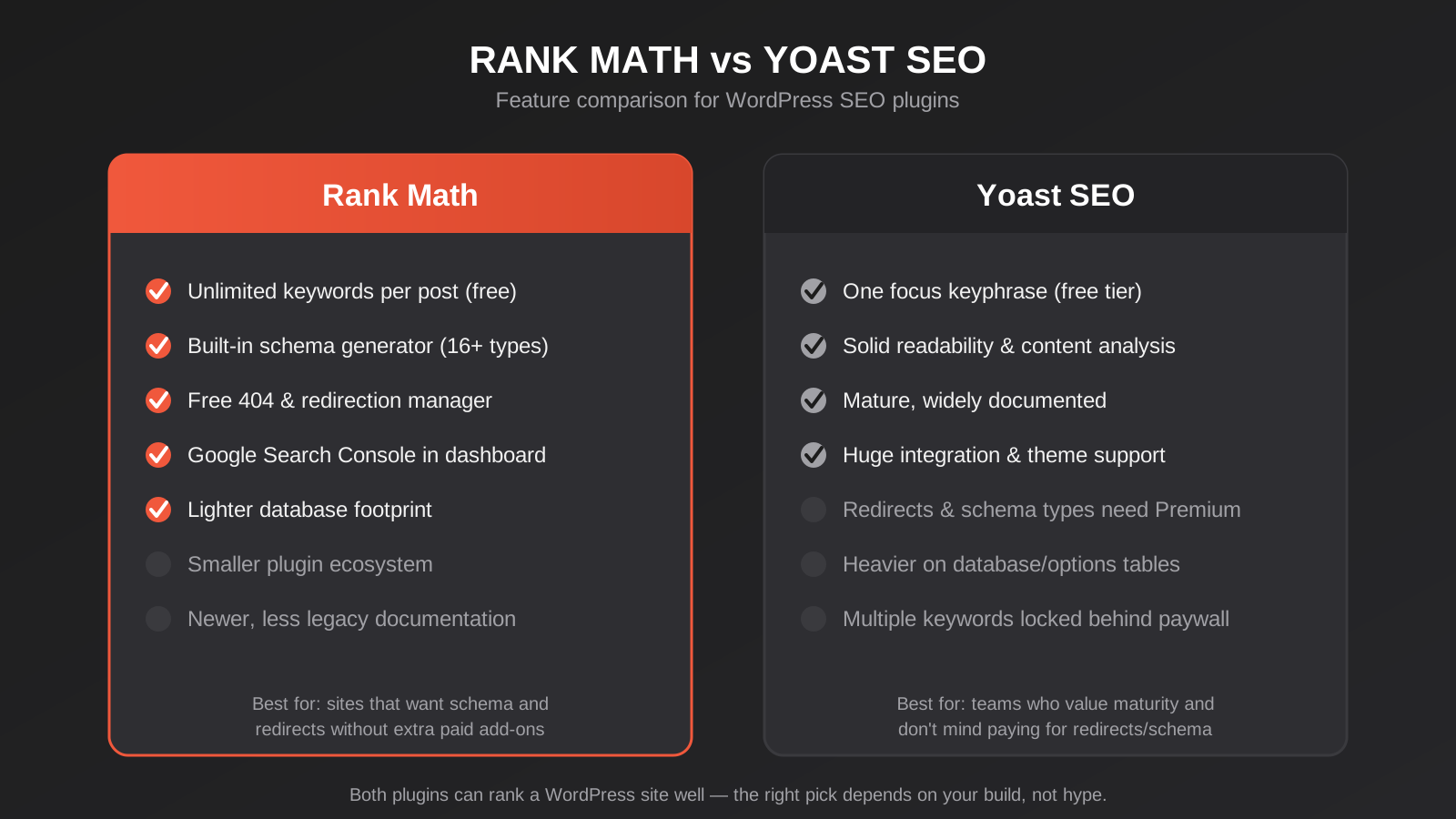
Rank Math vs Yoast: Which SEO Plugin Actually Wins
Every WordPress SEO conversation eventually lands here, and most of what’s written about it online is either outdated or thinly veiled affiliate marketing for one plugin over the other. We run both across different client sites depending on what the site needs, so here’s a genuinely even-handed comparison based on what each plugin actually does in 2026.
Where they’re functionally identical
Title and meta description editing, focus keyword analysis, readability scoring, XML sitemap generation, breadcrumb output, social preview (Open Graph and Twitter Card) editing, and redirect management in the paid tiers — both plugins do all of this competently. If your site’s SEO needs stop at “well-optimised titles and a clean sitemap,” you genuinely will not notice much difference between them day to day.
Where Rank Math pulls ahead
- Free-tier schema depth. Rank Math’s free version includes a much broader set of schema types out of the box — FAQ, HowTo, Recipe, Review, Product and more — where Yoast reserves most schema types beyond Article/Organisation for its paid tier.
- Built-in redirect manager on the free plan. Yoast requires Yoast Premium for redirects; Rank Math includes a basic redirect manager for free, which matters a lot on content-heavy sites doing regular URL cleanup.
- Module-based architecture. Rank Math lets you switch off entire modules (schema, redirections, local SEO, 404 monitor) you’re not using, which keeps the admin interface leaner and can shave a small amount of backend overhead.
- Google Search Console integration in the free tier. Rank Math pulls basic Search Console data directly into the WordPress dashboard for free; Yoast doesn’t offer this at all.
Where Yoast pulls ahead
- Maturity and ecosystem stability. Yoast has been the default WordPress SEO plugin for over a decade, which means broader third-party plugin compatibility and fewer edge-case conflicts with niche themes or older plugins still in production use.
- Content analysis quality. Yoast’s readability and keyword-density analysis is generally regarded as slightly more refined and less prone to false positives than Rank Math’s equivalent checks, particularly for long-form content.
- Simpler onboarding. Yoast’s setup wizard and interface are more restrained, which suits teams that want an SEO plugin to quietly do its job without a dashboard full of upsells and toggles.
- Enterprise track record. If you’re on WordPress VIP or working with an agency team that already has deep Yoast expertise, that institutional knowledge has real value and shouldn’t be discounted.
Performance and bloat
Neither plugin is heavy by WordPress plugin standards, and the performance difference between them is smaller than forum arguments would suggest. Rank Math’s module system means a lean install (schema and sitemaps only, say) can be marginally lighter than Yoast’s more monolithic structure, but in real-world testing across client sites we haven’t seen this translate into a meaningful Core Web Vitals difference either way. The bigger performance factor by far is how many other plugins are running alongside whichever SEO plugin you choose — see the Core Web Vitals section below.
Our actual take
If you’re setting up a new site today and want strong schema markup without paying for a premium tier immediately, Rank Math’s free plan gives you more for nothing. If you’re maintaining an established site that’s already built around Yoast, with editors trained on its interface and content workflows tied to its analysis tools, there’s no compelling SEO reason to migrate — plugin migrations carry their own risk of broken redirects, lost meta data and duplicate SEO settings if not handled carefully. Neither plugin is going to be the reason your WordPress site under- or over-performs in search; the platform-level decisions in the rest of this guide matter more.
Image Optimisation for WordPress
Images are usually the single biggest contributor to page weight on a WordPress site, and WordPress’s default media handling does very little to prevent bloat on its own — it will happily let an editor upload an eight-megabyte PNG straight from a phone camera and serve it at full resolution to every visitor.
Compression
WordPress does generate multiple image sizes automatically (thumbnail, medium, large, and theme-defined sizes) and serves the appropriate one via srcset, which handles responsive sizing reasonably well out of the box. What it doesn’t do is compress the original upload. A compression plugin (Imagify, ShortPixel and Smush are the common choices) that runs on upload and retroactively compresses your existing media library is close to mandatory on any WordPress site with more than a handful of images. Lossy compression at a moderate setting is usually visually indistinguishable from the original while cutting file size by 60–80%.
WebP and modern formats
WordPress has supported WebP uploads natively since version 5.8, and as of WordPress 6.5 it will automatically generate WebP versions of newly uploaded JPEGs for you. That’s useful, but it doesn’t retroactively convert your existing media library, and it doesn’t help with images uploaded before that update. Most compression plugins mentioned above will also handle WebP (or the newer, smaller AVIF format) conversion with automatic fallback for older browsers, which is the more reliable path if your media library predates WordPress 6.5 or you want AVIF as well.
Lazy loading
Native lazy loading (loading="lazy") has been built into WordPress core since version 5.5 and is applied automatically to images below the fold. This is genuinely good for Core Web Vitals in most cases — it defers loading of offscreen images so they don’t compete for bandwidth with content the user actually sees first. The catch, and it’s one we run into constantly, is that WordPress’s automatic detection isn’t perfect: it can end up lazy-loading an image that’s actually part of the visible hero section on certain themes or page builders, which delays your Largest Contentful Paint instead of improving it. If your LCP element is an image, check it isn’t being lazy-loaded — you may need to add loading="eager" or a fetchpriority="high" attribute to that specific image manually, which most themes and builders (including Oxygen) let you set per-element.
Alt text and filenames
This part hasn’t changed in years and it’s still worth doing properly: descriptive filenames before upload (wordpress-caching-plugin-comparison.jpg, not IMG_4821.jpg) and genuinely descriptive alt text, not keyword-stuffed alt text. WordPress stores alt text as post meta on the attachment, separate from the caption and description fields, and it’s a manual field — no plugin fills this in accurately for you, despite what some AI alt-text generators claim. It’s worth the five minutes per image.
Caching and Hosting: The SEO Impact Nobody Talks About
This is the section that gets skipped in most WordPress SEO guides, and it’s arguably where we see the largest measurable impact on Core Web Vitals and, by extension, rankings.
Why caching matters for SEO specifically
WordPress generates pages dynamically by default — every visitor request runs PHP, queries the database, and assembles the page from scratch unless something intervenes. A caching plugin (WP Rocket, W3 Total Cache, LiteSpeed Cache if your host supports it) generates a static HTML version of each page and serves that instead, which is the single biggest server-response-time improvement available on most WordPress sites. Since Time to First Byte feeds directly into both Largest Contentful Paint and Google’s page experience assessment, a properly configured caching layer is one of the highest-leverage SEO changes you can make on WordPress that has nothing to do with content or keywords.
The configuration detail that actually matters for SEO: make sure your caching plugin isn’t caching pages for logged-in users in a way that serves stale content to Googlebot, and make sure cache exclusions are set correctly for dynamic content (cart pages, forms with CSRF tokens, personalised content) — caching the wrong page type breaks functionality rather than helping performance.
Hosting choice
Shared hosting on an oversold server is the most common root cause we find when a WordPress site has a stubbornly poor Time to First Byte that no amount of plugin configuration fixes. If your host is putting hundreds of other WordPress sites on the same physical resources, no caching plugin fully compensates for that during traffic spikes or when a neighbouring site on the same server is having a bad day. Managed WordPress hosting (WP Engine, Kinsta, SiteGround’s GrowBig tier and above, or a properly configured VPS) with server-level caching, a CDN, and PHP/MySQL versions kept current typically delivers a meaningfully faster baseline than budget shared hosting, independent of any plugin decisions.
A few hosting-level checks worth doing regardless of provider: confirm you’re on PHP 8.1 or later (older PHP versions are measurably slower and increasingly a security liability), confirm a CDN is actually serving your static assets rather than just being “installed,” and confirm your server has HTTP/2 or HTTP/3 enabled, which affects how efficiently a browser can load multiple assets in parallel — relevant on any WordPress site loading several CSS/JS files from theme and plugins.
WordPress-Specific Core Web Vitals Fixes
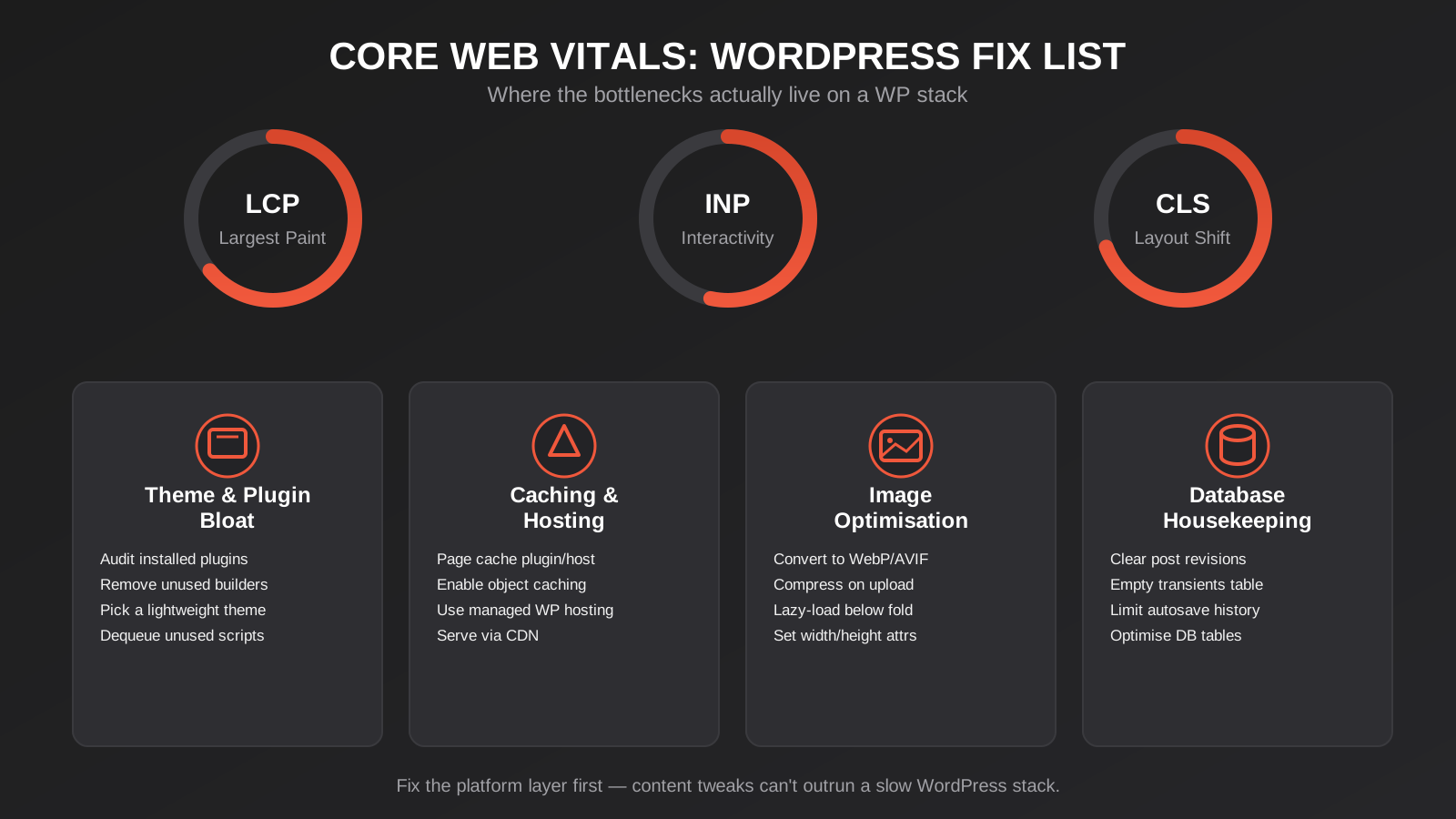
Beyond caching and hosting, the Core Web Vitals problems we see most often on WordPress sites trace back to three things: the theme, the plugin count, and an unmaintained database.
Theme bloat
Multi-purpose themes that ship with dozens of demo layouts, a bundled page builder, and CSS/JS for features you’ll never use are a recurring Core Web Vitals problem. That framework loads on every page regardless of whether the page uses its features, adding render-blocking CSS and JS the browser has to process before it can paint anything. This is one of the reasons we build client sites on Oxygen rather than a general-purpose theme — it outputs clean HTML/CSS without a theme framework sitting underneath every page, which removes an entire category of Core Web Vitals problems before they start. If switching themes isn’t realistic for your site, at minimum audit whether your current theme’s built-in page builder or demo-content framework is loading its full asset library on pages that don’t use those features.
Plugin bloat
Every plugin can add its own CSS and JS files, and WordPress loads most of them site-wide by default regardless of whether a given page actually uses that plugin’s functionality — a contact form plugin’s scripts loading on your blog archive, for instance, when no form exists on that page. The fix isn’t necessarily “use fewer plugins” (a well-coded plugin doing one job well is rarely the problem); it’s auditing what’s loading where. An asset-audit tool (built into Query Monitor, a free debugging plugin) will show you exactly which plugin is enqueuing which script on which page, which lets you identify genuine dead weight rather than guessing. Asset optimisation plugins like WP Rocket, Asset CleanUp or Perfmatters let you selectively disable a plugin’s CSS/JS on pages where it isn’t needed, without disabling the plugin itself.
Database optimisation
This one’s easy to forget because it doesn’t show up in a straightforward page-speed test the way render-blocking JS does, but a WordPress database that’s never been cleaned accumulates years of post revisions, expired transients, spam comments and orphaned metadata — and every one of those adds overhead to every query WordPress runs to build a page. On sites we’ve inherited that had never had this done, database cleanup (via WP-Optimize or similar, or manually via WP-CLI) has measurably improved server response time, particularly on content-heavy sites with years of revision history. Limiting post revisions going forward (via the WP_POST_REVISIONS constant in wp-config.php) prevents the problem from recurring.
Schema Markup in WordPress
Structured data helps search engines understand what a page actually is — an article, a service, a review, an FAQ — and can unlock rich results in search (star ratings, FAQ dropdowns, breadcrumb trails) that improve click-through rate even without a ranking change. WordPress doesn’t output any schema by default, so this always comes from either a plugin or manual implementation.
Plugin-based schema
Both Rank Math and Yoast generate baseline schema automatically (Organisation, WebSite, Article/BlogPosting, BreadcrumbList) without any configuration needed, which covers the fundamentals for most content. Rank Math’s free tier, as covered above, extends this considerably further — you can add FAQ schema by using its FAQ content block, Review schema by using its review block, and HowTo schema for step-based content, all without touching code. This is genuinely the easiest path for most WordPress sites, and it’s worth using even if the rest of a site’s SEO plugin preference goes the other way.
Manual and custom schema
Where plugin-based schema falls short is anything specific to your business that doesn’t map to a generic content type — LocalBusiness schema with precise service-area data, Service schema tied to specific offerings, or Person schema for individual team members. On a custom-built site like this one, we implement this schema directly as JSON-LD in the page template rather than relying on a plugin’s generic output, which gives full control over exactly what’s marked up and avoids the schema conflicts that can happen when a plugin and a manually added script both try to output Organisation data on the same page. If you’re not on a custom build, a dedicated schema plugin (Schema Pro, or the schema features in Rank Math) is the more realistic option than hand-editing template files.
Whichever route you take, validate the output. Google’s Rich Results Test and the Schema.org validator will both tell you whether your markup is structurally correct and whether it’s eligible for the rich result types you’re aiming for — don’t assume a plugin’s schema output is error-free just because it was generated automatically. We’ve found duplicate or conflicting schema (usually from a theme, a plugin and a manual snippet all outputting Organisation data independently) on a meaningful number of the WordPress sites we’ve audited.
Common WordPress SEO Mistakes
- Running two SEO plugins at once. Installing Rank Math without fully deactivating Yoast (or vice versa) leaves conflicting sitemaps, duplicate meta tags and duplicate schema fighting each other in the page source.
- Leaving a staging site’s noindex setting on after launch. The single most common cause of a “why isn’t my new site showing up in Google at all” support ticket — check Settings → Reading for “Discourage search engines from indexing this site” immediately after any migration or relaunch.
- Uncontrolled tag creation. Editors adding a new tag for every post instead of reusing existing ones, resulting in hundreds of thin, near-duplicate archive pages over a few years.
- Ignoring the media library’s default alt text behaviour. WordPress does not auto-populate alt text from filenames or captions — an empty alt text field stays empty until someone fills it in.
- Broken internal links after a permalink or category change. Changing a category slug or a post’s URL without setting up a redirect breaks every internal link pointing to it, not just external ones.
- Treating page builder speed as a plugin problem. Blaming the caching plugin for slow load times when the actual cause is a heavy page-builder framework loading its full asset library on every page.
- Never auditing the plugin list. Plugins installed for a one-off task (a competition, a temporary landing page, a plugin trialled and forgotten) that stay active for years, still loading assets and running database queries on every page load.
- Skipping structured data validation. Assuming plugin-generated schema is automatically error-free and never checking it in Google’s Rich Results Test.
Frequently Asked Questions
Should I switch from Yoast to Rank Math for better SEO?
Not on the strength of SEO performance alone. Both plugins handle the core mechanics — titles, meta descriptions, sitemaps, basic schema — competently, and the differences are mostly around free-tier feature depth (Rank Math) versus maturity and ecosystem stability (Yoast). Switching plugins carries real migration risk: lost meta data, duplicate settings, and broken redirects if the transition isn’t handled carefully. It’s worth doing if you specifically need Rank Math’s free-tier schema types or built-in redirect manager and don’t want to pay for Yoast Premium to get equivalent features. It’s not worth doing just because a comparison article told you to.
Does WordPress generate an XML sitemap automatically?
Yes — WordPress core has generated a basic sitemap at /wp-sitemap.xml automatically since version 5.5. In practice, most sites also run an SEO plugin that generates its own, more configurable sitemap, and running both at once (and submitting both to Search Console) causes confusing, conflicting indexation data. Pick one source, usually your SEO plugin’s version since it gives you exclusion controls WordPress core’s native sitemap doesn’t offer.
Why is my WordPress site failing Core Web Vitals even with a caching plugin installed?
A caching plugin fixes server response time, but it doesn’t fix a bloated theme framework, an oversized uncompressed image library, or a plugin loading unnecessary CSS/JS on every page. Caching, theme weight, image optimisation, plugin asset bloat and database health are five separate levers, and a Core Web Vitals failure is usually caused by whichever one hasn’t been addressed yet — installing a caching plugin doesn’t automatically fix the other four.
Do I need a separate schema plugin if I’m already using Rank Math or Yoast?
Usually not. Rank Math’s free tier covers FAQ, HowTo, Review, Product and several other common schema types without an additional plugin. Yoast covers the core Article/Organisation/Breadcrumb schema for free but reserves most other types for its premium tier. A separate schema plugin or manual JSON-LD implementation only becomes worthwhile for business-specific schema — detailed LocalBusiness data, custom Service markup — that doesn’t map cleanly to a generic content type.
Will compressing my images hurt their quality in a way visitors notice?
At a sensible lossy compression setting (most plugins default to something reasonable, but it’s worth checking rather than assuming), the difference is not visible to the human eye in normal use, while file size typically drops by 60–80%. The exception is images where fine detail genuinely matters — product photography relying on texture or colour accuracy — where it’s worth spot-checking compressed output before applying it site-wide.
Is shared hosting ever good enough for a WordPress site that needs to rank well?
For a low-traffic site with modest performance expectations, decent shared hosting can be adequate, particularly paired with a good caching plugin and CDN. Where it consistently falls short is Time to First Byte under any real load — traffic spikes, resource-heavy neighbouring sites on the same server, or simply growth over time. If Core Web Vitals and page speed are a genuine priority (and for most competitive industries, they should be), managed WordPress hosting with server-level caching and dedicated resources removes an entire category of problems that no amount of plugin configuration on shared hosting fully solves.
Where to Start
If you’re working through this list on an existing site, start with the things that are actively breaking something: check for a lingering “discourage search engines” setting, confirm you’re not running two SEO plugins at once, and check whether your sitemap and robots.txt are showing what you think they’re showing. From there, an image compression pass and a genuine plugin/theme asset audit tend to deliver the most visible Core Web Vitals improvement for the least effort. Schema markup and taxonomy cleanup are worth doing properly, but they’re a smaller, longer-term lever than getting the technical foundations right first.
We build and maintain WordPress sites for a living — including the platform decisions covered here, from theme architecture through to hosting and schema implementation. If you’d rather have a second set of eyes run through your site’s specific setup than work through this checklist solo, get in touch and we’ll take a look. If you’re weighing up a full rebuild against incremental fixes, our website pricing page lays out what that typically involves.
Keep reading
Related posts
Best Website Hosting for Australian Businesses (2026): 6 Options Compared
We compare six hosts Australian businesses actually use in 2026 — real drawbacks, data centre locations and pricing traps included.
Website Redesign Without Losing Rankings or Revenue: A 2026 Guide for Australian Businesses
How to redesign your website without losing SEO rankings or leads: the audit, redirect map, QA and 90-day process Australian businesses need.
Core Web Vitals in 2026: A Practical Guide to LCP, INP & CLS for Australian Websites
A practical guide to Core Web Vitals for Australian businesses: what LCP, INP and CLS measure, how to test them properly, and…
Got a project you'd like to talk through?
Tell us what you're working on — we'll come back with a plan.
