
Website Accessibility in Australia: A Practical WCAG Guide for Business Websites (2026)
 Jignesh Vagadiya
14/09/2026
21 min read
Jignesh Vagadiya
14/09/2026
21 min read
In late 2024 a Federal Court case brought against Coles over its online shopping accessibility put something on the radar of Australian business owners that most had never thought about: your website can breach the Disability Discrimination Act 1992 the same way a set of stairs with no ramp can. There’s no small business carve-out. There’s no exemption for “we didn’t know.” If a person with a disability can’t use your site to find information, book a service, or buy something, that’s a live legal exposure — and a genuine chunk of your addressable market you’re quietly locking out.
Most agencies talk about accessibility as an afterthought, something you bolt on with a plugin before launch. We think that’s backwards, and it shows in the numbers: independent audits keep finding that the overwhelming majority of business websites fail basic WCAG checks, often on things as simple as contrast and alt text. This guide is the practical version of website accessibility in Australia — what it actually means, what the law requires, where most sites fall down, and how to build and test for it without treating your whole website as a compliance project.
There’s also a business case underneath the legal one, and it’s worth stating plainly rather than leaving it implied. People with disability and their households control a meaningful share of consumer spending in Australia, and an inaccessible checkout or booking form doesn’t just create legal risk — it turns away a paying customer at the exact moment they were ready to buy. We’ve seen accessibility fixes uncover the same friction points that were quietly hurting conversion for every visitor, not just the ones using assistive technology. Bigger tap targets, clearer error messages, and forms that make sense on the first attempt tend to perform better across the board.
If you’ve read our piece on UX and UI design principles that convert, you’ll recognise some overlap — good accessibility and good conversion design pull in the same direction more often than not. This guide goes narrower: it’s specifically about WCAG, the DDA, and what “accessible” means in practice for an Australian business website.
What web accessibility actually means
Web accessibility is the practice of building websites that people with a wide range of abilities can actually use. That covers blind and low-vision users navigating with a screen reader, but it’s a much bigger group than that single mental image suggests: people with motor impairments who can’t use a mouse, people who are deaf or hard of hearing and need captions, people with cognitive or learning disabilities who need plain language and predictable layouts, older Australians dealing with age-related vision or dexterity changes, and people with temporary limitations — a broken arm, eye strain, a noisy environment where audio isn’t an option. Roughly one in five Australians lives with disability according to the Australian Bureau of Statistics, and that doesn’t include the much larger number who benefit from accessible design without identifying as disabled at all.
WCAG 2.2 and what “Level AA” actually means
The Web Content Accessibility Guidelines (WCAG) are the internationally recognised standard, maintained by the W3C, and now at version 2.2. They’re organised into three conformance levels — A, AA, and AAA — with AA being the level almost every government, standard and court decision treats as the practical benchmark. AAA is generally considered too strict to apply site-wide (some of its criteria conflict with normal design decisions), so when someone says a site is “WCAG compliant,” they almost always mean AA.
WCAG 2.2 added a handful of new success criteria on top of 2.1, and the ones that catch businesses out most are the target size requirement (interactive elements need to be at least 24×24 pixels, which affects a lot of tightly packed mobile navs), consistent help (if you offer a contact option, it needs to appear in the same place across pages), and clearer requirements around focus visibility during authentication flows. None of this is exotic. It’s mostly things a competent designer and developer would do anyway if accessibility was part of the brief from day one, rather than a retrofit.
The four principles: POUR
Every WCAG success criterion sits under one of four principles, usually shortened to POUR: Perceivable, Operable, Understandable, and Robust. It’s a genuinely useful mental model when you’re auditing a site or briefing a designer, because most accessibility problems trace back to one of these four buckets breaking down.
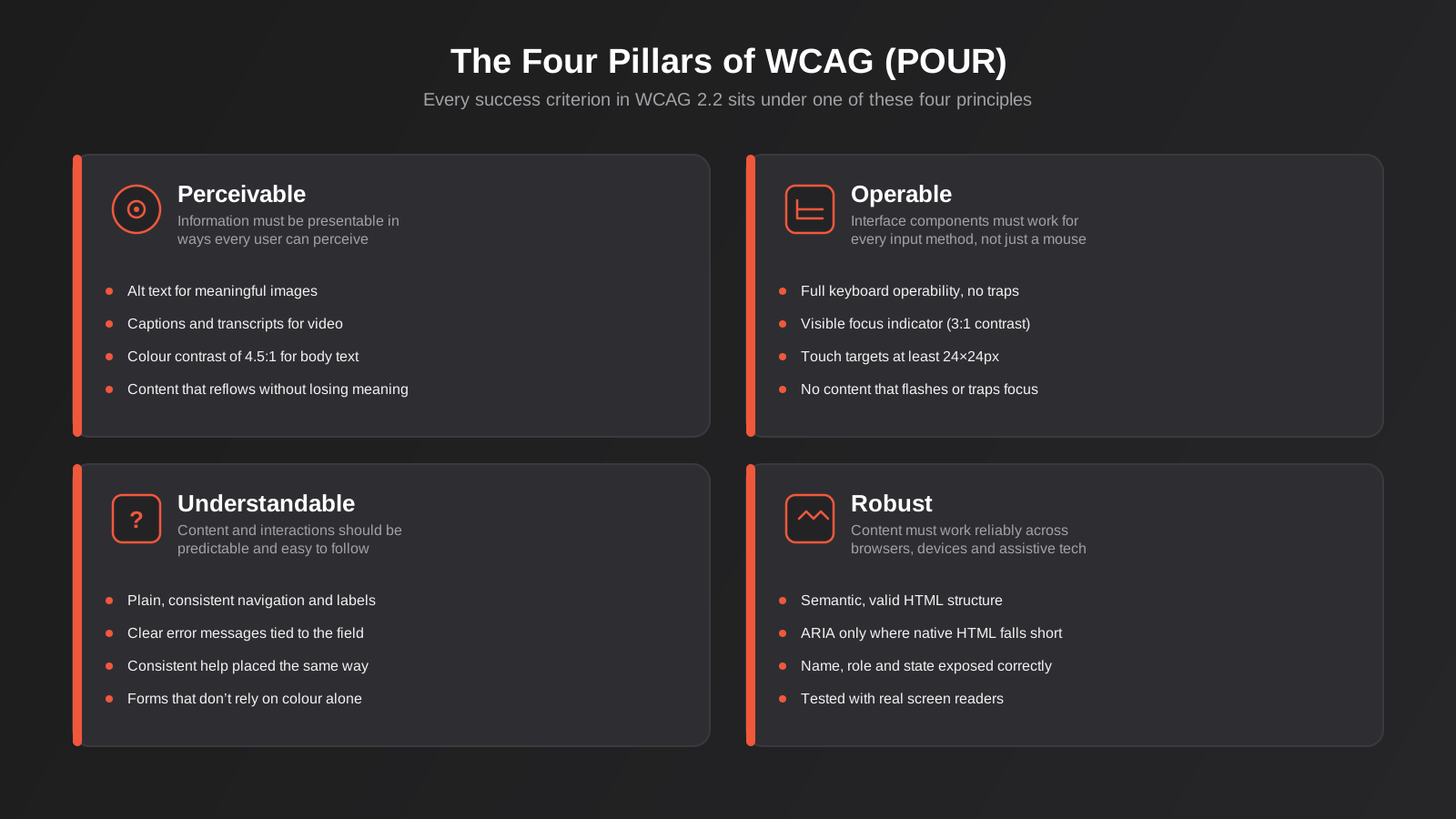
Perceivable means information can’t depend on a single sense — if it’s conveyed visually, there needs to be a non-visual equivalent, and vice versa. Operable means every interaction has to work without a mouse or precise motor control. Understandable means the site behaves predictably and communicates clearly, including when something goes wrong. Robust means the underlying code works reliably with the huge range of browsers, devices, and assistive technologies people actually use, not just the combination your team tested on.
The legal picture in Australia
The Disability Discrimination Act 1992 (DDA) makes it unlawful to discriminate against someone on the basis of disability in the provision of goods, services, or facilities — and Australian courts and the Australian Human Rights Commission (AHRC) have consistently treated an inaccessible website as a form of that discrimination. This isn’t a recent interpretation. The 2000 case brought by Bruce Maguire against the Sydney Organising Committee for the Olympic Games, over an inaccessible SOCOG website, established the principle more than two decades ago. What’s changed since is enforcement pressure and public awareness, not the underlying law.
How complaints actually happen
There’s no government inspector auditing business websites for accessibility. In practice, complaints start one of two ways: a person with disability tries to use your site, can’t, and lodges a complaint with the AHRC, or a disability advocacy organisation runs a sweep of an industry (retail and higher education have both had waves of this) and flags multiple sites at once. AHRC complaints go through a conciliation process first, which is often resolved with commitments to fix specific issues and sometimes a payment. If conciliation fails, the matter can proceed to the Federal Court or Federal Circuit Court, which is where the more serious, reputation-damaging cases end up, and where damages have run into the tens of thousands of dollars in past matters.
Why “we’re a small business” isn’t a defence
The DDA does allow an “unjustifiable hardship” defence, but it’s a high bar and it’s assessed case by case — the cost of fixing genuine accessibility issues on a standard business website is rarely going to clear that bar, because most of the fixes are cheap relative to the cost of the website itself. Size doesn’t exempt you from the Act, and neither does being a services business rather than a retailer — law firms, medical practices, real estate agencies, and trades businesses have all been named in complaints. If you outsource your website to an agency, you as the business owner remain the party responsible for the content and functionality your customers experience, even though a competent developer should be building to these standards without being asked.
Where Australian business websites actually fail
We’ve looked at enough sites across enough industries to see the same handful of issues turn up over and over. None of them are hard to fix individually. The problem is almost always that nobody was looking for them, because accessibility was never part of the design or build brief.
Colour contrast and text
This is the single most common failure, and it’s almost always a branding decision made without checking the numbers. Light grey text on a white background looks clean in a design mockup and fails contrast testing on a real screen in daylight. WCAG AA requires a contrast ratio of at least 4.5:1 for normal text and 3:1 for large text (18pt+, or 14pt+ bold). Brand colours that look fine as an accent on a button often fail badly as body text, and we see this constantly with agencies that pick a brand palette first and try to make the content fit it afterward, rather than the other way around.
Keyboard navigation and focus states
Try tabbing through your own site with the mouse unplugged. On a lot of Australian business sites, you’ll hit one of three problems within the first thirty seconds: the tab order jumps around in a way that doesn’t match the visual layout, there’s no visible indicator showing which element is currently focused (so you have no idea where you are), or a dropdown menu or modal traps focus and won’t let you tab back out. Every one of these blocks a keyboard-only user completely — not just people using assistive technology, but anyone with a motor impairment that makes precise mouse control difficult, and a fair number of power users who simply prefer the keyboard.
Images and alt text
Alt text is one of the cheapest fixes in this entire list and one of the most commonly skipped, usually because whoever uploaded the image in the CMS didn’t know it mattered or didn’t have time. The test is simple: what would a screen reader user lose if the image disappeared? A hero photo of a team meeting needs a sentence describing it. A purely decorative background pattern needs an empty alt attribute (not a missing one — there’s a difference, and getting it backwards creates noise for screen reader users). A chart or infographic needs its actual data conveyed in text, not just a filename.
Forms
Forms are where accessibility failures do the most commercial damage, because a broken form is a lost enquiry or a lost sale, not just an inconvenience. The recurring issues are inputs with no properly associated label (placeholder text is not a label), error messages that only appear as a colour change with no text explanation, and required fields that aren’t announced to screen reader users until after they’ve submitted and been rejected. A booking form, a quote request, a checkout — these are exactly the pages where you can least afford to lose a user partway through.
PDFs and downloadable documents
Price lists, service brochures, terms and conditions — a huge number of Australian business sites push these out as PDFs exported straight from a design tool, with no tagged structure at all. An untagged PDF is close to unusable for a screen reader, which reads it as an undifferentiated wall of text with no headings, no reading order, and no way to skip to a section. If the information genuinely needs to exist as a document, it needs to be a properly tagged, accessible PDF (or better, published as an actual web page, which is accessible by default and also better for SEO).
Video, audio, and animated content
A product demo video with no captions locks out deaf and hard-of-hearing users entirely, and captions written by an editor asking “what does this scene need to say” are far more useful than raw auto-generated captions, which routinely mangle names, pricing, and technical terms. Autoplaying video and animation cause a different problem: they can trigger vestibular reactions in some users and make a page genuinely unusable, which is why WCAG requires a way to pause, stop, or hide any content that moves or auto-updates. If your homepage has an autoplaying hero video or an animated carousel, check there’s a visible, working pause control — not just a workaround, an actual requirement.
Accessibility for ecommerce and lead-generation sites
Accessibility isn’t one-size-fits-all in practice — the pages that matter most and the failure modes that hurt you differ depending on whether your site exists to sell products directly or to generate enquiries.
Ecommerce stores
Product filtering and sorting controls are a common failure point — custom-built dropdowns and checkboxes that look fine visually but aren’t keyboard-operable or don’t announce their state to a screen reader, so a user can’t actually narrow down a catalogue. Product image galleries with zoom and thumbnail switching need the same treatment: keyboard support to move between images, and alt text that describes the product rather than repeating the product name verbatim on every thumbnail. Checkout is the highest-stakes page on the entire site — every field needs a real label, every error needs to be announced and tied to its field, and the whole flow needs to be completable without a mouse. We cover the broader conversion side of this in our guide to ecommerce CRO, and accessibility fixes in checkout tend to move the same metrics that guide focuses on.
Service and lead-generation sites
For a site built around bookings, quotes, and contact forms, the accessibility priority list is shorter but sharper: the enquiry form, the phone number and address (properly marked up, not baked into an image), and any booking calendar widget, which are notoriously inaccessible when licensed from a third-party vendor and dropped in unmodified. If you’re evaluating a booking or calendar tool, ask the vendor directly whether it’s been tested against WCAG 2.2 AA — most haven’t, and you’ll need to budget time to work around the gaps or choose a different tool.
Building accessibility in, rather than bolting it on
The sites that end up genuinely accessible are the ones where it was part of the brief from the first design file, not a checklist run against a finished build. That’s a workflow change more than a technical one, and it touches design, development, and content in different ways.
At the design stage
Pick a palette that passes contrast checks before it becomes the brand, not after. Design real, visible focus states for every interactive element instead of leaving the browser default (or worse, explicitly removing it, which we still see in mockups more often than you’d expect). Design forms with labels and error states included, not added later by whoever builds the form. And design touch targets that meet the 24×24px minimum, which usually just means giving buttons and links enough padding rather than relying on tiny icons or tightly packed nav items. Our UX & UI design work builds these checks into the process rather than treating them as a separate audit step.
At the development stage
Semantic HTML solves most accessibility problems before ARIA is even needed — a real <button> is keyboard-operable and announced correctly to screen readers automatically; a <div> styled to look like a button is neither, until someone manually rebuilds all of that behaviour with ARIA attributes and JavaScript. The general rule worth briefing every developer on: use native HTML elements first, and only reach for ARIA roles when there’s genuinely no native element that does the job. Heading levels need to nest properly (you shouldn’t skip from an H2 straight to an H4 because it looked better visually), and every custom component — accordions, tabs, carousels, modals — needs its interactive state (expanded, selected, current) exposed programmatically, not just shown with a colour change.
In the content and editorial workflow
This is the piece most agencies skip entirely, and it’s often where accessibility quietly breaks down after launch. A perfectly accessible website degrades fast if whoever manages the blog and product uploads doesn’t know alt text is required, doesn’t know not to use colour alone to indicate a sale item, or pastes in an untagged PDF because it was quicker than building a page. Whoever owns your website care and support needs a short accessibility checklist as part of the standard publishing process, not a one-off training session that gets forgotten in six months.
Testing: automated tools and manual checks
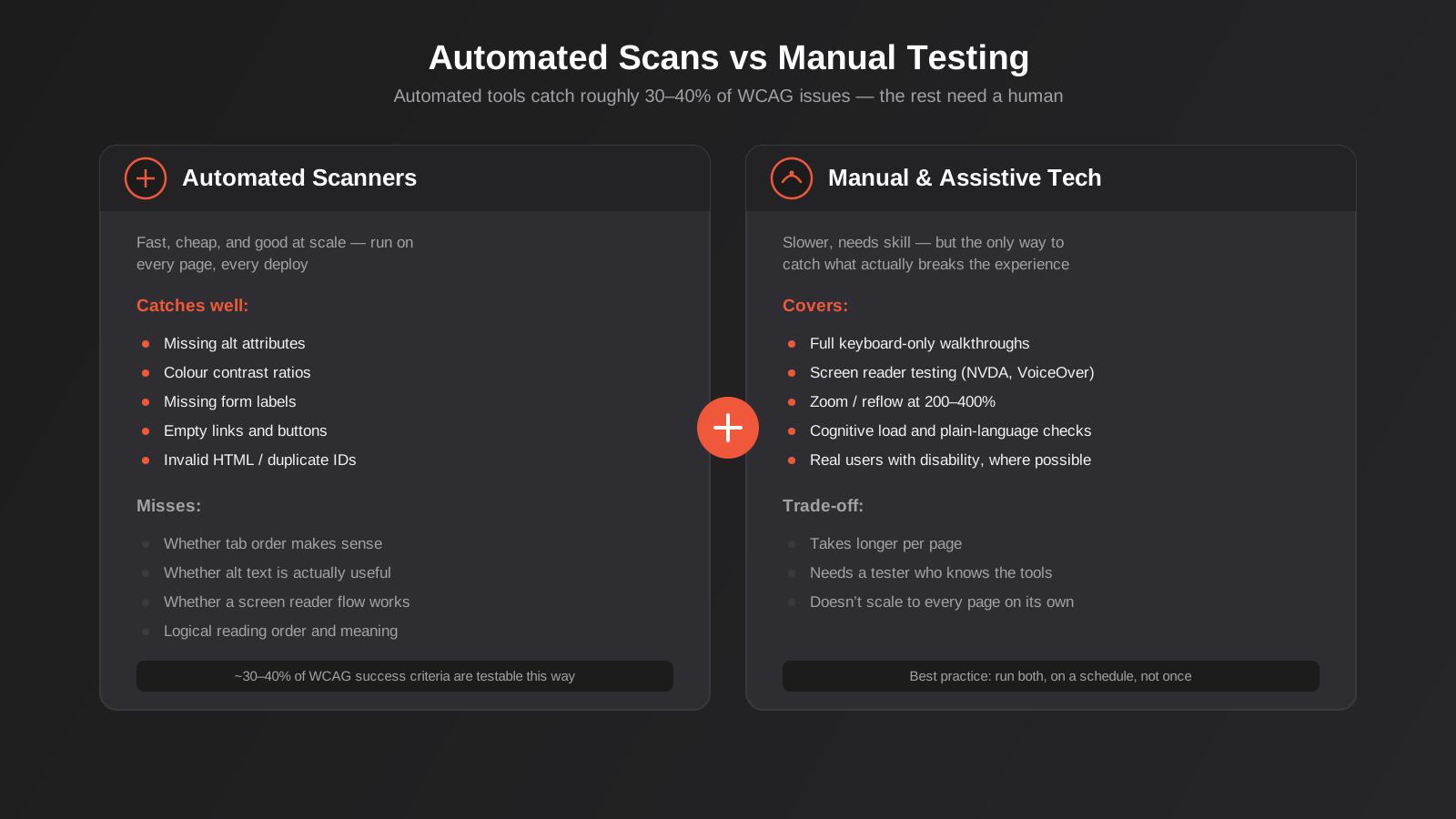
Nobody tests for accessibility by reading the WCAG spec line by line against a live site. In practice you use a mix of automated scanning and manual testing, and understanding what each one actually catches stops you from getting false confidence from a clean automated report.
Automated scanning
Tools like axe DevTools, WAVE, and Lighthouse’s accessibility audit are fast, free or cheap, and good at catching a specific, well-defined set of issues: missing alt attributes, contrast failures, missing form labels, empty links, and invalid HTML. They’re worth running on every page and wiring into your build process so regressions get caught before launch. The catch is that automated tools can only reliably test around 30–40% of WCAG success criteria — anything that requires judgement (is this alt text actually useful, does this tab order make logical sense, is this error message clear) is outside what a scanner can evaluate.
Manual and assistive technology testing
This is where the real gaps get found: a full keyboard-only walkthrough of every key user journey (not just the homepage), testing with an actual screen reader (NVDA on Windows and VoiceOver on Mac are both free and are what most real users rely on), checking the page still works when zoomed to 200–400%, and reading content back for plain-language clarity. It takes longer and needs someone who actually knows how to drive a screen reader properly — testing with your eyes closed and no training will miss most of what a real user experiences. If your budget allows it, involving actual users with disability in usability testing surfaces problems no amount of internal checking will find.
The realistic approach for most businesses is automated scanning on every deploy, paired with a manual keyboard and screen reader pass at launch and again on a schedule — quarterly is reasonable for a site that changes regularly, annually at minimum for one that doesn’t.
Tools worth knowing about
You don’t need an enterprise accessibility platform to get started. axe DevTools is a free browser extension that catches a solid range of automated issues directly in Chrome or Firefox. WAVE, built by WebAIM, overlays a visual map of errors and warnings directly on the page, which is genuinely useful for briefing a non-technical stakeholder on what’s wrong. Lighthouse is built into Chrome DevTools and gives a quick accessibility score alongside performance and SEO, handy as a rough baseline rather than a definitive verdict. For manual testing, NVDA (Windows, free) and VoiceOver (built into every Mac and iPhone) cover the two screen readers you’re most likely to actually be tested against in the real world.
What it costs, and where to start if you’re at zero
Cost depends entirely on how far off the mark the current site is. A well-built site with a handful of contrast and alt text issues might be a few hours of dev and content work. A site with structural problems — div-based fake buttons throughout, no semantic heading structure, forms with no labels at all — is closer to a partial rebuild of the front-end templates, which is a different conversation entirely and one worth having openly with whoever built the site originally, since it points at a gap in how it was briefed in the first place. Our pricing guide covers realistic ranges for website work generally; an accessibility remediation project sits in the same band as a moderate site update, not a full rebuild, in most cases.
If you’re starting from nothing, prioritise in this order: run a free automated scan first to find the obvious, cheap fixes (this alone often resolves 30–40% of issues in a day or two of work); fix anything that blocks a core conversion path — contact forms, booking flows, checkout — before anything cosmetic; get colour contrast right site-wide, since it’s usually a single design token change that fixes dozens of instances at once; then do a proper keyboard and screen reader pass on your highest-traffic pages before working through the rest of the site.
It’s worth budgeting for this as an ongoing line item rather than a single project with a finish date. New pages, new landing pages built for a campaign, and new third-party widgets all introduce fresh risk, and the businesses that stay accessible over time are the ones that build a short check into the publishing process rather than the ones that pass an audit once and never look again.
Common mistakes we see
- Treating accessibility as a one-time audit before launch rather than an ongoing part of how content gets published
- Installing an accessibility overlay widget and treating it as a substitute for actually fixing the underlying code (overlays have been the subject of their own lawsuits overseas for failing to deliver what they claim)
- Removing the default focus outline in CSS for aesthetic reasons without replacing it with a visible alternative
- Using placeholder text as the only label on a form field
- Relying on colour alone to show state — a red border with no text, a green tick with no label
- Publishing PDFs exported straight from a design tool with no tagged reading order or headings
- Assuming a clean automated scan means the site is fully accessible, when it’s only tested a third of the actual criteria
- Briefing a rebuild or platform migration without carrying existing accessibility fixes across, so problems that were solved reappear on the new build
Frequently Asked Questions
Is website accessibility actually a legal requirement in Australia?
Yes. The Disability Discrimination Act 1992 applies to websites and online services the same way it applies to physical premises, and this has been tested in Australian courts since the SOCOG case in 2000. There’s no specific website accessibility law separate from the DDA, and no size-based exemption for small business.
What WCAG level do we actually need to meet?
Level AA is the practical standard almost everyone targets, including Australian government policy for its own services. Level A is the bare minimum and leaves serious gaps; Level AAA is generally considered too strict to apply across an entire site without conflicting with normal design and content decisions.
Can an accessibility overlay widget fix this for us quickly?
Overlay widgets that promise instant compliance via a script tag generally don’t fix the underlying code, and several have faced legal action overseas for making compliance claims they couldn’t back up. They can help with a few surface-level adjustments, but they’re not a substitute for fixing semantic HTML, forms, and keyboard behaviour properly.
How much does it cost to make an existing website accessible?
It depends entirely on how the site was originally built. A site built on semantic HTML with only contrast and alt text gaps might need a few hours of design and content work. A site built from non-semantic markup with no keyboard support at all is closer to a front-end rebuild. An automated scan plus a short manual audit will tell you which situation you’re in before you commit to a number.
Does fixing accessibility issues help or hurt SEO?
It helps, generally. Semantic heading structure, meaningful alt text, and clean HTML are things both screen readers and search engine crawlers rely on to understand a page. Accessibility work and technical SEO overlap more than they conflict.
Do we need to fix every WCAG success criterion at once?
No, and trying to do that in one pass is usually how these projects stall. Fix what blocks a core conversion path first — forms, booking, checkout — then contrast site-wide, then work through the rest by traffic volume. Genuine progress on a prioritised list matters more than an unfinished attempt at perfection.
Does WCAG 2.2 replace WCAG 2.1, and do we need to redo work already done to 2.1?
WCAG 2.2 is backwards compatible with 2.1 — everything you fixed to meet 2.1 still counts, and 2.2 simply adds a small number of new success criteria on top (target size, consistent help, and a few authentication-related items). You don’t need to redo existing work, just extend it to cover the new criteria.
Where to start
If you’ve never had your site looked at for accessibility, the honest first step is a proper audit — automated scan plus a manual keyboard and screen reader pass on your key pages — so you know whether you’re looking at a few days of fixes or a genuine front-end rebuild. We do this as part of our broader UX and UI design and development work, not as a bolt-on service, because the fixes that actually stick are the ones built into how a site is designed and maintained day to day. If you want an honest read on where your site stands, get in touch and we’ll talk through what we find.
Keep reading
Related posts
Best Website Hosting for Australian Businesses (2026): 6 Options Compared
We compare six hosts Australian businesses actually use in 2026 — real drawbacks, data centre locations and pricing traps included.
Website Redesign Without Losing Rankings or Revenue: A 2026 Guide for Australian Businesses
How to redesign your website without losing SEO rankings or leads: the audit, redirect map, QA and 90-day process Australian businesses need.
Core Web Vitals in 2026: A Practical Guide to LCP, INP & CLS for Australian Websites
A practical guide to Core Web Vitals for Australian businesses: what LCP, INP and CLS measure, how to test them properly, and…
Got a project you'd like to talk through?
Tell us what you're working on — we'll come back with a plan.
