
UX/UI Design Principles That Actually Convert: A 2026 Guide for Australian Websites
 Jignesh Vagadiya
08/09/2026
22 min read
Jignesh Vagadiya
08/09/2026
22 min read
A few weeks ago we sat with a client watching someone try to fill out their quote form on a screen share. Three fields in, the person paused, scrolled back up to check something, typed a value, got an error message that didn’t explain what was wrong, and closed the tab. Nobody in the room said “the copy isn’t persuasive enough.” Everyone said some version of “that’s broken.”
That gap is where most conversion problems actually live. Businesses ask for a website that “converts better,” and the conversation usually jumps straight to headlines, offers and calls to action. Those matter, but they sit on top of something more basic: whether the interface makes it easy to do the thing you’re asking someone to do. A site can look sharp in a portfolio screenshot and still lose a third of its form starts to friction nobody bothered to test. A site can look plain and slightly dated and still convert well because the path from landing to action is short and obvious.
This is a practical rundown of the UX UI design principles that actually change outcomes, not a design theory lecture. We’ll cover where UX and UI split into different jobs, the specific decisions that move conversion, how to run a heuristic pass on your own site this week, and where design work hands off to proper conversion rate optimisation. Australian spelling, no fluff, nothing here we haven’t applied on an actual client site.
UX and UI Are Not the Same Job, and Treating Them as One Causes Most of the Damage
Every brief we get uses “UX/UI” as one word, and for a lot of small projects that’s a fair shorthand — one person or one small team handles both. But the two disciplines are answering different questions, and when a business can’t tell which one is broken, it usually spends money fixing the wrong thing.
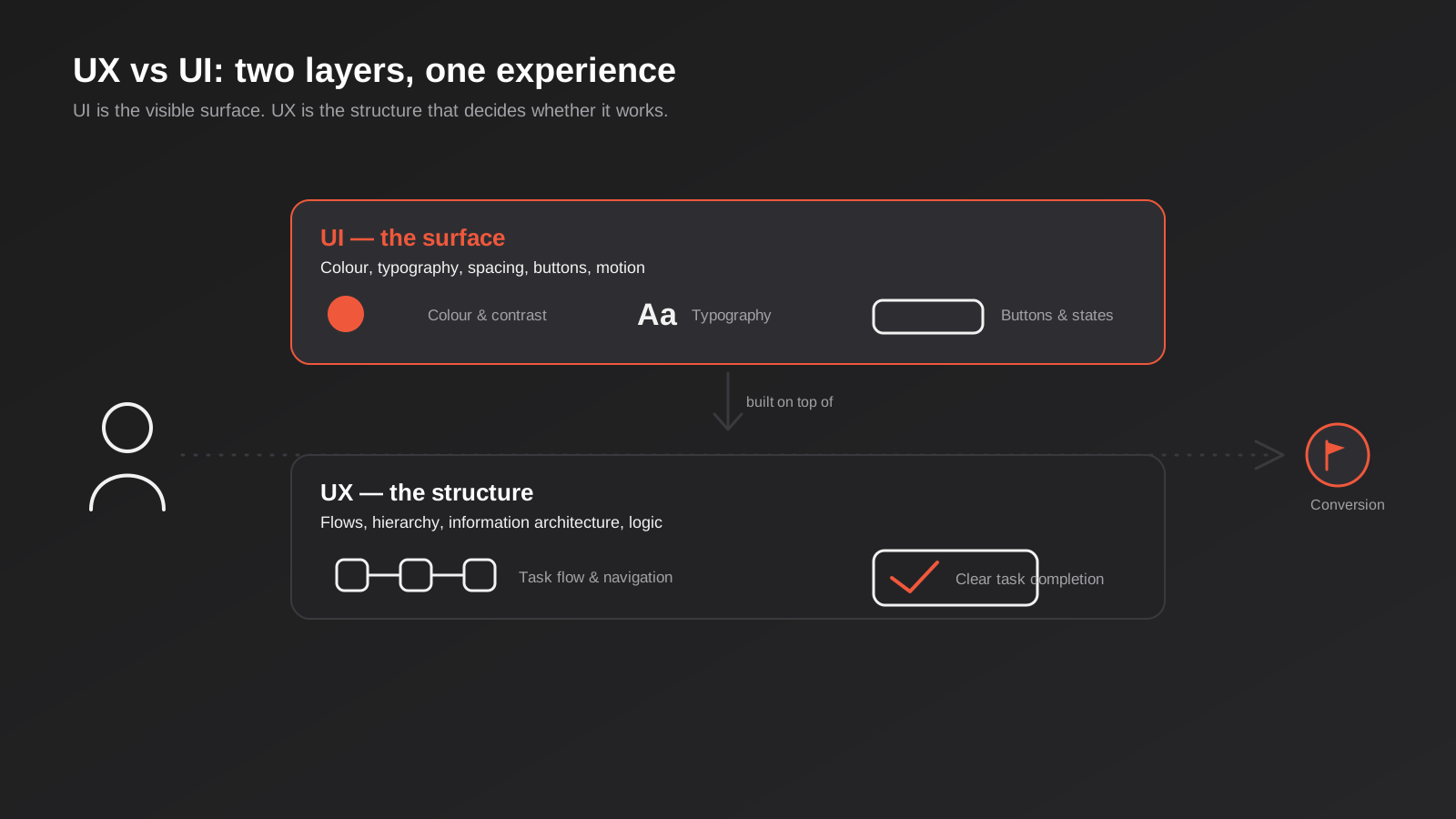
UX is the path someone takes
User experience design is about the structure underneath the visuals: what steps someone goes through to book a consult, buy a product or request a quote, what information they need at each step, what order they need it in, and what happens when they make a mistake. It’s wireframes, flows, content hierarchy and navigation logic before a single colour or font gets chosen. Good UX is largely invisible — you don’t notice a well-designed checkout, you just finish it.
UI is what they see and touch along the way
User interface design is the visual and interactive layer sitting on top of that structure — typography, colour, button states, spacing, iconography, motion. It’s what turns a wireframe into something a person recognises as trustworthy and on-brand. Our UX and UI design work deliberately covers both ends, because shipping one without the other produces predictable failure modes: gorgeous interfaces built on a confusing structure, or logical flows that look so plain nobody trusts them enough to hand over a credit card.
Why the confusion costs businesses money
The most common version of this we see: a business with a flat or declining conversion rate briefs a “redesign,” gets a visual refresh — new colours, new photography, new fonts — and the numbers don’t move. That’s because the problem was never the UI. It was a five-step checkout that should have been two, a navigation menu with fourteen items and no clear primary path, or a contact form asking for information nobody wants to type on a phone. A skin change doesn’t fix a structural problem, and a business that doesn’t know the difference keeps buying the wrong fix. If you’re trying to work out which side of that line your project sits on, our guide to landing page design versus development covers a related version of the same confusion, where the deliverable and the discipline that produces it get mixed up.
The UX Principles That Actually Move Conversion
None of these are exotic. They’re the five things we check first on almost every audit, because between them they account for most of the friction we find.
Give every page one job
A page trying to sell, capture an email, explain your process and link to six other pages is a page that does none of those well. Before anything gets designed we ask what the single action this page exists to drive is, then everything on the page either supports that action or gets moved somewhere else. Homepages are the worst offenders here because everyone internally wants their bit represented above the fold. The businesses that convert well on their homepage are usually the ones that resisted that pressure and picked one job: get the visitor to the right service page, start a quote, or book a call.
Cut interaction cost everywhere you can
Interaction cost is the mental and physical effort someone spends completing an action — every extra field, click, scroll or decision point adds to it, and it compounds faster than most people expect. A form with nine fields doesn’t get roughly a third fewer completions than one with six, it can lose considerably more depending on what those fields ask for and how sensitive the information feels. The fix is rarely clever, it’s just deletion: work out what you actually need to have a useful first conversation (usually a name, a contact detail and one rough scope question), and chase the rest after the first response instead of before it.
Build the information architecture around tasks, not your org chart
Navigation menus tend to mirror how a business is internally structured rather than how a visitor actually thinks about their problem. A trades business might have “Residential,” “Commercial” and “Emergency” as separate departments internally, but a visitor with a burst pipe doesn’t care about your org chart, they want the fastest path to “someone can come today.” Structuring navigation and page hierarchy around the tasks and questions visitors actually arrive with, rather than how the business sees itself, consistently outperforms the internally logical version.
Design mobile first, not mobile-adapted
Most Australian business sites now see the majority of their traffic on mobile, and Google has been indexing and ranking primarily off the mobile version of a site for years. Designing on a large desktop canvas and then squeezing it down to fit a phone produces exactly the problems you’d expect: tap targets sitting too close together, forms that need zooming to read, navigation that takes three taps to reach anything useful. Designing the mobile layout first forces the same discipline as the point above — you physically don’t have room for everything, so you’re forced to decide what actually matters.
Treat speed as a UX decision, not just a dev ticket
Load time gets filed under “technical” in a lot of businesses’ minds, but it’s experienced as part of the interface. A visitor doesn’t distinguish between “this site is slow because of an unoptimised hero image” and “this site is badly designed” — it registers as the same low-trust signal either way, and bounce rates climb on mobile connections accordingly. Every design decision, from how many custom fonts get loaded to whether a hero section needs a background video, is also a UX decision, and it should be weighed as one during design rather than handed to development as a problem to solve after the fact.
The UI Principles That Make an Interface Feel Trustworthy
Once the structure is right, the visual layer is what makes people trust it enough to act. These are the five that consistently matter most.
Visual hierarchy: guide the eye before you guide the copy
Visual hierarchy is the order in which someone’s eye moves across a screen, controlled through size, weight, colour and position rather than through reading. Most people scan a page before they read it, roughly in an F or Z pattern depending on the layout, and if your primary call to action isn’t sitting somewhere that pattern naturally lands, it’s competing for attention it was never going to win. This is why a page can have technically good copy and still underperform: the eye never got directed to the sentence that mattered.
Typography and readability
Body copy under roughly 16px on mobile forces people to zoom, line lengths over about 75 characters make paragraphs harder to track, and line height under 1.4 makes dense text feel like a wall. None of this is opinion, it’s basic readability practice that’s been consistent for years, and it’s remarkable how often it still gets overridden because a design “looks tighter” with smaller type. If someone has to work to read your page, they’ll do less of it, and less reading generally means less understanding of why they should convert.
Colour, contrast and accessibility
Contrast isn’t just an accessibility checkbox, though it is that too — WCAG AA sets a minimum contrast ratio of 4.5:1 for normal body text against its background, and a meaningful share of visitors have some degree of vision impairment that makes low-contrast text genuinely hard to read, not just aesthetically thin. Beyond compliance, contrast is what makes a primary button read as clickable rather than decorative. A brand palette that’s all mid-tones with no genuine contrast between background, text and action colours will always struggle to direct attention, no matter how on-brand it looks in isolation.
Whitespace is not wasted space
There’s a persistent instinct, especially from people used to print advertising, to fill every available pixel because empty space feels like a missed opportunity. On screen it works the opposite way: whitespace around an element increases how much attention that element gets, and a page crammed with competing content reduces comprehension of all of it rather than adding value from any of it. Some of the highest-converting pages we’ve built look, at first glance, like they’re “missing” content compared to a competitor’s. They’re not missing it, they’ve just stopped trying to say everything at once.
Consistency, and when that means you need a system
Consistent button styles, spacing and interaction patterns reduce cognitive load, because a visitor learns your interface once and reuses that learning on every subsequent page. Small sites can hold this consistency in one person’s head. Once you’re maintaining more than a handful of page templates, or more than one person is touching the design, that consistency needs to live somewhere documented rather than in memory — which is a separate conversation about conversion-focused design and when a formal design system earns its cost versus when it’s overkill for the size of the site.
Trust Signals and Micro-Interactions That Reduce Hesitation
Beyond the big structural and visual decisions, a lot of conversion comes down to small moments where someone is quietly deciding whether to trust you enough to keep going.
Where social proof actually belongs
Testimonials and review counts get treated as a section to bolt onto a page rather than a tool to place at the exact point someone is hesitating. The highest-value placement isn’t a dedicated “what our clients say” section scrolled past on the way to somewhere else, it’s next to or just above the specific decision point where doubt is highest: beside a price, above a form submit button, next to a service that sounds expensive or unfamiliar. A five-star badge sitting in a footer nobody scrolls to does almost nothing for hesitation at the point it actually matters.
Form feedback and error states
Inline validation that flags a malformed email the moment someone leaves that field, rather than after they’ve filled in six more fields and hit submit, is one of the cheapest UX wins available and one of the most commonly skipped. Error messages that say what’s wrong and how to fix it (“Enter a phone number with an area code”) outperform generic ones (“Invalid input”) because they remove a guessing step. This sounds minor until you watch someone abandon a form over an error message they couldn’t parse.
Microcopy that removes doubt at the moment of decision
The words on and around a button matter more than their size suggests. “Submit” tells someone nothing about what happens next; “Get my free quote” or “See pricing” tells them what they’re about to get. A line under a form that says “We’ll respond within one business day, no obligation” directly answers the two questions running through most people’s heads before they hand over contact details: what happens next, and am I about to get a hard sales call. Removing that uncertainty in six words of microcopy consistently outperforms rewriting the whole page around it.
Accessibility Is a Conversion Lever, Not a Compliance Checkbox
Accessibility tends to get raised as a legal or ethical obligation, and it is that, but treating it purely as compliance misses how directly it overlaps with the same friction points covered above. A site that works properly for someone using a keyboard or a screen reader is, almost by definition, a site with clearer structure, better labelling and less ambiguous interaction — qualities that help every visitor, not just the ones relying on assistive technology.
Keyboard navigation and focus states
Try tabbing through your own site without touching the mouse. If you lose track of where focus is, if a dropdown menu can’t be opened without a mouse hover, or if the tab order jumps around the page in a sequence that makes no sense, you’ve found a real problem, not a hypothetical edge case. A meaningful share of visitors use a keyboard for at least part of a session, whether from a motor impairment, a broken trackpad, or simply habit, and a missing focus outline or a trapped dropdown will cost you their conversion just as surely as a broken checkout button would.
Alt text, labels and not relying on colour alone
Alt text on meaningful images and properly associated labels on form fields aren’t just there for screen readers, they’re also what search engines use to understand your page, so accessibility work and SEO work overlap more than most businesses realise. The same goes for colour: a form that only shows an error by turning a border red, with no icon or text alongside it, fails anyone with colour vision deficiency, which affects roughly one in twelve men. Pairing colour with an icon or a written message costs almost nothing to implement and removes an entire category of confusion.
Where this overlaps with mobile UX and SEO
A lot of accessibility work and mobile-first UX work are the same work looked at from different angles — larger tap targets help someone with limited fine motor control and someone thumbing a phone one-handed on a train equally well. Structured headings that help a screen reader jump to the right section are the same headings that help a search engine extract the right passage to answer a query. None of this needs to be a separate project bolted on at the end; it’s cheapest and most effective when it’s built into the same design pass as everything else in this guide.
Where UX/UI Design Ends and CRO Begins
We get asked fairly often whether a UX/UI redesign and conversion rate optimisation are the same service with two names. They’re related but they’re not the same thing, and knowing the difference matters for what you brief and when.
UX/UI design is what happens before launch, or during a rebuild: establishing the structure, hierarchy and visual system based on best practice, research and experience, so the site starts from a sound baseline instead of a guess. CRO is what happens after launch, using real visitor behaviour — heatmaps, session recordings, funnel data and A/B tests — to find and fix the specific things actually costing conversions on that particular site with that particular audience, which no amount of best-practice design can fully predict in advance. Our full breakdown of what conversion rate optimisation actually involves covers that testing and measurement process in depth if you want the detail; this post is deliberately about what should already be right before testing starts, since testing your way out of a fundamentally confusing structure is slower and more expensive than just fixing the structure.
In practice, a well-designed site still benefits from CRO, and a poorly designed site can’t be tested into good performance — you’ll spend a testing budget confirming problems a proper design pass would have caught for free.
A Practical Way to Audit Your Own Site
You don’t need a formal UX audit to catch the obvious problems. A condensed version of Jakob Nielsen’s heuristic evaluation method, cut down to what actually matters for a commercial website, will surface most of what’s costing you conversions in under an hour.
A five-point pass you can run this week
Go through your own site, ideally on a phone and with fresh eyes, or better still, watch someone who’s never seen it try to complete your main conversion action. Check these five things in order.
A couple of free tools speed this up if you want more than a manual look. Google’s Lighthouse, built into Chrome’s developer tools, flags the objective problems — failed contrast ratios, missing form labels, images without alt text — in under a minute. GA4’s behaviour and funnel reports show you where people actually drop out, which tells you where to point the heuristic pass rather than guessing at it. Neither replaces watching an actual person use the site, but both make the manual pass faster and harder to talk yourself out of.
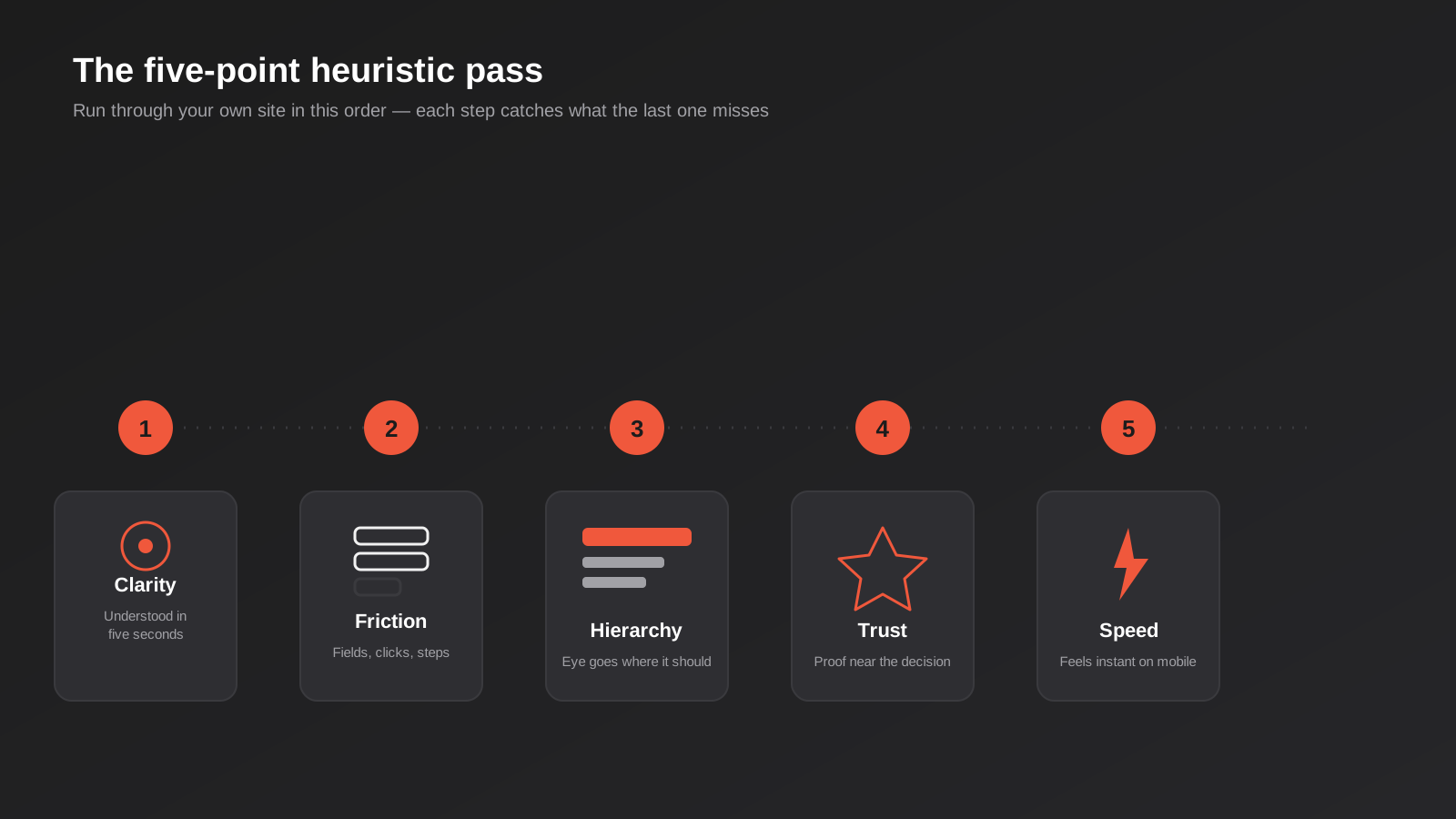
- Clarity. Can a first-time visitor tell what you do and what to do next within five seconds, without scrolling?
- Friction. How many fields, clicks or screens sit between arriving and completing your main goal, and can any be removed or deferred to later?
- Hierarchy. Does your eye land on the thing you most want it to land on, or does everything compete equally for attention?
- Trust. Are your strongest proof points — reviews, credentials, guarantees — visible near the decision point, not buried on a separate page?
- Speed. Does the page feel instant on a mobile connection, or is there a noticeable pause before anything useful appears?
When to fix immediately versus when to test first
Some things are just wrong and don’t need a test to prove it: a contrast ratio that fails WCAG, a form field that’s mislabelled, a page that takes eight seconds to load on 4G, navigation that hides your phone number on mobile. Fix those immediately — there’s no reasonable version of “let’s A/B test whether people prefer a readable page.” Reserve testing for genuine judgement calls where reasonable people could disagree: one CTA wording against another, a three-step form against a two-step one, whether pricing should be visible upfront or behind a quote request. If you can’t confidently predict which version wins, that’s a test. If you already know the answer and you’re just avoiding the work, that’s not a test, that’s a delay.
Common Mistakes We See on Australian Business Websites
- Redesigning the visuals to fix a structural problem. New colours and photography on top of a confusing flow changes how the site looks in a screenshot, not how it performs.
- Navigation built around the org chart instead of visitor tasks. Menus that mirror internal departments rather than the questions visitors actually arrive with.
- Forms asking for everything up front. Collecting budget, timeline, project details and three contact fields before the first conversation has even started.
- Mobile treated as an afterthought. Desktop-first design that gets “responsive” applied at the end instead of built mobile-first from the start.
- Testimonials parked in one section instead of placed at decision points. Proof that never sits near the moment someone is actually hesitating.
- No inline form validation. Errors that only appear after submission, forcing people to hunt for what went wrong.
- Confusing a design system with a brand guideline. A PDF of logo rules isn’t the same as documented, reusable interface components, and treating them as interchangeable lets inconsistency creep back in within months.
- Chasing trends instead of the visitor’s actual task. Adopting a design pattern because a competitor or a template has it, without asking whether it serves what this specific visitor needs to do.
Frequently Asked Questions
What’s the actual difference between UX design and UI design?
UX design is the structure and logic behind an experience — the flow, the information architecture, what happens at each step. UI design is the visual and interactive layer on top of that structure — colour, typography, spacing, button states. A simple way to remember it: UX decides what happens and in what order, UI decides what it looks and feels like while it’s happening. Most projects need both, which is why the two disciplines are usually delivered together.
Do I need a dedicated UX designer, or can a graphic designer handle both?
It depends on the complexity of what you’re building. A straightforward brochure site with a handful of pages and one contact form doesn’t need a separate UX specialist — a good web designer working from clear structure and copy can handle it. Anything with multiple user paths, a booking or checkout flow, gated content, or a product catalogue benefits from dedicated UX thinking before visual design starts, because mistakes made at the structural stage are far more expensive to fix once a visual design is already built on top of them.
How much does UX/UI design cost for a small business website in Australia?
It varies with scope — a simple site with light UX work sits at a different price point than a multi-flow platform with custom research and testing. Rather than guess a figure here, our pricing page breaks down real ranges by project type so you can see where a given scope actually lands.
Can good UX/UI design fix a site that isn’t converting, or do I still need CRO testing?
Good design fixes the problems that are obvious without testing — confusing navigation, excessive form friction, poor contrast, weak hierarchy. It gets you to a sound baseline. CRO testing then finds the problems specific to your actual audience that can’t be predicted from best practice alone, like which of two CTA wordings performs better for your visitors specifically. Most sites benefit from design fixes first, since they’re usually the bigger lever, and testing second.
How do I know if my problem is UX or just not enough traffic?
Check your analytics for behaviour, not just volume. If you’re getting reasonable traffic to a page but a high bounce rate, short time on page, or form starts that don’t finish, that’s a UX signal — people are arriving and leaving without completing the task. If traffic itself is low relative to your market and competitors, that’s more likely a visibility or SEO problem, which is a different fix entirely. The two often get confused because both show up as “not enough leads.”
Is mobile-first design still necessary if most of my customers are on desktop?
Even in industries where the eventual buying decision happens on desktop — B2B and higher-consideration purchases, for example — a meaningful share of initial research and first contact now happens on a phone, and Google predominantly indexes and ranks based on your mobile experience regardless of where your actual customers convert. Designing mobile-first also tends to produce a cleaner desktop layout as a side effect, because it forces prioritisation decisions a desktop-first design can skip past.
What’s the single highest-impact UX fix most businesses could make this week?
For most business sites we audit, it’s trimming the primary contact or quote form down to the minimum needed for a first response, and adding inline validation so errors show up before submission rather than after. It’s rarely the most exciting fix to brief, but it’s consistently the one with the clearest before-and-after in the data, and it doesn’t require a redesign to implement.
Where to Start
If you’re not sure whether your site has a UX problem, a UI problem, or something else entirely, the fastest way to find out isn’t to commission a full redesign, it’s to run the five-point pass above on your own site this week and see what falls out of it. You’ll usually find at least one or two things that are clearly wrong and worth fixing regardless of what else you decide to do.
If that turns up more than you want to tackle in-house, or you want a second set of eyes on where the actual friction is before you spend on a redesign, that’s a conversation we have with clients constantly. Happy to have a look at your site and tell you honestly whether it’s a design problem, a structural problem, or something further upstream — our UX and UI design team can walk you through what we’d actually prioritise first, no pressure to commit to anything on the call.
Keep reading
Related posts
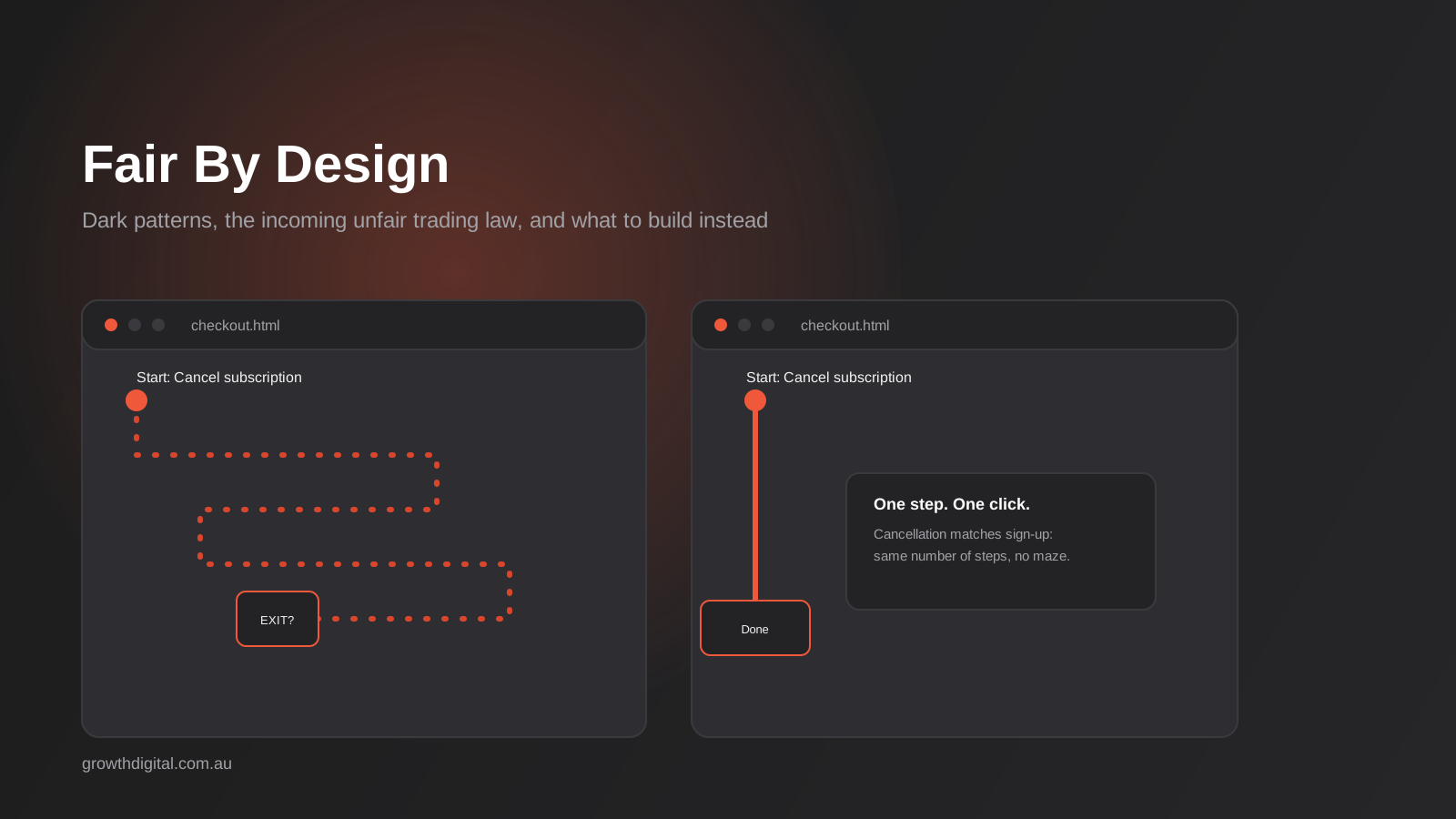
Dark Patterns in Website Design: What Australia’s Unfair Trading Practices Law Means for Your Site
Dark patterns in website design explained: what counts, how Australia’s incoming unfair trading practices law applies, and what to build instead.
Graphic Design for Australian Businesses: What You Actually Need (and When Canva Stops Being Enough)
What graphic design actually covers for Australian businesses, real 2026 pricing, and a practical framework for when DIY tools stop being enough.

Design Systems: Do You Actually Need One? A Practical Guide for Australian Businesses (2026)
Design systems get sold to every business. Here's a practical framework for when you actually need one, real 2026 Australian costs, and…
Got a project you'd like to talk through?
Tell us what you're working on — we'll come back with a plan.
