
Client Portals and Internal Tools: When to Replace the Spreadsheet
 Jignesh Vagadiya
05/09/2026
21 min read
Jignesh Vagadiya
05/09/2026
21 min read
Every business we work with has one. A master spreadsheet that runs quoting, or tracks every client’s onboarding stage, or holds the only up-to-date version of the price list. Nobody designed it to be critical infrastructure. It just became that, one added column at a time, until the day someone asks “what happens if Sarah’s laptop dies” and the room goes quiet.
We get asked to fix this a lot more often than we get asked to build flashy new websites. A client portal, an internal dashboard, an approval workflow — something that replaces the spreadsheet everyone is secretly terrified of breaking. It’s not glamorous work, but it’s some of the highest-leverage development we do, because the return isn’t traffic or leads, it’s hours given back to people every single week.
This isn’t a pitch for building software you don’t need. Plenty of spreadsheets are perfectly fine and should stay spreadsheets. This is about knowing the difference, understanding what client portals and internal tools actually involve, what they cost in Australia right now, and how to scope one so it solves the actual problem instead of becoming a second bloated system to maintain.
How a spreadsheet quietly becomes critical infrastructure
Spreadsheets are brilliant for what they were built for: a single person storing and calculating a list of things. The trouble starts when a spreadsheet stops being a record and starts being a process. Someone adds a status column so the team knows what stage a job is at. Someone else adds conditional formatting so overdue items go red. A macro gets bolted on to send a reminder email. Six months later, three people update it throughout the day, a fourth person builds a pivot table report off it every Friday, and the business genuinely could not operate without it for more than a day.
None of that is a criticism of spreadsheets, or of the person who built it. It’s just how tools evolve inside a business that’s growing faster than its systems. The problem isn’t that the spreadsheet exists — it’s that nobody ever made a deliberate decision that this file should be running a core process, with all the reliability, access control and integration that implies. It just got there by accretion.
We see the same pattern with client-facing work. A supplier emails a PDF price list because there’s no proper way for customers to see live stock. A services business sends status updates by email because there’s no portal where a client can just log in and check. Each workaround is reasonable on its own. Stacked together, they’re a business running on manual glue.
The signs you’ve outgrown the spreadsheet
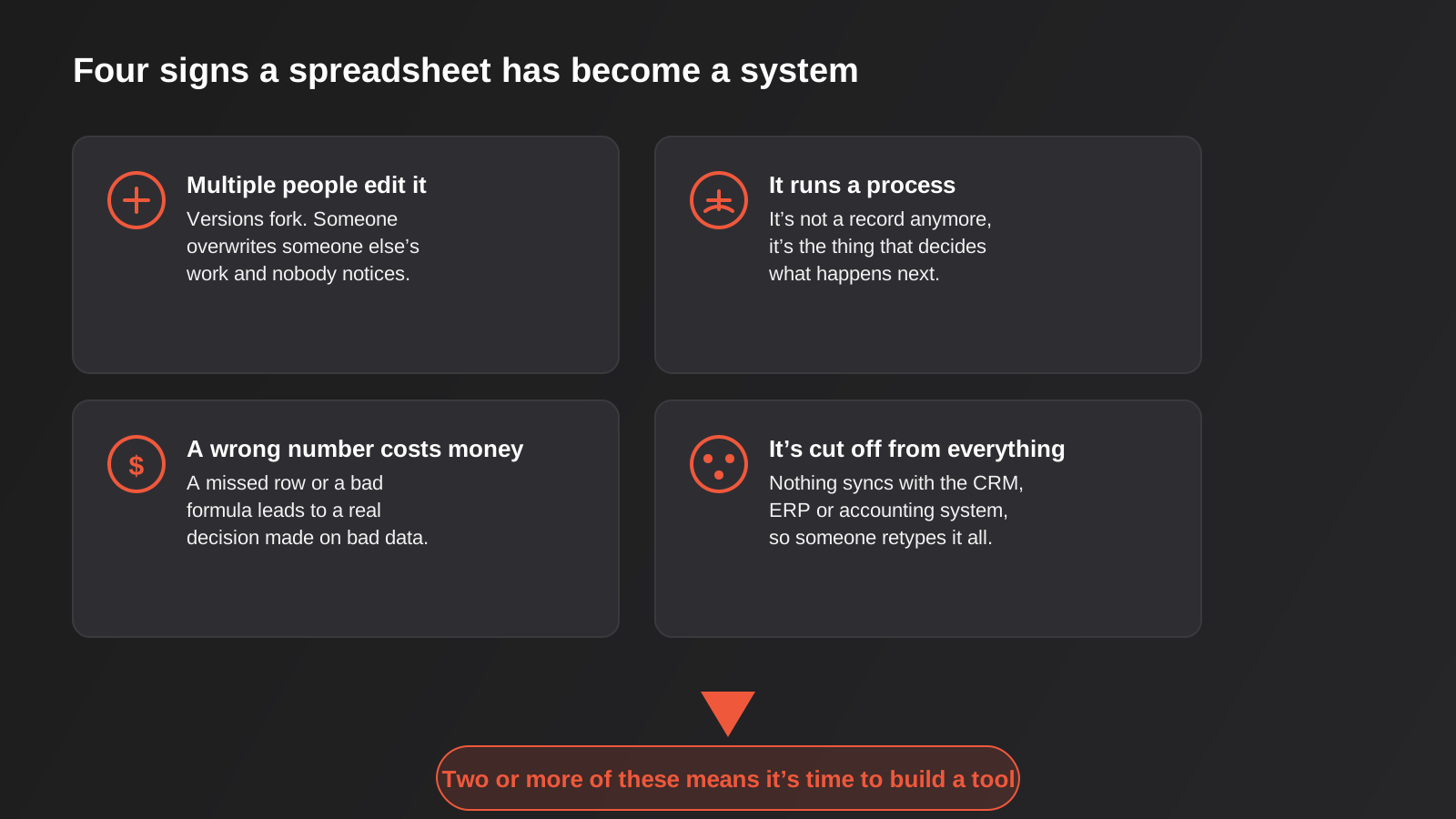
There’s no single trigger point, but in our experience four warning signs show up consistently before a business decides to build something purpose-made. If two or more of these are true, it’s worth taking the conversation seriously.
More than one person edits it regularly
A spreadsheet edited by one person is a personal tool. A spreadsheet edited by three or four people, especially at the same time, is a shared system with no real concurrency control, no field-level permissions and no way to stop someone overwriting a change they didn’t know was there. Cloud spreadsheet tools have improved this somewhat with live co-editing, but they still don’t solve the underlying issue: nobody owns the data model, so it drifts.
It runs a process, not just a record
There’s a real difference between a spreadsheet that records what happened and one that determines what happens next. If changing a cell in the sheet is what actually triggers an invoice, an order, or a customer email, the spreadsheet has become a workflow engine, and workflow engines need validation, logging and a way to know who did what and when. A cell doesn’t give you any of that.
A wrong number has a real cost
A dropped row in a marketing tracking sheet is annoying. A dropped row in a stock allocation sheet means you oversell a product you don’t have. When the cost of an error moves from “mildly embarrassing” to “we refunded a customer” or “we breached a contract term,” the calculus around building something more robust changes completely.
It’s cut off from everything else you use
If the numbers in the spreadsheet have to be manually retyped into your CRM, your accounting software or your ERP, you’re paying a labour tax on every single update, and every retype is a chance to introduce an error. This is usually the clearest signal, because it’s the one with an obvious dollar figure attached: multiply the minutes per re-entry by how often it happens and you’ll usually find a number that makes the business case for you.
What “internal tool” and “client portal” actually mean
These terms get used loosely, so it’s worth being precise, because the two categories have different requirements.
Internal tools: built for your own staff
An internal tool is software your team uses to do their job that isn’t customer-facing. Think of an operations dashboard that shows every job in progress and its status, an approval workflow for purchase orders above a certain value, a quoting tool that pulls current pricing and margin rules automatically, or a simple database front-end that replaces a shared spreadsheet with proper forms, validation and roles. Internal tools are usually the easiest starting point because the audience is small, forgiving, and available to test with constantly.
Client portals: built for the people you serve
A client portal is the customer-facing equivalent — a place where a client logs in to check an order status, download an invoice, view a project timeline, submit a support request or see their account history without emailing you to ask. Portals carry a higher bar because they represent your business to someone outside it. Downtime, confusing navigation or a security slip-up in a portal is visible to the people paying you, not just to your own staff.
Dashboards: a special case of both
A reporting dashboard sits somewhere between the two. It’s usually internal-facing, pulling data automatically from the systems you already run — your CRM, your ad accounts, your accounting platform — into one screen so nobody has to manually export and combine numbers before a Monday meeting. If your reporting is still a person copying numbers into a spreadsheet once a week, that’s a strong candidate for automation before it’s a candidate for a full custom build; our reporting and data automation work usually starts exactly there.
Three ways to build one, and how to choose
There isn’t one correct way to build an internal tool or portal. There are three broad paths, and the right one depends on how specific your workflow is, how long the tool needs to last, and what it’s worth to get exactly right.
Off-the-shelf SaaS
Sometimes the honest answer is that someone has already built this. Project management tools, help desks, and industry-specific practice management platforms exist precisely because thousands of businesses share the same workflow. If a generic tool covers 90% of what you need, buying it is almost always cheaper and faster than building, and you inherit ongoing maintenance, security patching and feature development for free. The failure mode is forcing your process to bend around software that was never designed for it, which quietly costs you in workarounds that end up looking a lot like the spreadsheet problem you were trying to escape. We’ve written more broadly about weighing this decision in our custom software vs off-the-shelf guide if that’s the fork you’re standing at right now.
No-code and low-code platforms
Tools like Airtable, Retool, Softr and Glide let you assemble a working internal tool or simple portal from pre-built components, connected to a database, without writing a full application from scratch. This is often the right first step for a workflow that’s specific to your business but not yet proven to be permanent. You can have something usable in days rather than months, test it with real users, and find out whether the workflow you designed on paper actually survives contact with the people using it. The trade-off is that you’re building inside someone else’s constraints — certain customisations become awkward or impossible, per-user pricing can get expensive as your team grows, and migrating off the platform later is real work, not a formality.
Custom-built web applications
A custom build makes sense once a workflow has proven itself and either needs to scale past what a low-code platform handles comfortably, needs tighter integration with your other systems than a connector allows, or needs to look and feel like a genuine extension of your brand for client-facing use. It costs more upfront and takes longer, but you own the data model, the logic and the roadmap outright, and there’s no per-seat pricing creeping up as you add staff or clients. This is the point where a proper web app development engagement usually starts — not from a blank page, but from a workflow that’s already been tested somewhere else.
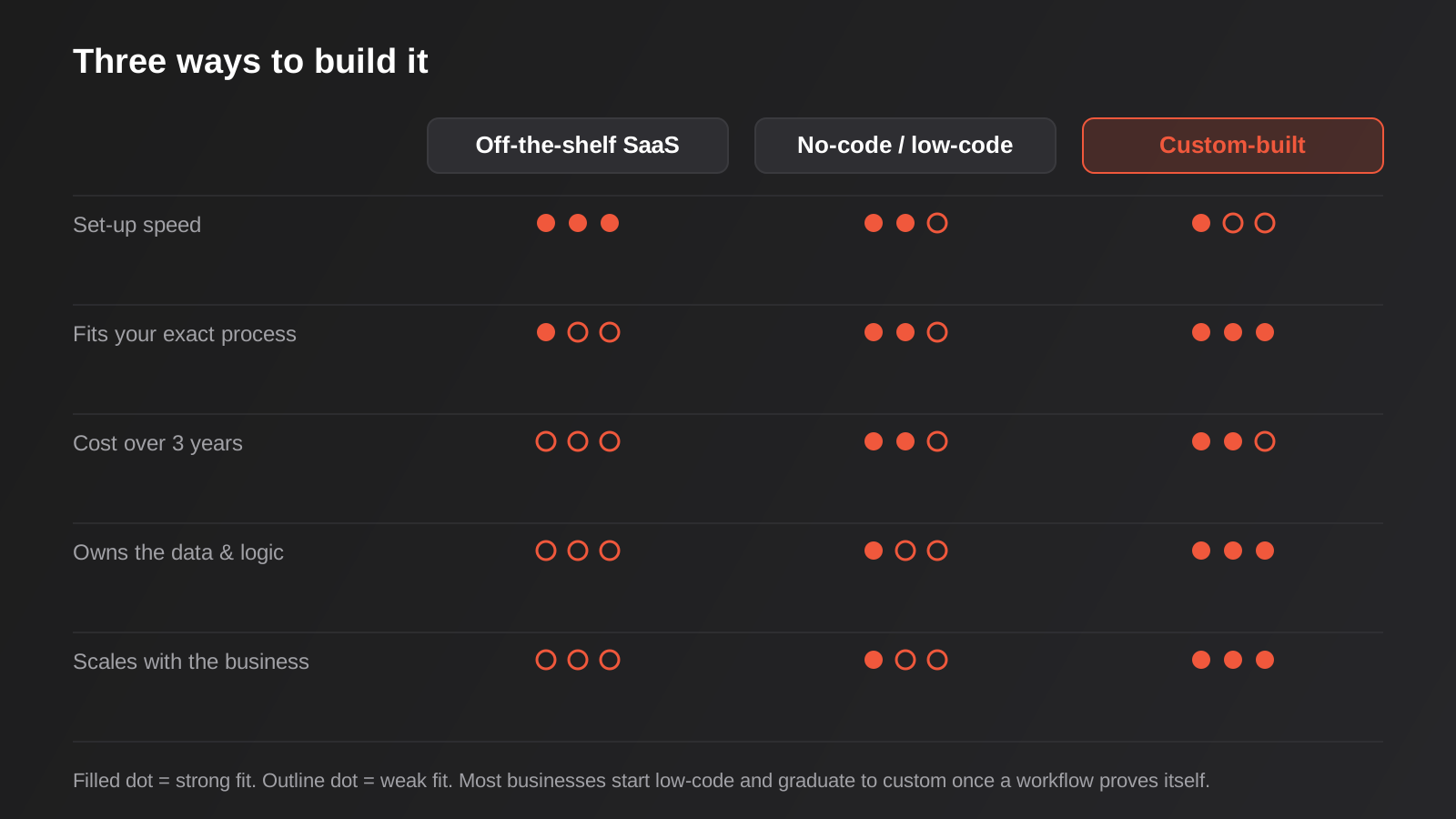
A useful shortcut: if you’re still not sure whether a workflow is permanent, treat the first version as a minimum viable product rather than a finished system. Build the smallest version that solves the actual problem, put it in front of the people who’ll use it daily, and let their behaviour tell you what to build next. We’ve seen far more internal tools fail from being over-specified on day one than from being too simple.
What it actually costs and how long it takes in Australia right now
Pricing for this kind of work varies more than almost anything else we quote, because “internal tool” can mean a single-screen dashboard or a multi-role platform with document storage, payments and audit logging. As a rough guide for the Australian market in 2026:
- A focused tool solving one workflow for one team — think a job tracker replacing a shared spreadsheet, with basic roles and one or two integrations — typically lands somewhere in the $8,000–$25,000 range and takes four to eight weeks from a clear brief to launch.
- A client-facing portal with authentication, document access, notifications and a couple of system integrations usually sits in the $25,000–$60,000 range, depending on how many user roles and edge cases it needs to handle.
- A multi-module internal platform covering several linked workflows, deeper ERP or CRM integration, and more complex permissions can run well beyond that, and is usually built in staged phases rather than one release.
- Australian developer day rates generally translate to roughly $100–$250 an hour depending on seniority and specialisation, and it’s worth budgeting an additional 15–25% of the build cost per year for hosting, maintenance and the incremental changes that always follow a launch.
Those numbers assume a reasonably scoped brief. The single biggest cost driver we see isn’t the interface, it’s integration — connecting to an existing CRM, ERP or accounting system properly, with error handling for when the other system is unavailable or returns something unexpected, takes real engineering time that’s easy to underestimate from the outside.
How to scope an internal tool so it doesn’t become the next bloated system
Start with one workflow, not the whole department
The projects that go well almost always start narrow: replace this one spreadsheet, fix this one approval bottleneck, give clients visibility into this one thing. The projects that struggle tend to start with an ambition to replace “how the whole ops team works,” which is really several different projects wearing one brief. Ship the narrow version, get it into daily use, and let real usage tell you what the second phase should be.
Design roles and permissions before you design screens
Who can see what, who can edit what, and who gets notified when something changes are decisions that are cheap to make on paper and expensive to retrofit after launch. This matters even more for client portals, where a permissions mistake means one client seeing another client’s data — not a hypothetical risk, a genuinely common bug in rushed builds.
Map the integration points early
Decide up front what the tool needs to read from and write to. Does it need live pricing from your ERP? Does a status change need to trigger an email or update a CRM field? These integration points are usually where a project’s real complexity and cost live, so they need to be named in the brief, not discovered halfway through the build. If the tool is mainly about embedding intelligence — extracting data from documents, flagging anomalies, drafting responses — that’s a slightly different conversation about custom AI integrations layered onto the same underlying application.
A concrete example makes this easier to picture. Say a trades business wants a job tracker to replace a shared spreadsheet. On paper it looks like one screen showing jobs and their status. In practice it needs to pull customer details from the CRM so nobody re-types an address, push a completed job into the accounting system so an invoice can be raised without manual entry, and probably send a text message to the client when a technician is on the way. None of that shows up in a rough sketch of the interface, but all of it needs an API to exist, permission to use it, and a plan for what the tool does if that API is briefly down. Naming these dependencies during scoping, rather than assuming they’ll sort themselves out, is usually the difference between a project that lands on budget and one that doesn’t.
Plan for who owns it after launch
Software that nobody owns after handover is software that quietly rots. Decide before launch who’s responsible for user access changes, who reports bugs and to whom, and who budgets for the inevitable “can we also add” requests that show up in month two. A tool with no maintenance plan is a tool with a countdown timer on it, the same way a website left unmanaged after launch slowly falls behind.
Client portals specifically: what earns trust
A client-facing portal has to clear a higher bar than an internal tool because it’s a direct representation of your business to someone paying you. A few things matter more here than anywhere else in the build.
Authentication that doesn’t feel like a chore
Clients will abandon a portal that makes logging in harder than it needs to be. Magic links or single sign-on options reduce friction considerably compared with forcing another password into the world, without weakening security if implemented properly.
Real-time status, not stale exports
The entire point of a portal is that the client sees the current state, not a snapshot from this morning’s data export. If the portal is just displaying yesterday’s numbers, you haven’t solved the problem, you’ve just moved the manual export somewhere less visible.
Clear notifications, not a portal nobody opens
A portal that requires the client to remember to log in and check will get used once and then forgotten. Pair it with an email or SMS notification when something meaningful changes, so the portal becomes the place people go to act on information, not another tab they have to remember exists.
A design that looks like it belongs to you
Generic, unbranded portals read as an afterthought, and clients notice. This is one of the few places where the line between development and design genuinely disappears — the interface is part of the trust signal, not decoration on top of the functionality.
Handling privacy obligations properly
If a portal stores personal information about clients — contact details, financial records, health information, anything that identifies a real person — it falls under the Australian Privacy Principles, and that’s not optional paperwork. In practice this means being deliberate about where data is hosted, how long it’s retained, who internally can access it, and having a genuine plan for what happens if there’s ever a breach. None of this needs to be complicated for a small portal, but it does need to be a decision someone made on purpose rather than whatever the default happened to be.
How to tell if it actually paid off
Because this kind of project doesn’t produce a traffic graph or a lead count, it’s easy to build something, feel good about it at launch, and never actually check whether it worked. A few measures are worth tracking from before the build starts, so you have something to compare against afterwards.
Time saved on the task it replaced
Before you build anything, time the current process. How long does it take someone to update the spreadsheet, chase the missing information, or manually re-enter data into a second system each week? Multiply that by the hourly cost of the person doing it and you have a real number to weigh the build cost against, and a number to re-measure three months after launch to confirm the tool is actually being used the way it was designed to be.
Error rate, not just speed
Speed is the easy metric, but for a lot of these projects the bigger win is fewer mistakes reaching a customer or an invoice. If you can, track how often a manual error was caught (or wasn’t) in the three months before launch, and compare it to the three months after. A tool that’s only a bit faster but eliminates a recurring class of costly mistakes is often worth more than one that’s dramatically faster but doesn’t touch the error rate at all.
Whether people actually use it unprompted
The most honest signal of whether an internal tool or portal succeeded is whether people go back to the old spreadsheet the moment nobody’s watching. If staff are quietly maintaining a shadow spreadsheet alongside the new tool, that’s not a training problem, it’s a sign the tool doesn’t actually fit how the work really happens, and it’s worth finding out why before building the next phase on top of it.
Common mistakes we see
- Building the portal before the workflow is defined. Jumping straight to screens without agreeing what actually needs to happen at each step means expensive rework once the real process surfaces.
- Trying to replace everything at once. Attempting to migrate every spreadsheet and manual process into one platform in a single release almost always blows the budget and the timeline.
- Skipping integration planning until development starts. Discovering mid-build that the accounting system’s API doesn’t support a needed action is far more expensive to fix than catching it during scoping.
- No named owner after launch. A tool with nobody responsible for access requests, bug reports and small improvements degrades within months.
- Choosing the cheapest quote without a security review. A client portal or internal tool that touches customer data, payment details or business-critical records needs proper authentication, encryption and access controls built in from the start, not retrofitted after a scare.
- Never testing with the actual people who’ll use it. A tool designed in isolation by management and handed to the team that has to use it daily is a common way good intentions produce something nobody wants to open.
How this connects to automation and AI
An internal tool or portal is often the visible layer sitting on top of automation work that’s less visible but does a lot of the heavy lifting. A client portal showing order status is only as good as the data feeding it, which usually means the workflow automation connecting your order system to the portal in the first place. A reporting dashboard is only useful if the underlying data automation is reliable. And increasingly, the tools we build have a layer of AI built in from day one — extracting data from a submitted document, summarising a long support thread before a human picks it up, or flagging an anomaly in a batch of records rather than making a person scan every row. If that’s the direction a project is heading, it’s worth designing for it from the start rather than bolting it on later.
It’s also worth being honest that not every one of these problems needs a bespoke application. If the real issue is that data needs to move automatically between two systems you already use — without any new interface for a human to look at — that’s usually a smaller, cheaper automation project rather than a full internal tool, and it’s worth ruling that out first.
Frequently Asked Questions
Do we need a developer, or can we build this ourselves with no-code tools?
For a genuinely simple internal tool with one or two users and a straightforward workflow, a capable person on your team can often get a workable version running on a no-code platform without external help. The point where it’s worth bringing in a developer is when the tool needs to integrate with other business systems, handle sensitive data, support many users with different permission levels, or when the no-code platform’s constraints start forcing compromises in how the workflow actually works.
How is this different from just buying more software?
Off-the-shelf software is built for a workflow shared by many businesses. If your process is genuinely generic, buying is usually cheaper and faster, and we’ll say so rather than pitch a custom build you don’t need. A custom internal tool or portal earns its cost when your workflow, data model or integration needs are specific enough that no off-the-shelf product fits without significant compromise.
How long does it take to build a client portal or internal tool?
A focused internal tool solving one workflow typically takes four to eight weeks from an agreed brief to launch. A client-facing portal with authentication, notifications and system integrations usually takes longer, often eight to twelve weeks, because the bar for reliability and security is higher and there are more edge cases to design for.
What happens if our team outgrows the first version?
This is normal and expected, which is exactly why we recommend starting narrow. A well-scoped first version is built with room to add modules, roles and integrations later, rather than trying to anticipate every future requirement in the first release. Tools built this way tend to age far better than ones that tried to do everything from day one.
Can an internal tool replace our CRM entirely?
Usually not, and we’d generally advise against it. Mature CRM platforms have had years of investment in things like email deliverability, mobile apps and sales reporting that are expensive to rebuild from scratch. It’s almost always better value to build an internal tool that integrates with your CRM — pulling and pushing the specific data you need — than to try to replace the whole platform with something custom.
Is a client portal secure enough for sensitive documents and payment information?
It can be, provided security is designed in from the start rather than added afterwards. That means proper authentication, encrypted storage and transmission, role-based access so clients only ever see their own data, and using established, audited payment processors rather than handling card details directly. If a portal will hold sensitive financial or health information, that’s a conversation to have explicitly during scoping, not an assumption to leave unstated.
What’s the smallest useful version of an internal tool we could start with?
Often smaller than people expect. If the core problem is that three people are editing one spreadsheet and overwriting each other, a first version might just be a proper shared database with basic forms and a single view of current status — no automation, no integrations, no client access yet. That alone can remove the most painful part of the problem, and it gives you a working piece of software to learn from before spending more on the features that only mattered in theory.
Where to start
If you’ve read this far because a particular spreadsheet came to mind, that’s usually a reliable signal. You don’t need a full specification before talking to someone — the useful first step is just describing the workflow as it actually happens today, warts and all, and letting that conversation work out whether the right move is a small automation, a no-code prototype, or a proper custom build. We’re happy to have that conversation and tell you honestly which one it is, even when the answer is “you don’t need us for this yet.”
Keep reading
Related posts
Who Owns Your Custom Software? Source Code, IP and Handover for Australian Businesses (2026)
Paying for custom software doesn't mean you own it. What Australian contracts must say about code ownership, licences, handover and escrow.
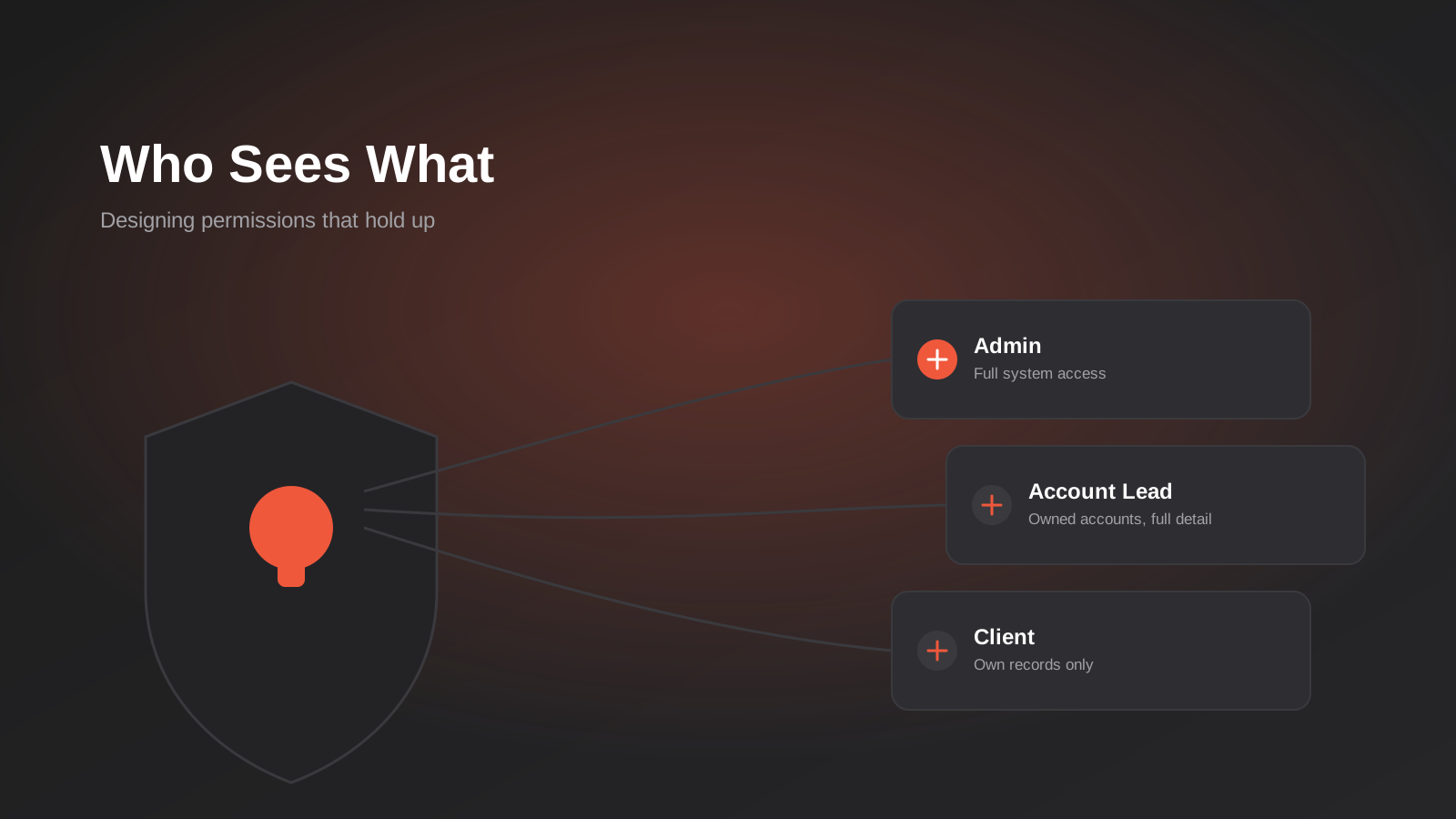
Role-Based Access Control for Client Portals and Internal Tools: A Practical Guide
RBAC for client portals and internal tools: roles, record-level isolation and audit logs explained — a practical guide for growing Australian businesses.
Single Sign-On for Australian Businesses: When SSO Is Worth the Setup
SSO for growing Australian businesses: SAML vs OAuth vs OIDC explained, how to pick an identity provider, costs, and rollout mistakes to…
Got a project you'd like to talk through?
Tell us what you're working on — we'll come back with a plan.
