
Google Analytics 4 Setup: A Practical Configuration Guide for Australian Businesses (2026)
 Jignesh Vagadiya
02/10/2026
21 min read
Jignesh Vagadiya
02/10/2026
21 min read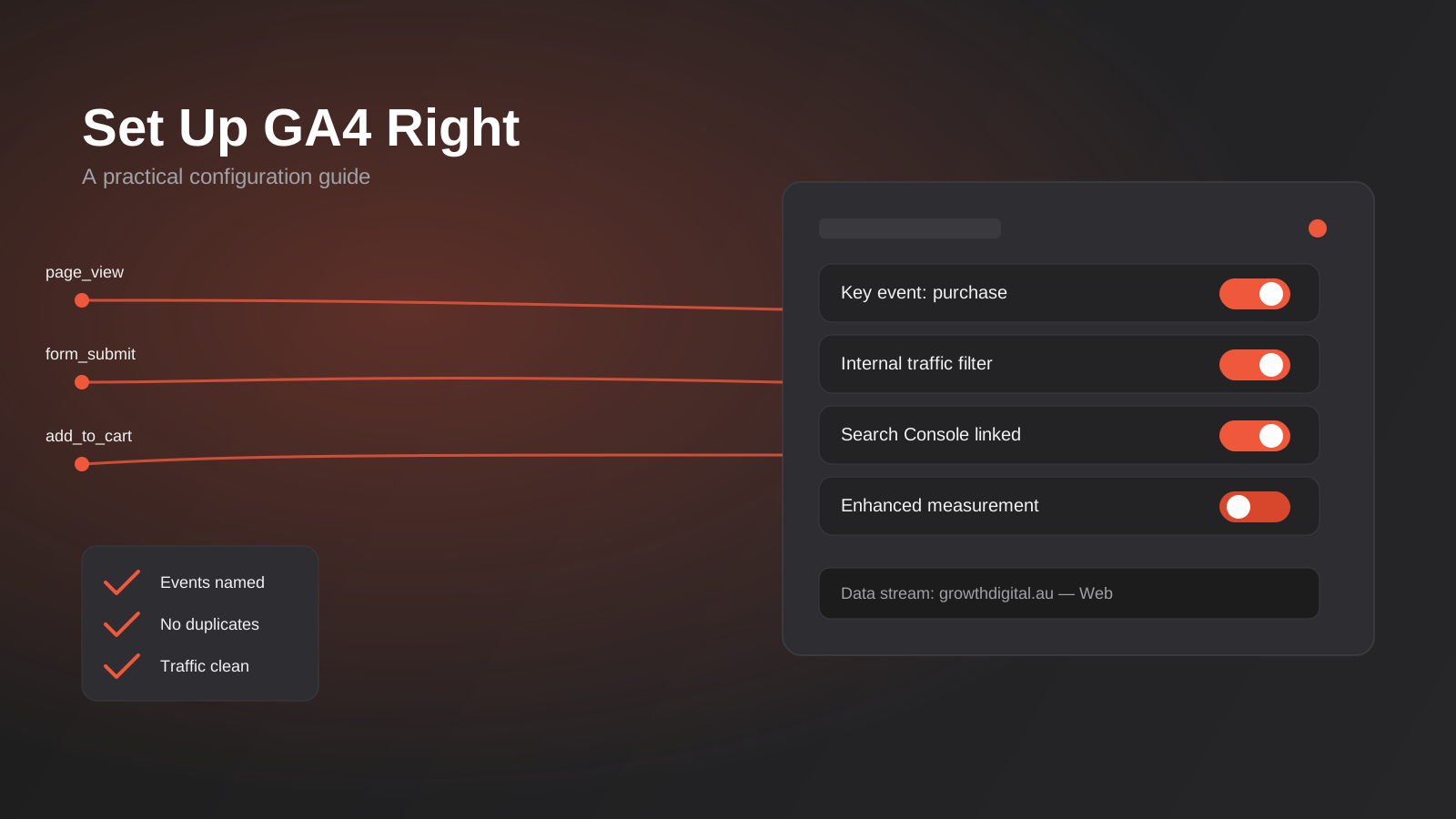
Most GA4 properties we get handed by new clients are technically “live” and completely untrustworthy. The dashboard loads, the graphs move, someone in the business glances at a conversions number once a month and nods. But pull the thread — check what’s actually being counted as a conversion, where the traffic is really coming from, whether the same event fires once or twice — and the number on screen rarely survives contact with reality.
This isn’t really a GA4 problem. The tool itself is fine. It’s a setup problem, and it’s a quiet one, because GA4 never throws an error when it’s misconfigured. It just keeps reporting numbers, confidently, forever. A property that counts your own office visits as traffic, marks a scroll as a conversion and has never been linked to Search Console will produce a chart every single day. Nothing about the interface tells you it’s wrong.
We get asked to debug this a lot, usually after someone has already made a budget decision off the back of bad numbers — cutting a channel that was actually working, or doubling down on one that wasn’t. This guide is the setup work we actually do on a new GA4 property: the structure, the events, the filters and the checks that separate a property you can trust from one that just looks like it’s working. It’s not about dashboards or reporting automation — we’ve covered building reports from clean data separately. This is about getting the source data right in the first place.
Why GA4 setup still trips businesses up
Universal Analytics ran on sessions and pageviews by default, and most of what you needed was already there when you installed the tracking code. GA4 flipped the model: everything is an event, and GA4 ships with almost nothing marked as something that matters to your business. It collects data generously and interprets almost none of it for you. That’s a deliberate design choice — GA4 is built to track apps and websites with the same event model — but it means the burden of deciding what’s meaningful falls entirely on whoever sets up the property.
If nobody does that work, GA4 defaults to counting things that feel like activity but aren’t decisions: page views, scrolls, session starts. None of those tell you whether the website did its job. The business ends up with a graph that goes up and down but doesn’t answer the one question that matters — did a real person take a real action we wanted.
GA4 vs the old Universal Analytics mental model
If you ran a website through the Universal Analytics years, the instinct to unlearn is “goals happen in Analytics.” In GA4, almost nothing happens in Analytics. Events happen in your website or app (via Enhanced Measurement, Google Tag Manager, or code you or your developer write), GA4 just receives them, and then a human has to go into the property and tell GA4 which of those events count as a key event. Skip that last step and GA4 will still show you charts — they just won’t represent anything you care about.
What this guide covers, and what it doesn’t
This is specifically about configuration: property structure, events, key events, filtering and the connections that make GA4 data usable. It sits next to two other things we’ve written about and deliberately doesn’t repeat them. If your concern is cookie consent, Consent Mode, server-side tracking or the accuracy gap created by privacy settings and ad blockers, that’s covered in our piece on why conversion tracking data goes wrong. If your concern is what to do with GA4 data once it’s clean — building dashboards, automating reports to stakeholders — that’s the reporting and data automation side of the business, not this post. This guide is everything upstream of both: getting the property itself configured so the data flowing into it actually means something.
Before you touch GA4: property and account structure
The structural decisions you make in the first ten minutes are the ones that are genuinely painful to undo later, because historical data doesn’t move cleanly between properties. Get this part right before you configure anything else.
One property per site or brand, not per campaign
A GA4 account can hold multiple properties, and a property can hold multiple data streams (web, iOS, Android). The property is the unit that owns your historical data, your audiences and your key event definitions, so it should map to a business or a brand — not to a campaign, a landing page, or a marketing initiative. We still see businesses that spun up a separate GA4 property for a product launch three years ago and never merged the data back. Keep one property per distinct site or app, and use data streams underneath it if you have a website and an app that belong to the same business.
Data streams and the Measurement ID
Each data stream gets a Measurement ID (the G-XXXXXXXXXX code) and this is what actually needs to land on every page of the site. For WordPress sites the cleanest path is usually Google Tag Manager, dropped in once via the theme or a lightweight plugin, with GA4 configured as a tag inside GTM rather than hardcoded on the template — that way you can add, remove or adjust tracking without touching the website’s code every time. Google Site Kit is a reasonable shortcut for a simple brochure site with no custom events planned, but it gets limiting fast once you need custom event parameters or server-side tagging, so we default to GTM for anything beyond a handful of pages.
Access and roles
GA4 has four access levels — Viewer, Analyst, Editor and Administrator — and it’s worth being deliberate about who gets what. Give your agency or developer Editor access to do the configuration work described in this guide, keep Administrator access limited to one or two people internally, and give everyone else Viewer or Analyst. A property with twelve Administrators is a property where nobody is quite sure who changed the internal traffic filter last month.
Enhanced Measurement: what it catches and what it misses
Enhanced Measurement is the single toggle, switched on by default for new web data streams, that automatically collects scrolls, outbound clicks, site search, video engagement, file downloads and form interactions without any extra code. It’s genuinely useful and most businesses should leave it on. The mistake is assuming it covers everything, because it has real gaps that matter for the events you actually want to count as conversions.
Where Enhanced Measurement is reliable
Scroll tracking (fires at 90% page depth), outbound link clicks, and file downloads for common formats like PDF and DOCX all work out of the box and are a fair proxy for engagement. They’re useful as secondary signals — evidence someone was interested — but on their own they’re rarely strong enough to mark as a key event, because a scroll doesn’t tell you anyone wanted anything from you.
Where Enhanced Measurement breaks down
Form tracking is the one that catches people out. Enhanced Measurement’s form_submit event fires on a standard HTML form submission, but a lot of modern contact forms (Gravity Forms with AJAX submission, multi-step forms, anything that submits without a full page reload) don’t trigger it reliably. If your lead generation depends on a contact form and you’ve only ever relied on the automatic form_submit event, there’s a reasonable chance it’s under-counting or missing submissions entirely. The safer pattern for anything revenue-relevant is a dedicated thank-you page load, or a custom GTM trigger built against the form plugin’s own JavaScript event, verified in DebugView rather than assumed.
Setting up events and key events properly
This is the part of GA4 configuration that actually determines whether your reporting means anything, and it’s also the part most commonly done badly or skipped.
Three sources of events
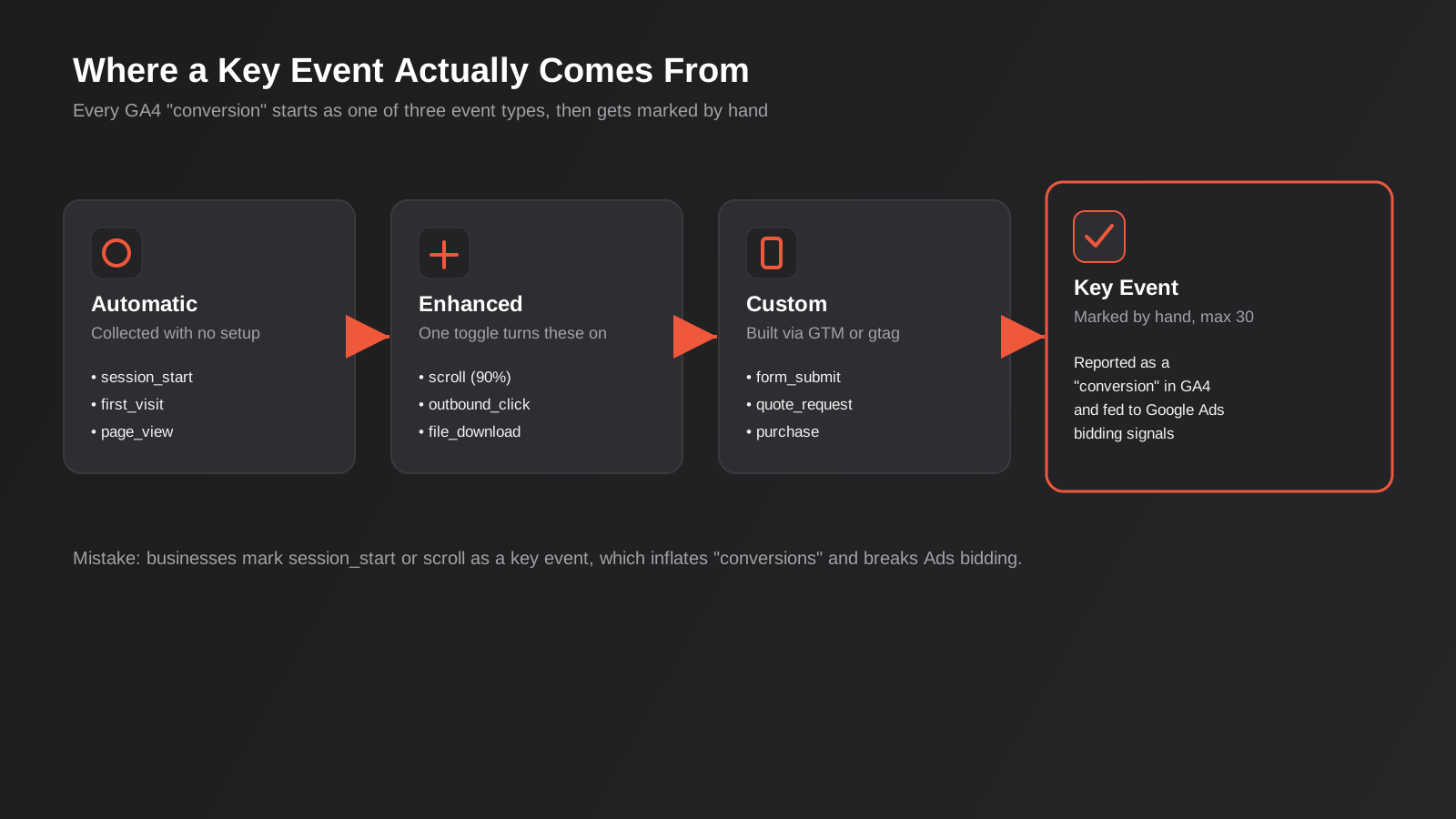
Every event in GA4 comes from one of three places: automatically collected events (session_start, first_visit, page_view — zero setup, always on), Enhanced Measurement events (scrolls, outbound clicks, downloads — one toggle, covered above), and custom events, which you or your developer define, usually through Google Tag Manager, for anything specific to your business — a quote request, a booking confirmation, a demo signup, an add-to-cart. None of these three categories are conversions by default. They’re just events sitting in the property, waiting to be marked.
Choosing key events (max 30, but fewer is better)
Google’s own documentation on key events is worth skimming once, mainly because it confirms how narrow the definition is meant to be — a key event should represent a completed, valuable action, not interest or engagement.
A GA4 property can have up to 30 key events, but the number worth having is usually closer to three or four. Mark only the events that represent a genuine business outcome — a form submission, a phone click, a purchase, a booking — not engagement signals like scroll depth or time on page. The common failure mode is a property where outbound_click or scroll gets marked as a key event early on, usually because someone wanted the “conversions” number to look healthier, and then every report built on top of that number is quietly inflated. It also corrupts anything downstream that uses GA4 signals for optimisation, including Google Ads’ own bidding algorithms, which will happily optimise toward cheap, meaningless clicks if that’s what you’ve told it counts.
For a lead generation business, this usually means form_submit (the real one, verified) and a phone or email click. For ecommerce, it’s purchase as the primary key event, with add_to_cart tracked as a secondary event you analyse but don’t treat as equivalent to a sale. If you’re running paid traffic and comparing channel performance, this choice directly determines whether that comparison is honest.
Naming conventions that save you later
GA4 event names are case-sensitive, so Purchase, purchase and PURCHASE are three different events to the system even if a human reads them as the same thing. Standardise on lowercase_snake_case from day one — form_submit, not formSubmit or Form Submit — and keep a simple shared document of every custom event name and what triggers it. It sounds like overkill for a small site, but it’s the difference between a GTM container that makes sense to the next person who opens it and one that takes an afternoon to reverse-engineer.
Custom dimensions and event parameters
An event on its own tells you something happened. Parameters attached to that event tell you the detail that actually makes it useful. A form_submit event is more valuable when it carries a service_type or enquiry_source parameter than when it’s a bare flag with no context — the difference between knowing “40 forms were submitted” and knowing “15 of those forms were about a kitchen renovation and came from a Google Ads campaign, not organic.” GA4 automatically collects a handful of parameters with every event (page_location, page_title and similar), but anything specific to your business — a service category, a product line, a lead quality flag your form passes through — needs to be sent as a custom parameter and then separately registered as a custom dimension under Admin → Custom Definitions before it will show up in standard reports.
This step gets skipped constantly, and it’s the reason businesses end up exporting raw event data into a spreadsheet to answer a question GA4 could have answered natively if the dimension had been registered from the start. GA4 allows up to 50 custom dimensions per property, which is more than enough for almost any business — the constraint in practice isn’t the limit, it’s remembering to register the parameter once the event sending it is live. If you’re passing a parameter through GTM, check it’s actually arriving with the expected value in DebugView before registering the dimension, since a typo in the parameter name is a common, invisible way for this to quietly fail.
Filtering out the noise
Clean events don’t matter much if the traffic itself is polluted. Two filters catch most of what quietly inflates GA4 numbers for Australian small and mid-sized businesses.
Internal traffic exclusion
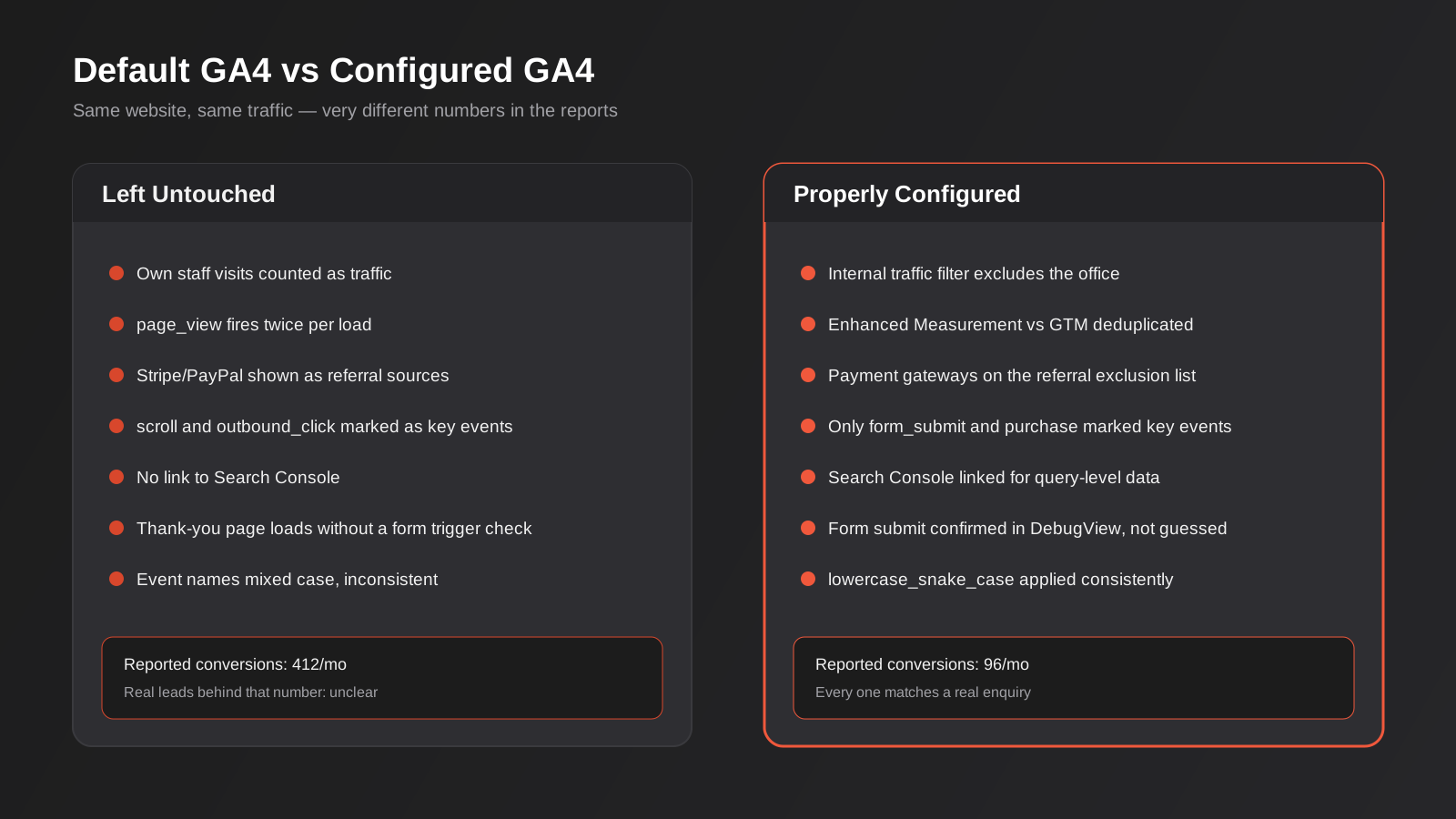
Under Admin → Data Streams → your web stream → Configure tag settings → Define internal traffic, you can exclude visits from a known IP address or range — typically your office, and your agency or developer’s. This matters more than it sounds like it should. A small team of five checking the live site repeatedly during a redesign can meaningfully distort a month of traffic data for a business that only gets a few hundred visits a week. Set the rule, then go to Admin → Data Settings → Data Filters and actually activate it — defining the rule alone doesn’t filter anything until the filter itself is switched from testing to active.
Unwanted referrals
Payment gateways (Stripe, PayPal, Afterpay), booking widgets and some chat tools redirect users through their own domain during checkout or booking, and without an exclusion list GA4 will attribute that final session to a referral from paypal.com instead of crediting the original marketing channel that brought the customer in. Under Admin → Data Streams → Configure tag settings → List unwanted referrals, add the domains your checkout or booking flow passes through. It’s a small setting that has an outsized effect on whether your channel attribution reflects reality.
Linking GA4 to the rest of your stack
GA4 on its own answers “what happened on the site.” Linked to the right tools, it starts answering “why,” and “what should we do about it.”
Search Console
Admin → Product Links → Search Console lets you pull organic query data into GA4 reports, so you can see not just that organic traffic landed on a page but roughly what they searched to get there. It’s a five-minute link that most unconfigured properties never get around to.
Google Ads
Linking GA4 to Google Ads (Admin → Product Links → Google Ads Links) lets you import GA4 key events as conversions inside Ads, and brings Ads cost data into GA4’s own reporting so you can see cost-per-channel alongside behaviour, not just clicks and spend in isolation. This only works as intended once your key events are genuinely meaningful — it’s the reason the ordering in this guide matters. Link Ads to a property where scroll is marked as a conversion and you’ve just told Google’s bidding algorithm to chase scrolls.
Looker Studio and reporting
Once the property is clean, GA4 connects natively to Looker Studio for dashboards, or into whatever reporting pipeline you’re running. We’ve written separately about automating that reporting layer so businesses stop rebuilding the same spreadsheet by hand every month — worth a read once this setup stage is done, not before.
BigQuery export for larger or multi-location businesses
Every GA4 property, even on the free tier, can link to Google BigQuery under Admin → Product Links → BigQuery Links and export raw, unsampled event-level data on a daily (or streaming, on paid tiers) basis. Most small businesses don’t need this — the standard GA4 interface is enough. It earns its place once you’re running enough volume that GA4’s interface starts sampling data in exploration reports, once you operate across several locations or brands and want to join analytics data against your own CRM or booking system by a shared customer ID, or once a developer wants to build custom analysis GA4’s interface simply doesn’t offer. Setting the link up costs nothing beyond BigQuery’s own (typically modest) query costs, so for a growing multi-location business it’s worth doing early, even before you have an immediate use for the data, since BigQuery only stores data from the point the link is switched on — it doesn’t backfill history.
Audiences: building lists worth using
GA4 audiences let you group users by behaviour — visited the pricing page but didn’t convert, added to cart but didn’t purchase, viewed three or more product pages in a session — and push those groups into Google Ads for remarketing. The value of an audience is entirely downstream of the same event quality discussed above: an audience built on a poorly defined key event just remarkets to the wrong people. Start with two or three genuinely useful audiences (cart abandoners, high-intent non-converters) rather than building out a long list of audiences nobody ever activates in a campaign.
One setting worth checking while you’re in there: Admin → Data Settings → Data Retention controls how long GA4 keeps user-level and event-level data for exploration reports (as opposed to the standard reports, which retain aggregated data indefinitely). The default is often set to two months, which is too short if you want to build audiences or run exploration analysis against a longer window — extending it to the maximum available (currently 14 months) costs nothing and gives you considerably more room to work with later.
Where privacy and consent fit in
This guide deliberately doesn’t go deep on Consent Mode, cookie banners or Australia’s evolving privacy reform — that’s a separate, substantial topic and we’ve covered it in detail in why your conversion tracking data is wrong. What’s worth flagging here is the order of operations: get your event and key event configuration right first, because consent settings affect how much of that (already correct) data you receive, not whether it’s structured correctly in the first place. Fixing consent on top of a poorly configured property just means you lose a smaller percentage of bad data.
Validating your setup before you trust it
Don’t take any of the above on faith once it’s configured — GA4 gives you two ways to check your own work before you start making decisions off the data.
DebugView
With the Google Analytics Debugger Chrome extension installed (or GTM’s preview mode running), Admin → DebugView shows events firing in near real time as you click through your own site. This is where you confirm a form submission actually fires form_submit once, not zero times or twice, and that custom event parameters are populated the way you expect. It’s the single most useful five minutes you can spend after setting up a new event.
Realtime report and the 48-hour check
The Realtime report under Reports confirms data is flowing at all. After a day or two, check Admin → Data Streams → your stream to confirm GA4 reports receiving traffic in the past 48 hours. Then, a week or two after key events are configured, pull the Key Events report and sanity-check the volume against something you can verify independently — actual enquiries received, actual orders placed. If GA4 says 400 conversions and the business took 40 calls, the gap is your setup telling you something.
Common mistakes
- Marking engagement events like scroll, outbound_click or session_start as key events, which inflates the conversion count and misleads anything — including Google Ads bidding — that relies on it.
- Relying on Enhanced Measurement’s automatic form_submit for a form that doesn’t trigger a full page reload, and never verifying it fires in DebugView.
- Never setting (or never activating) the internal traffic filter, letting staff and agency visits distort the data for a small-traffic site.
- Skipping the unwanted referrals list, so Stripe, PayPal or a booking widget shows up as a traffic source instead of crediting the real marketing channel.
- Linking Google Ads to GA4 before the key events are properly defined, which trains the bidding algorithm on meaningless signals.
- Letting Enhanced Measurement and a GTM tag track the same action, duplicating events like page_view and quietly doubling reported volume.
- Inconsistent event naming — mixed case, spaces, or different names for the same action across pages — which fragments what should be one event into several.
- Creating a brand-new GA4 property for every campaign or microsite instead of using data streams, scattering historical data across properties that can’t be merged.
- Never linking Search Console, losing the ability to see which actual queries bring in organic traffic.
- Treating the GA4 setup as a one-off task rather than checking it after any major site change — a new form plugin, a checkout redesign or a platform migration can silently break event tracking that worked the day before.
Frequently Asked Questions
How long does it take to properly configure a GA4 property?
For a straightforward business website with a handful of key events (form submissions, phone clicks, maybe a booking flow), proper configuration — property structure, event setup, key events, filters and verification in DebugView — typically takes a few hours spread over a couple of days, since you want to confirm data is actually flowing before calling it done. Ecommerce sites with product catalogues, cart and purchase events take longer, particularly if purchase data needs to be passed through with values and transaction IDs for accurate revenue reporting.
Do I still need Universal Analytics data, or can I ignore it now?
Universal Analytics stopped processing new data in mid-2024, and Google has indicated historical UA data won’t remain accessible indefinitely in the interface, though exported data (if you took the step of exporting it via BigQuery or another method at the time) can still be referenced. For year-on-year comparisons, most businesses are now far enough past the cutover that GA4’s own history is the more useful dataset going forward. If you never exported your UA data and still need it for a specific historical claim, that’s worth raising directly with whoever manages your account, since options narrow the longer it’s left.
What’s the difference between a key event and a conversion in GA4?
They’re effectively the same thing under two different names — Google renamed “conversions” to “key events” in GA4’s interface during 2024 to avoid confusion with the separate concept of conversions inside Google Ads. A key event in GA4 is any event you’ve manually flagged as representing a meaningful outcome; it then appears in Ads as an importable conversion action if the two accounts are linked.
Can I fix a GA4 property that’s been misconfigured for months, or do I need to start over?
You almost never need to start a new property. Key event definitions, filters and referral exclusions can all be corrected going forward from today, and GA4 will apply them from that point on — the historical data before the fix stays as it was, flawed, but it doesn’t need to be deleted or discarded. The practical approach is to fix the configuration now, note the date it changed, and treat any trend comparison that crosses that date with appropriate scepticism rather than trying to retroactively clean historical numbers.
Should I use Google Tag Manager or install GA4 directly?
For anything beyond a very simple brochure site, Google Tag Manager is worth the small extra setup effort. It lets you add, adjust or remove tracking (GA4, conversion tags, remarketing pixels) through GTM’s own interface without a developer editing template code each time, and it gives you a built-in preview mode for testing changes before they go live, which is genuinely useful when you’re verifying the kind of custom events this guide covers.
How do I know if my current GA4 setup is actually trustworthy?
Run the sanity check described above: pull your Key Events report for the last month and compare it against something you can count independently — actual phone enquiries, actual form submissions in your inbox, actual orders in your order system. If the numbers are roughly in the same order of magnitude, your setup is probably reasonable. If GA4 is reporting several times more “conversions” than real enquiries, something upstream — usually an over-broad key event or a duplicated trigger — needs attention.
Where to start
If you’re not sure whether your own GA4 property would survive the checks in this guide, that uncertainty is itself the answer — a property you trust doesn’t leave you wondering. The fastest way to find out is to open DebugView, click through your own contact form or checkout, and watch what actually fires. For a lot of businesses that five-minute test is the first time anyone’s looked at the plumbing since the website went live.
We do this kind of analytics audit and reconfiguration as part of our broader analytics and CRO work, usually alongside the sort of structured testing covered in our guide to A/B testing or the fundamentals in what conversion rate optimisation actually involves. If you want a second set of eyes on your current setup before you make a budget call based on it, we’re happy to have a look and talk through what we find.
Keep reading
Related posts
Best Analytics and Reporting Tools After GA4 for Australian Businesses (2026): 6 Compared
Six analytics and reporting tools to use alongside or instead of GA4, compared for Australian businesses on cost, privacy, data location and…
A/B Testing for Australian Websites: How to Run Tests That Actually Tell You Something (2026)
How to run A/B tests that hold up: sample size, avoiding peeking, low-traffic alternatives and building a real testing programme in Australia.
Why Your Conversion Tracking Data Is Wrong: Consent Mode, Server-Side Tracking and Australia’s 2026 Privacy Reform
Why Google Ads and Meta conversions don't match real sales: Consent Mode v2, server-side tracking and Australia's 2026 Privacy Act reform, explained.
Got a project you'd like to talk through?
Tell us what you're working on — we'll come back with a plan.
